
Everything in your directory is more than a spot on the tree. Each site, area or asset has its own page, where the entries logged against it and the content built for it live. Selecting it in the tree shows you where it sits; opening it takes you to that page.
Selecting vs opening
Open the Directory page from Directory in the top navigation. There you can look at your directory as a tree, a sunburst or a list — and in each of them, selecting something and opening it do two different things.
Selecting keeps you in the view. Click a card once and it is highlighted, with the view settling on it, so you can see where it sits and act on it — add a child or change its details — without leaving the map. Use selection to find your way around the structure.
Opening leaves that view and takes you to the item's own page. You open it from its actions menu — the same menu you use to add or edit. The page is where its entries and widgets live, and where you spend most of your time once you have found what you want. The tree view and list view each describe how to reach that menu.
An item's pages
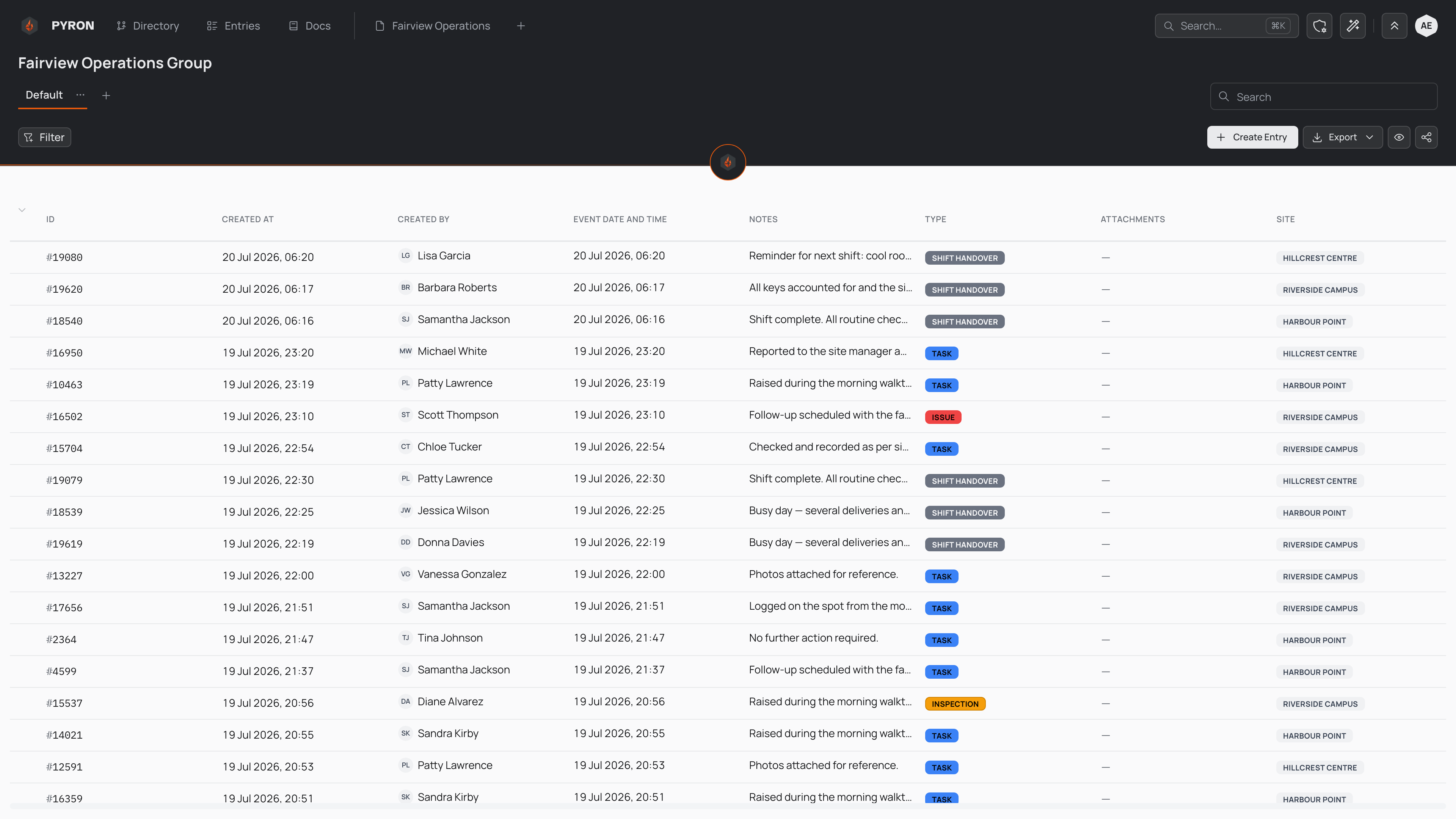
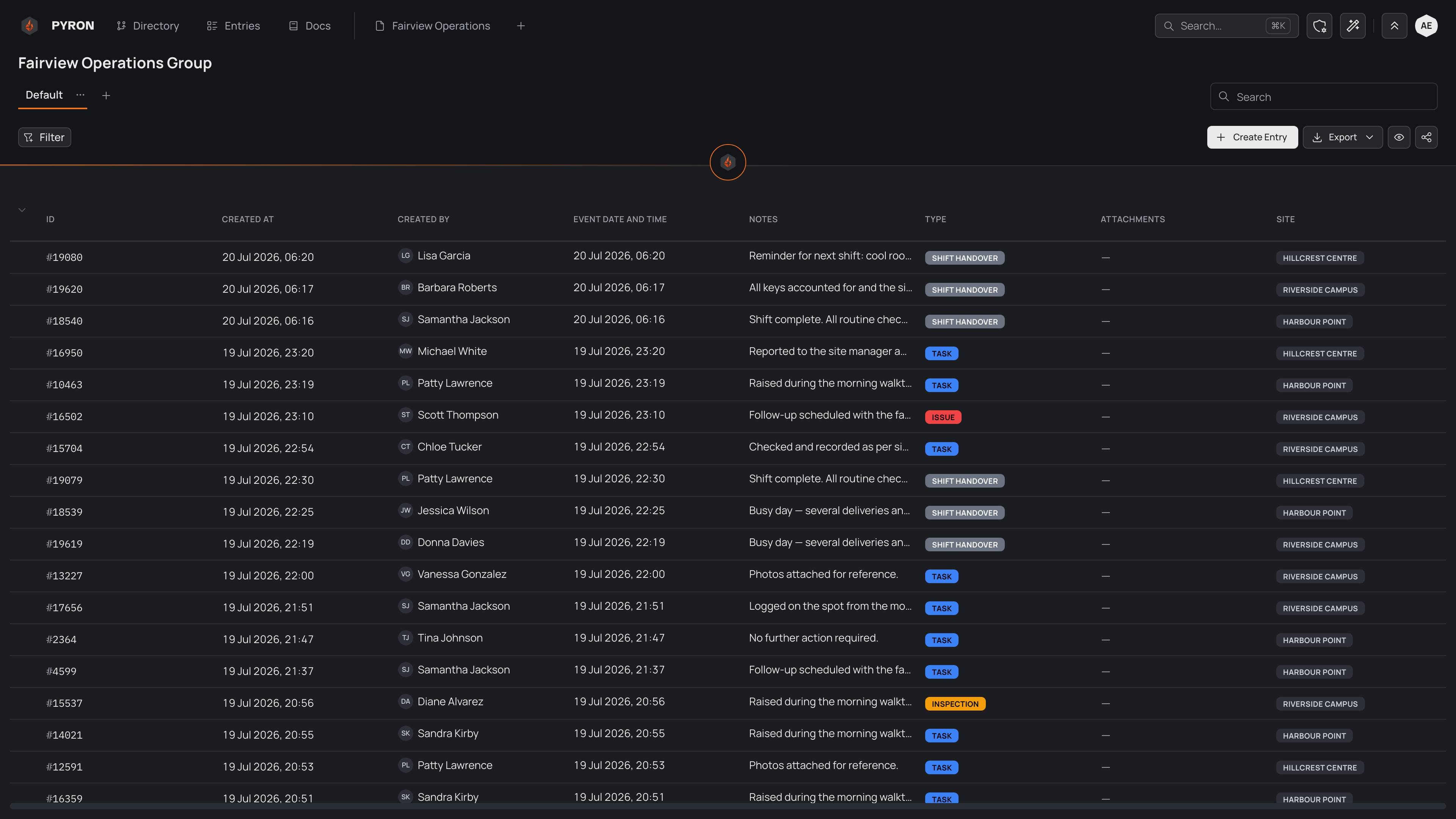
When you open something in the directory, you land on its page. Its name sits at the top as the heading — Fairview Operations Group in the example below — and everything it holds is laid out beneath it.
Across the top, Overview shows the item as a place — what is inside it, and how many entries are recorded there and beneath it — and beside it each entity kept here has its own page, such as Incidents. A page can hold several tabs, which you add, rename and reorder from Edit page. Splitting content this way keeps a busy site or asset readable — one tab for open issues, another for a single area.
Each page is filled with widgets, the building blocks that show and collect the data. On an entity's page, a table holds the entries logged here. Every row is one entry, with columns such as ID, CREATED AT, CREATED BY, TYPE and SITE.
The controls above the table act on those entries:
- New entry logs a new entry here (on a page for one entity it names that kind, such as New incident).
- The search field and Filter narrow the list to the entries you want.
- Show/Hide Columns chooses which columns appear, and Export downloads the table.
- Share form link hands out a link for logging entries without signing in.
For more on building and arranging these pages, see directory pages. To work with the entries themselves, see viewing entries and creating an entry.
An item's files
After Reports, Files holds the documents and photos kept at the item: site maps, procedures, induction packs. It shows the files at the item and at everything beneath it, newest first. Everyone who can see the item can open them. The Directory has a Files tab too, with every file you can see.
- Upload files, or drop files anywhere on the tab. A dropped folder keeps its folders. Each file says Checking for viruses… for a moment, and nobody can open it until the check passes. A program, an installer or a password-protected file is refused, with the reason.
- Folders sit above the list. Choose one to see what is in it, and the trail above the list takes you back.
- Documents, Photos, Spreadsheets and Videos narrow the list to that kind of file, and the card view shows each photo as a picture.
- Click a file to preview it beside the list. From there you can download it, upload a new version (earlier versions are kept, and Restore brings one back), move it to another folder, or delete it to Trash.
- Share copies a link that works for anyone who can see the item. To show a file to a guest, move it into the folder their page shows. Files are never shared one by one, and there are no public links.
- A folder that a page shared with guests shows says so when you open it, Guests see this folder on followed by each page's name, which opens it.
- From records lists the photos and documents attached to the item's records, each under its record, which opens it. A file attached to a comment on a record is listed there too, marked On a comment.
Search finds files by name too. A file attached to a record names that record and opens it.
The assistant reads files too, as you: ask "What's the after-hours procedure at Site 4?" and it answers from Site 4's own document, naming it. It reads only the files you can open at the moment it reads them. Ask it to save a file you attached to a folder, such as Shared with guest, and it saves it once you agree, or at once where you'd be allowed to add it yourself. Or save one yourself: each file on a message you sent offers Save to Files, where you pick the place and the folder. The copy in the chat stays yours; the saved one is opened by everyone who can see that place, once it has been checked for viruses.
Automations work with files too. One can start when a file is added to a folder, find a file by its name or by what it says ("the induction pack that mentions hard hats"), read a document's text (the words on a scanned page or a photo included: Pyron reads them when the file is added) or a spreadsheet's rows, rename a file, move it into a folder or bring it back from Trash, and save a spreadsheet, a report's PDF, a document it wrote or a file from the web to a folder, such as a monthly report into the folder a guest's page shows. Files an automation saves show Added by the automation and are checked for viruses like any other. See Triggers.
Files on a page shared with guests
Add Files to a page from the catalogue and name its folder, such as Shared with guests. Choose View only, or View and add to let guests send you files too, and, if you like, the kinds it takes. Each place keeps its own folder of that name, made when its first file arrives.
- A guest sees the folder only at their own places. At a place where they see only what they add, they see only their own files there.
- A guest downloads each file, and can add files of up to 100 MB each when the page lets them. Their files are checked for viruses like any other, and show Added by Dana Lee (guest) in Files.
- When a guest has more than one place, they choose where a file goes before adding it.
- A guest also sees the photos and documents on the records a page shows them, in the fields it shows. Where the page shows a record's messages, they see the files on each guest reply too, but never the files on an internal note. A guest who can use the page attaches up to five files to their own message with Attach.
- To hear when a guest adds a file, add the Guest upload alert from the catalogue. It tells the people you choose, in their Inbox, by email or both.
The breadcrumb trail
Above the heading runs a trail of links — Directory, then the parents that sit above the page you have open, from the top of the tree down to its parent. It shows where this item lives in the structure at a glance.
In the example, the parent, Fairview Operations, appears as a link, with the open item, Fairview Operations Group, named in the heading just below it.
Each link in the trail jumps straight to that page, moving up the tree without returning to the Directory view, and Directory takes you back to it. A parent you can see but not open is named without a link. Because the trail spells out the parents, it also tells two same-named things apart, so you can see which branch you are on. To read more about how the directory nests, see the directory.