
The Entries screen gathers everything your team has logged into one place: a stream of entries down one side and a detail pane beside it that fills in when you pick one out. From there you find the entries you need, read a single entry in full, follow how it has changed, and move on to the next without losing your place in the stream.
The entries screen
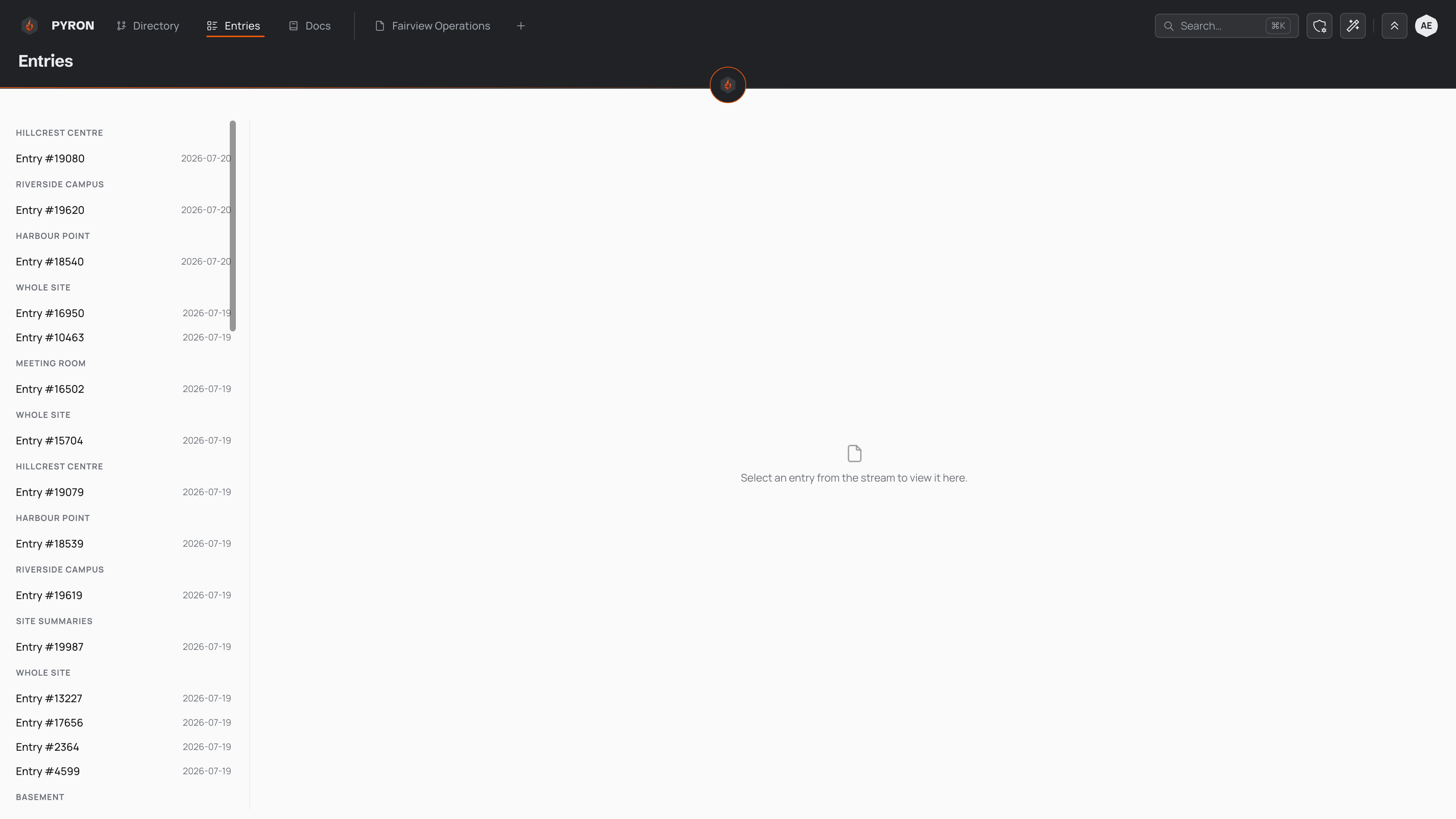
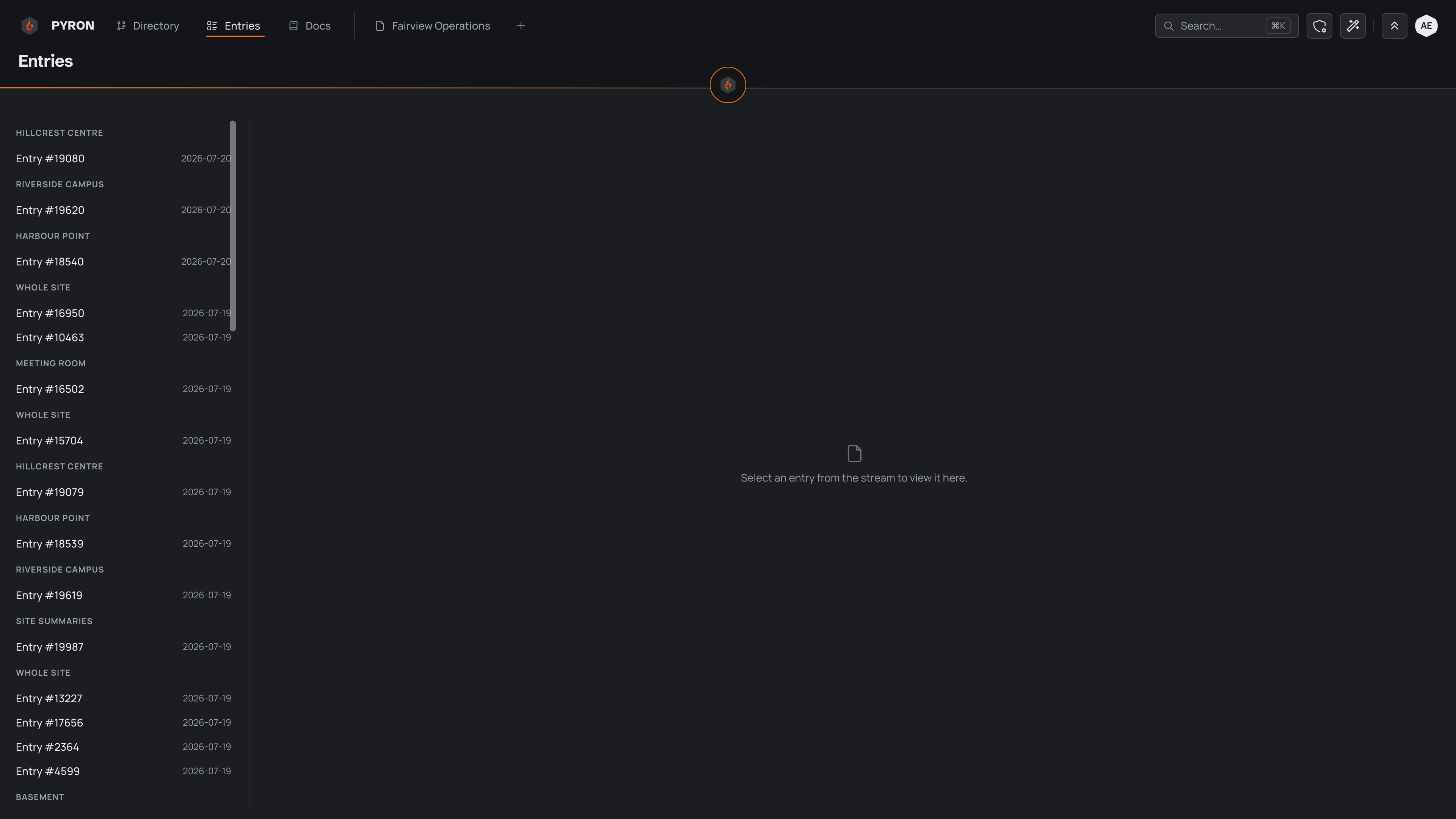
You reach the Entries screen from Entries in the top navigation. The stream lists what your team has logged, most recent at the top, grouped by the day it was logged — Today, Yesterday, then the date. Each entry shows its title, where it sits in the directory — a site, an area, a piece of equipment, written from the top of the tree down — and the time it was logged. Drafts stay with whoever is writing them and don't appear in the stream.
Beside the stream sits the detail pane. Until you choose an entry, it asks you to select one. Choosing an entry replaces that prompt with the entry's full detail, while the stream stays in view alongside it.
Finding entries
Above the stream sit three ways to narrow it down:
- Search entries keeps the entries whose details contain the words you type.
- Filter by place keeps the entries filed at a place in the directory or anywhere beneath it. Choose the place; to clear it, select the place's name where the filter was.
- All entities keeps one entity — incidents, say, or inspections.
They work together, and each one searches every entry you can see, not only the ones already in the stream, so the stream starts again from the newest match. To search across the whole app rather than entries alone, see searching across the app. Entry tables on directory pages have their own filters, covered in filtering and sorting.
Opening an entry
Select any entry in the stream to open it. Its full detail fills the pane beside the stream, and the entry stays highlighted in the list so you keep your place — choose another and the pane swaps to match. That is how you work through a run of entries without losing your bearings.
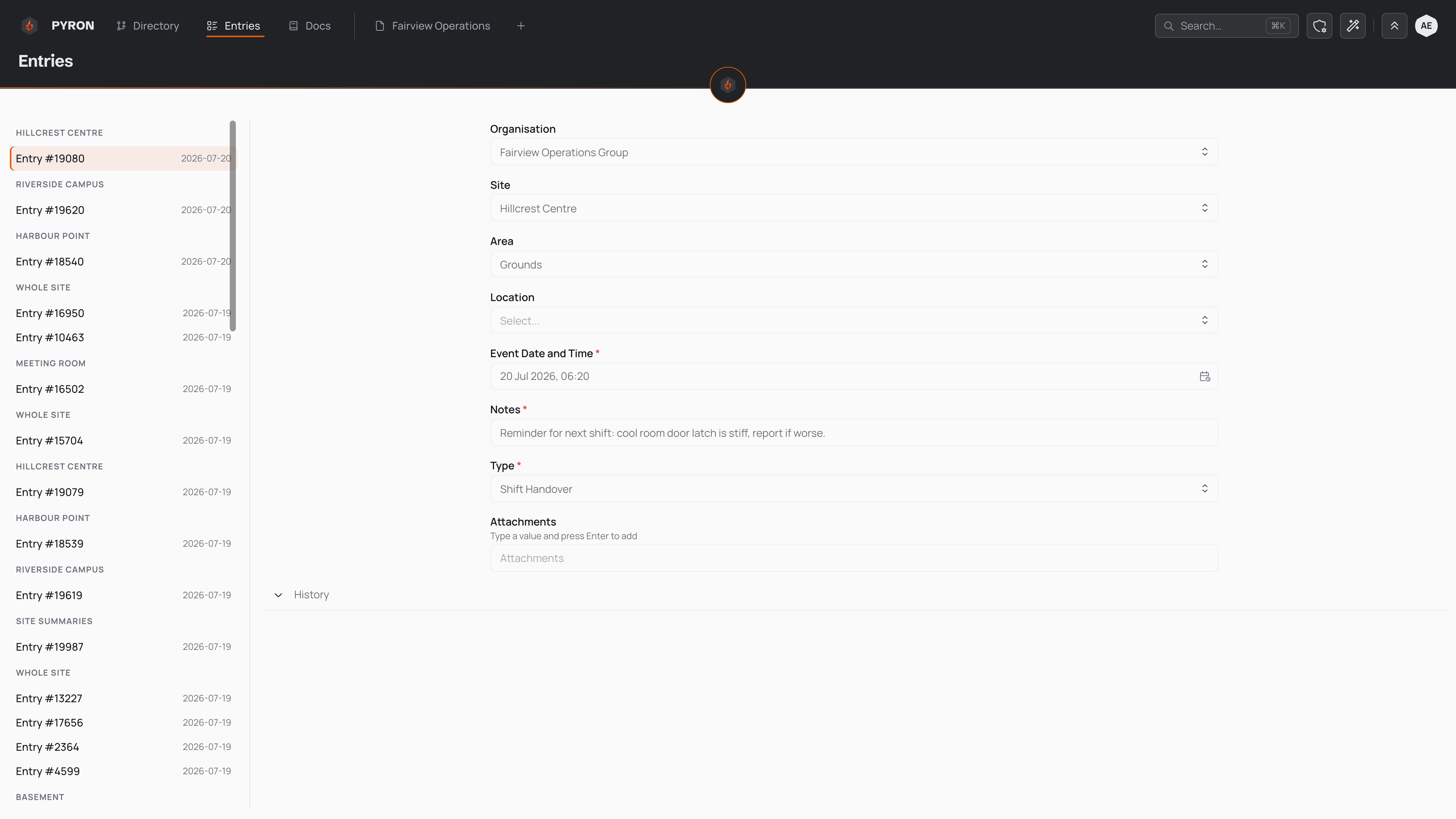
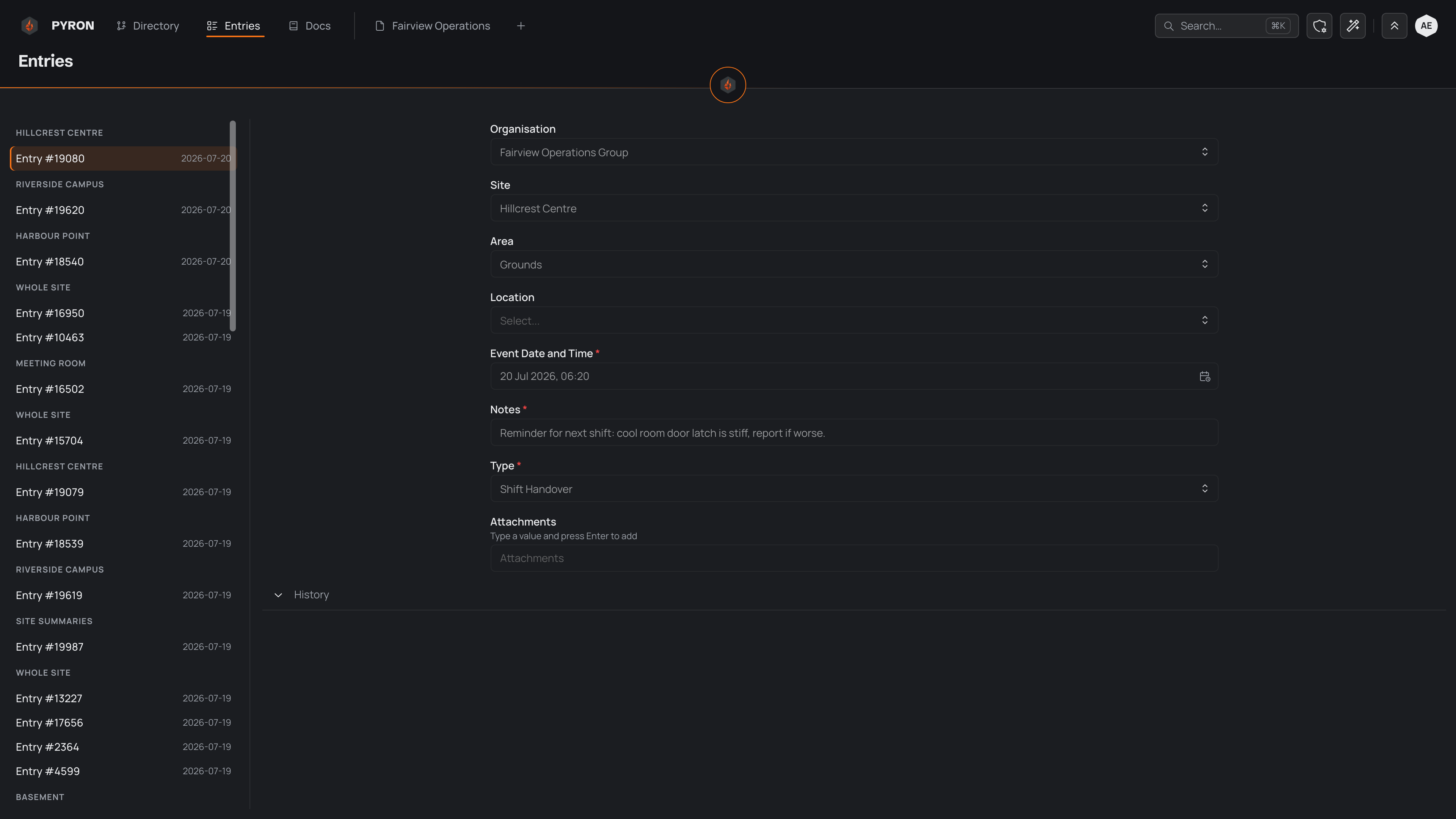
The detail opens with the entry's title and number, then a line saying when it was created, by whom, and where it sits in the directory. Beneath that, it lays out what was captured, field by field — each label with its value, a choice by its name, a person or a place by name. A field left empty reads "—", and an attachments field with nothing in it reads "No attachments". The entry's history sits collapsed at the foot of the pane, ready to open when you want to see how it has changed.
The detail carries the entry's actions:
- Edit opens the entry as its form, if your role allows editing entries — see editing an entry.
- Email sends the entry to an address, if your role allows it.
- Open in place takes you to the entry's place in the directory, with the entry open beside its table.
- Copy link copies a link straight to the entry, ready to share with someone who can see it.
The same detail opens when you select a row in an entry table on a directory page or a dashboard; there, the ✕ at the top closes it. Logging an entry covers filling one in from start to finish.
The activity timeline
Opening an entry shows more than its latest values — it also shows what has happened to it. Every change to an entry joins its history: the field that changed, its value before and after, and who made the change and when, each time shown in your own time zone. Nothing is typed over the original, so the timeline stays the full trail of how an entry reached where it is.
For entries that follow a lifecycle, each move from one state to the next joins the same timeline, alongside the edits — so one view tells you both what the entry holds and how it got there. To follow an entry through its states, see status and lifecycles.
Comments join the timeline too. To attach files to one, select the paperclip below the comment box; a comment holds up to five. Each file is checked for viruses before anyone can open it, and it shows under its comment. Everyone who can see the entry can open a comment's files. On an entry shared with guests, a guest reply's files are theirs to open too, while an internal note's stay with your team. Deleting a comment deletes its files with it.