
Every entry belongs to a place or thing in the directory — a site, an area, a piece of equipment — and you log it there, using the form set up for it. You open that page, fill in its form, and log the entry so it joins the activity there and the wider Entries screen.
Where to create
You create an entry from the place it belongs to, not from the Entries screen. That screen gathers everything already logged so you can read and filter it; logging something new starts where it happened.
To log an entry:
- Open the site, area, or piece of equipment you are logging activity against from the directory.
- Its page lists its entries in a table. Above that table, choose New entry (on a page for one entity it names that kind, such as New incident).
- The form opens over the page under the same name, ready to fill in.
The New entry button appears wherever you are allowed to log. If you cannot see it, your role may not include logging entries there — see roles and permissions for how access is decided.
The same form reaches you in two other ways. A page can carry a form directly as a form widget, which you fill in on the page without opening a dialog. And a form can be shared as a link, so someone can log an entry without signing in to Pyron — see portals and form links. However you reach it, the form and the entry it produces are the same.
Filling in the form
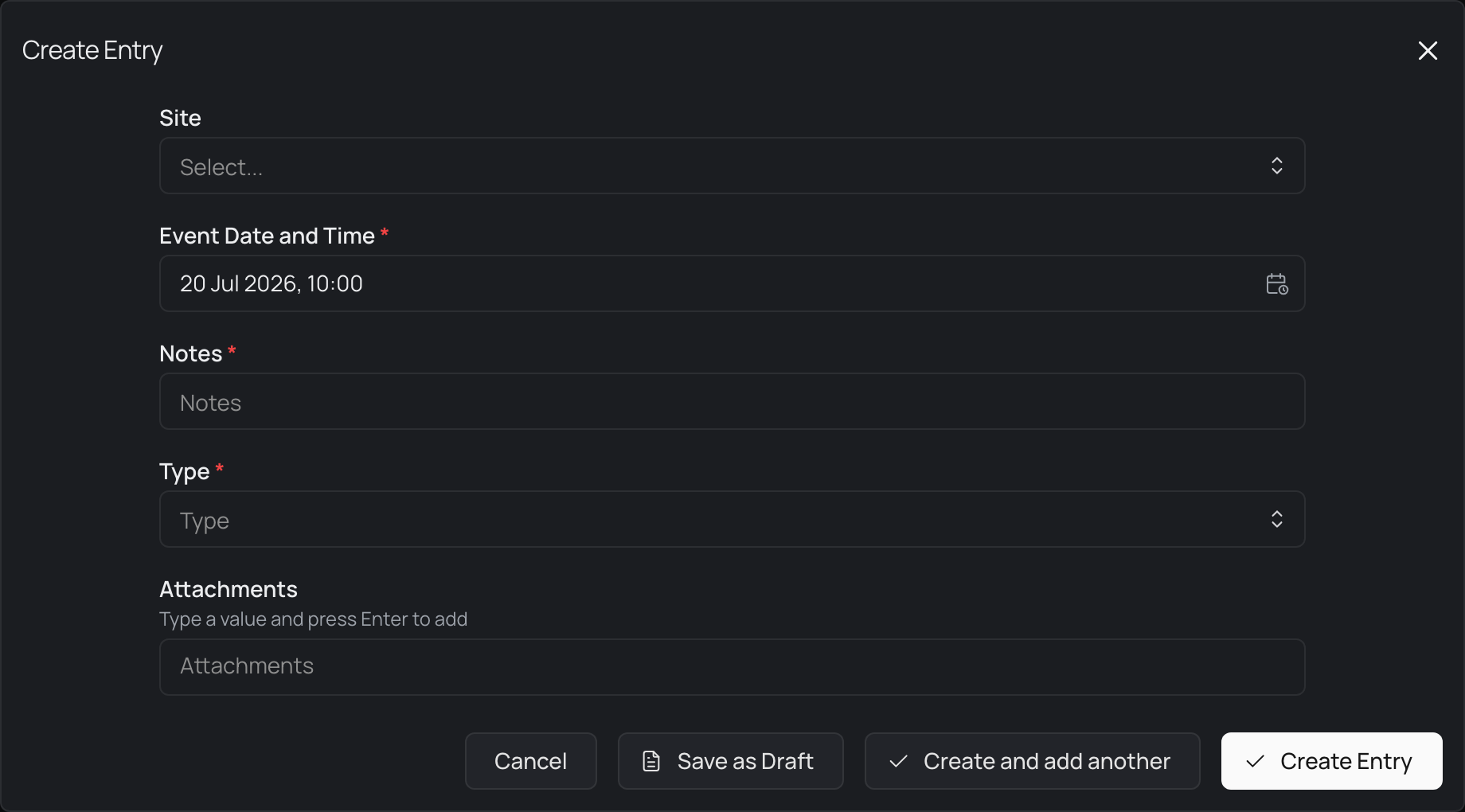
The form is the one attached to that part of the directory — its form decides the fields, so what you see matches what your organisation captures for that kind of thing. The example below logs a site event: a Site to choose, an Event Date and Time, a Notes field, a Type, and an Attachments field. Another place's form asks for whatever suits it, so the fields you see vary from one to the next.
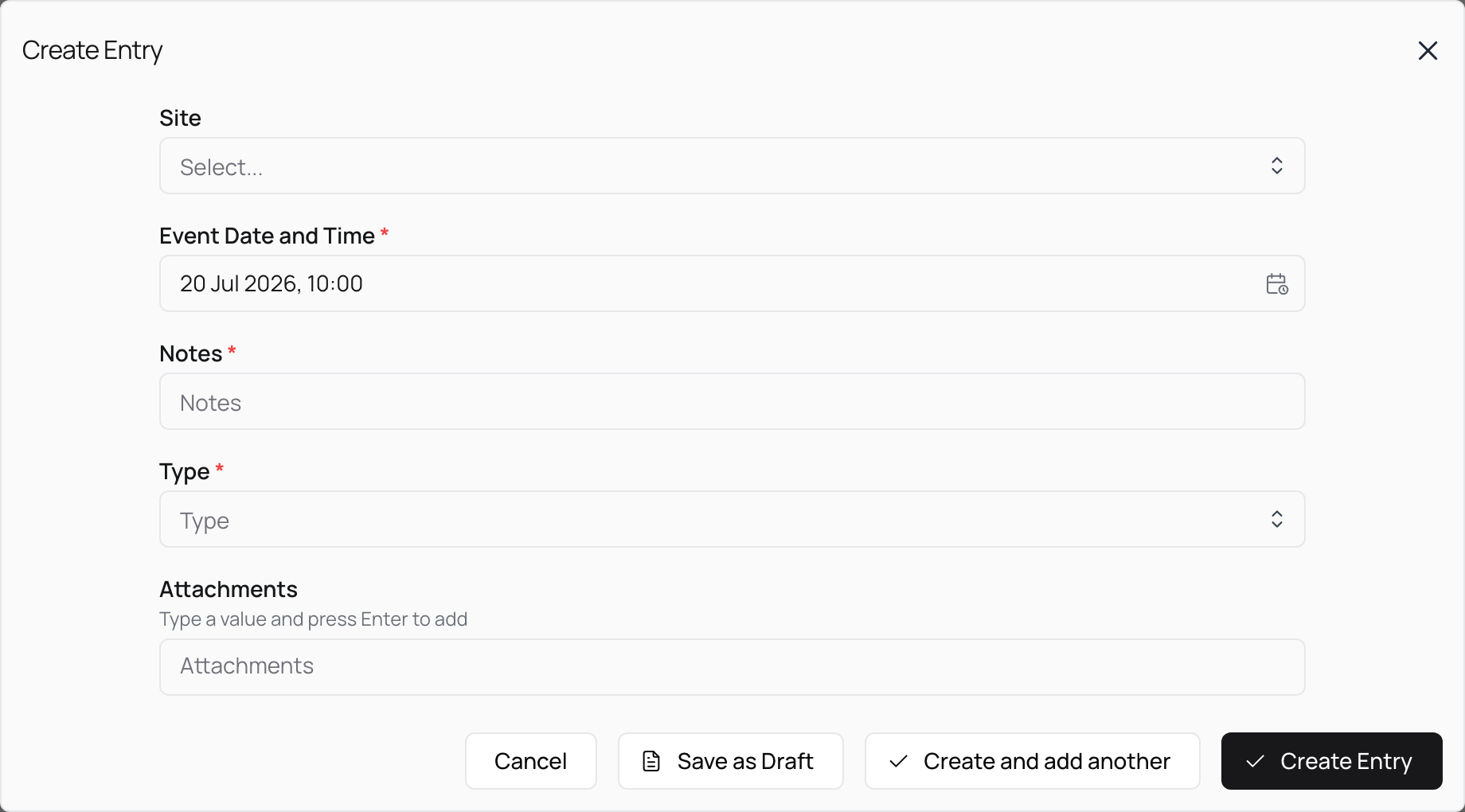
Work down the form, filling each field:
- Text fields like Notes take free text.
- Dropdowns like Site and Type offer a set list to choose from.
- Date and time fields like Event Date and Time open a picker and can start at today's date and time, which you adjust as needed.
Required fields must be completed before you can log the entry — in the example, Notes and Type are marked as required. Three ways to finish sit at the foot of the form:
- Create entry (or Create incident, and so on) logs the entry and closes the form. A logged entry joins the activity there and appears on the Entries screen.
- Create and add another logs this entry and opens a fresh form in the same place straight away, so you can log a run of entries without reopening the dialog each time.
- Save as Draft keeps what you have entered without logging it, so you can come back and finish later. A draft stays editable until you log it — see editing an entry.
Choose Cancel or Close to leave without logging or saving anything.
Conditional questions
Some forms change as you fill them in. A form can hold questions that apply only in certain cases, and those stay hidden until your answers call for them. Choose a particular Type, for instance, and the form may reveal extra fields specific to that type; choose a different one and a different set appears in their place.
This keeps each form down to what matters for the entry in front of you — you are asked only the questions that apply. When a field appears after a selection, fill it in as you would any other. If it is required, complete it before logging, the same as the fields that were there from the start.
Attachments
Some forms include an Attachments field for listing items that go with the entry. It collects a list of values that you build up one at a time: type a value and press Enter to add it, then repeat for each item you want to include. What the field is for depends on how your organisation set the form up.
An Attachments field appears only when the form includes it, so not every entry has one. Where it is present it is generally optional — you can log the entry with it left empty, unless the form marks it as required, in which case add at least one item before logging.