
The List view lays your directory out as a set of side-by-side columns, the way a file browser shows folders. You start at the roots on the left and step deeper one column at a time. It is one of three ways to look at the same directory.
Switching to the list view
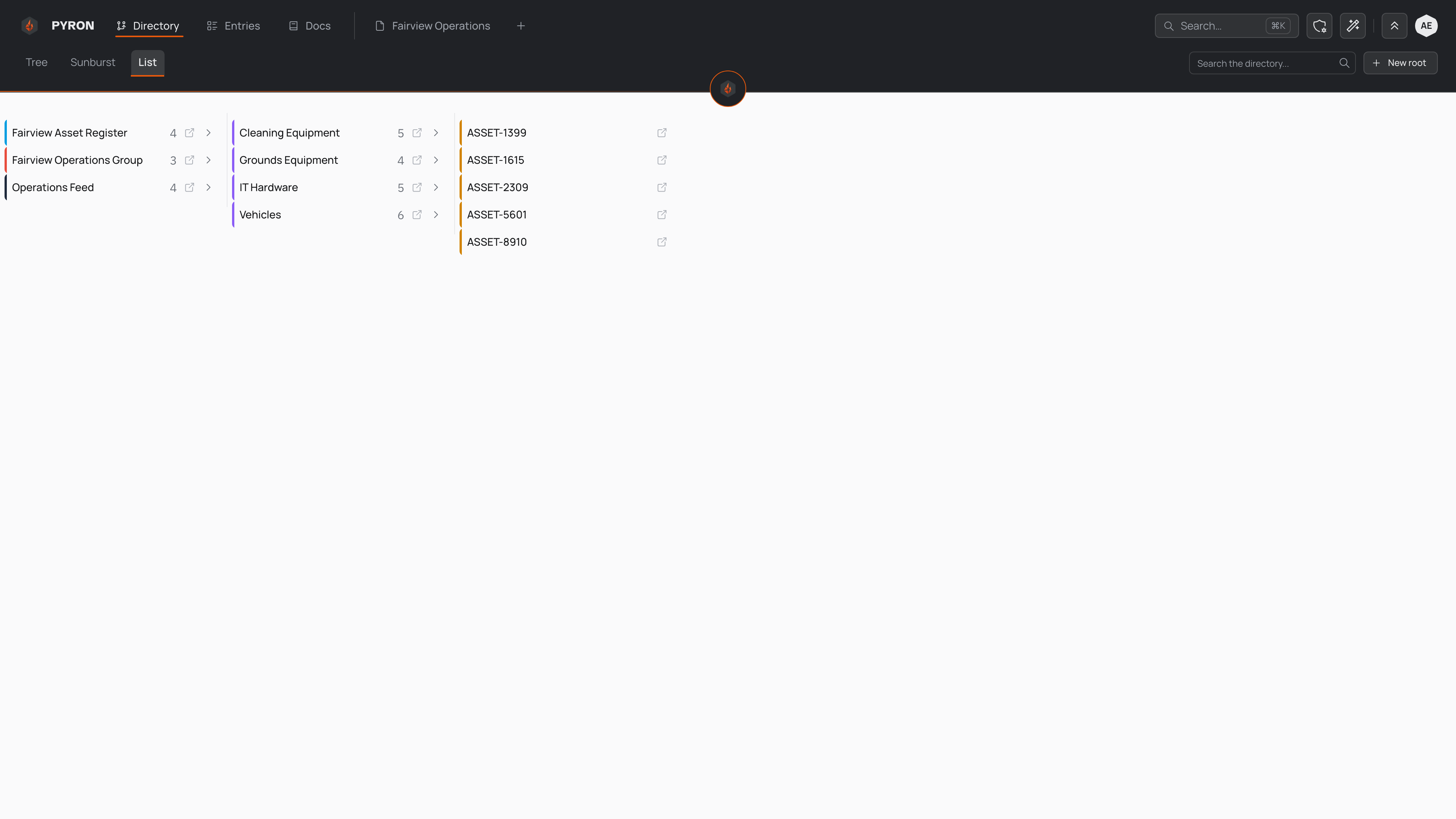
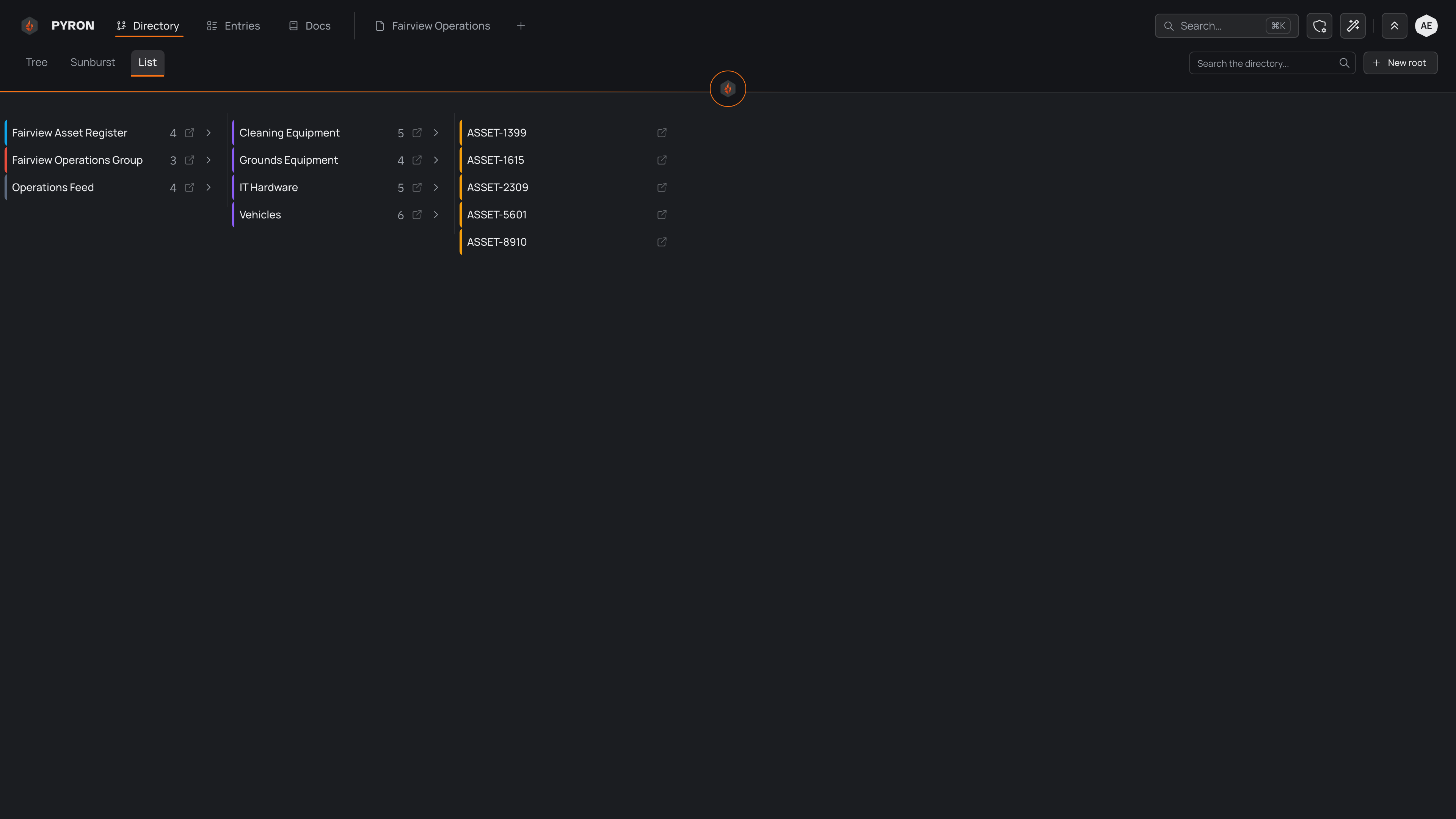
Select Directory in the top navigation to open the page, headed Directory. Beneath the heading sit three tabs — Tree, Sunburst and List — each showing the same directory a different way. Choose List to browse it as columns instead of the branching tree diagram.
The columns suit a directory you already know your way around: when you can name the branch you want, stepping into it is quicker than reading a whole diagram.
Walking down the columns
The left-hand column, labelled Roots, lists the top of each tree in your directory — the places everything else hangs from. Select one and a new column opens to its right, headed Children of that name and listing what sits directly beneath it. Select something in that column and another opens, and so on: each column holds the contents of what you picked in the column before it. Moving left to right takes you deeper into the directory, exactly as opening nested folders would.
The path you took stays marked. In each column, the item that opened the next column is highlighted, with an accent line on the side facing the column it opened, and the item you selected last is highlighted most strongly. Follow the highlights from left to right and you can read the whole path at a glance — and it is still there when you come back to the List view from another tab.
When the Directory opens straight onto the List view with nothing selected, it walks down the first branch of the first tree to show you how deep the directory goes. The items it walked through are highlighted the same way, but nothing is selected until you pick something yourself.
Anything that has children carries a small number showing how many sit directly beneath it — hover over it and it reads in words, such as "12 places inside". No number means the end of a branch — selecting it opens no further column, because nothing sits below it.
Selecting keeps you browsing the columns. To open something's own page — where you can see its entries and change its details — use its Open action, which sits on it in the list.
Two controls sit above the columns:
- A search field, labelled Search the directory..., jumps you straight to anything by name, without stepping through the columns to reach it.
- New root adds a fresh top-level tree to the first column, if you have permission to create in the directory.
Categories, colours and how things nest are part of how your directory is set up. To read more, see the directory.