
Everything in your directory carries its own page — one place that gathers the entries logged against it and the widgets built to show them. A page is split into tabs, so even a busy site or asset stays readable, and it is ready the first time you open it.
Opening an item's pages
You reach a page by opening the item that owns it. In the tree, sunburst or list view, selecting keeps you on the map, while opening from the actions menu takes you to the page — see opening an item for that distinction.
The page opens on the item's name. In the example below, Fairview Operations Group sits at the top as the heading, with a trail above it — Directory, then each item it sits inside — and its content laid out beneath it. Everything in the directory has a page waiting, so there is no separate step to create one.
If a link leads to something that has been deleted, or that has not been shared with you, the page says This page doesn't exist and offers the way back to the directory.
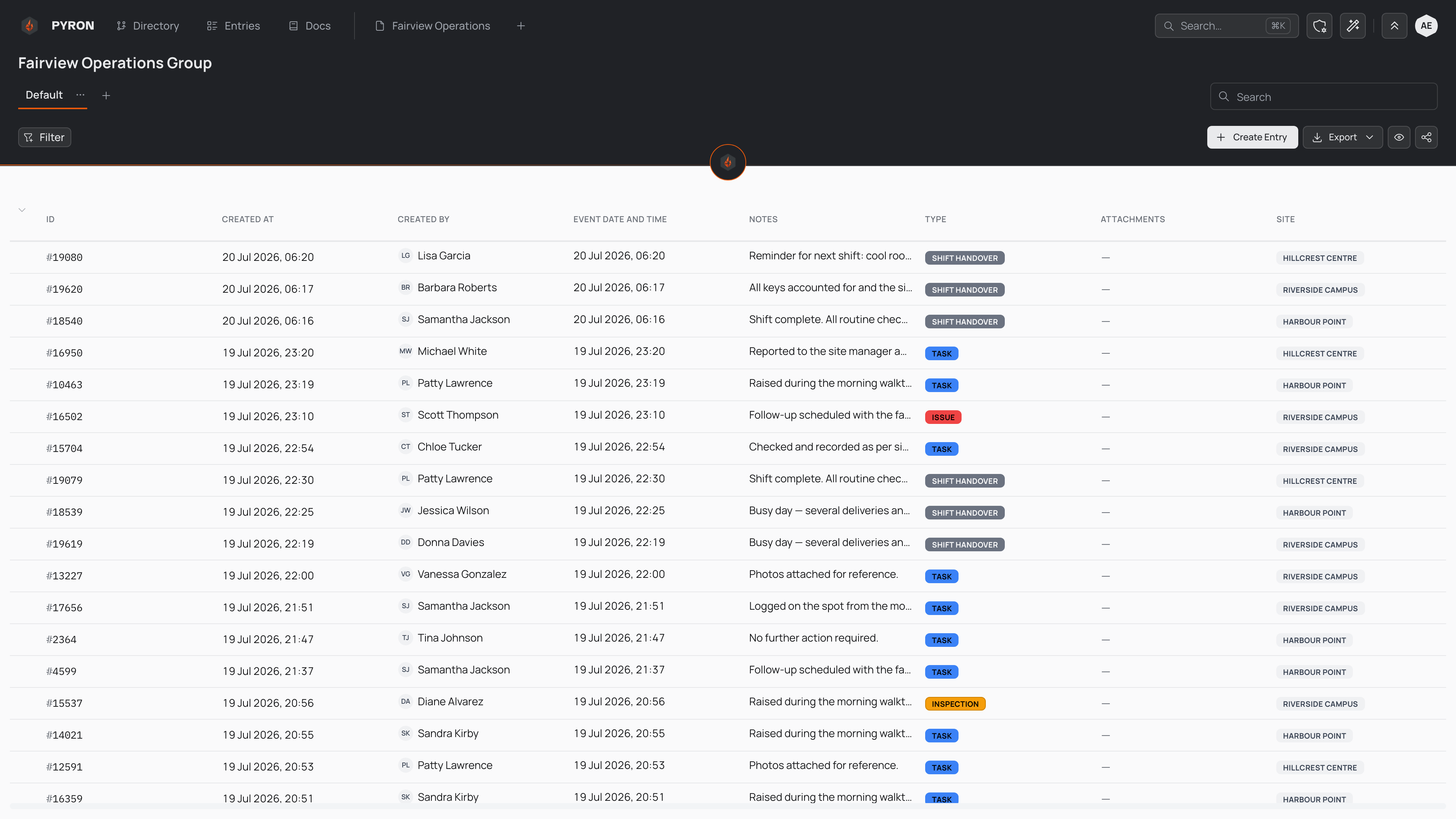
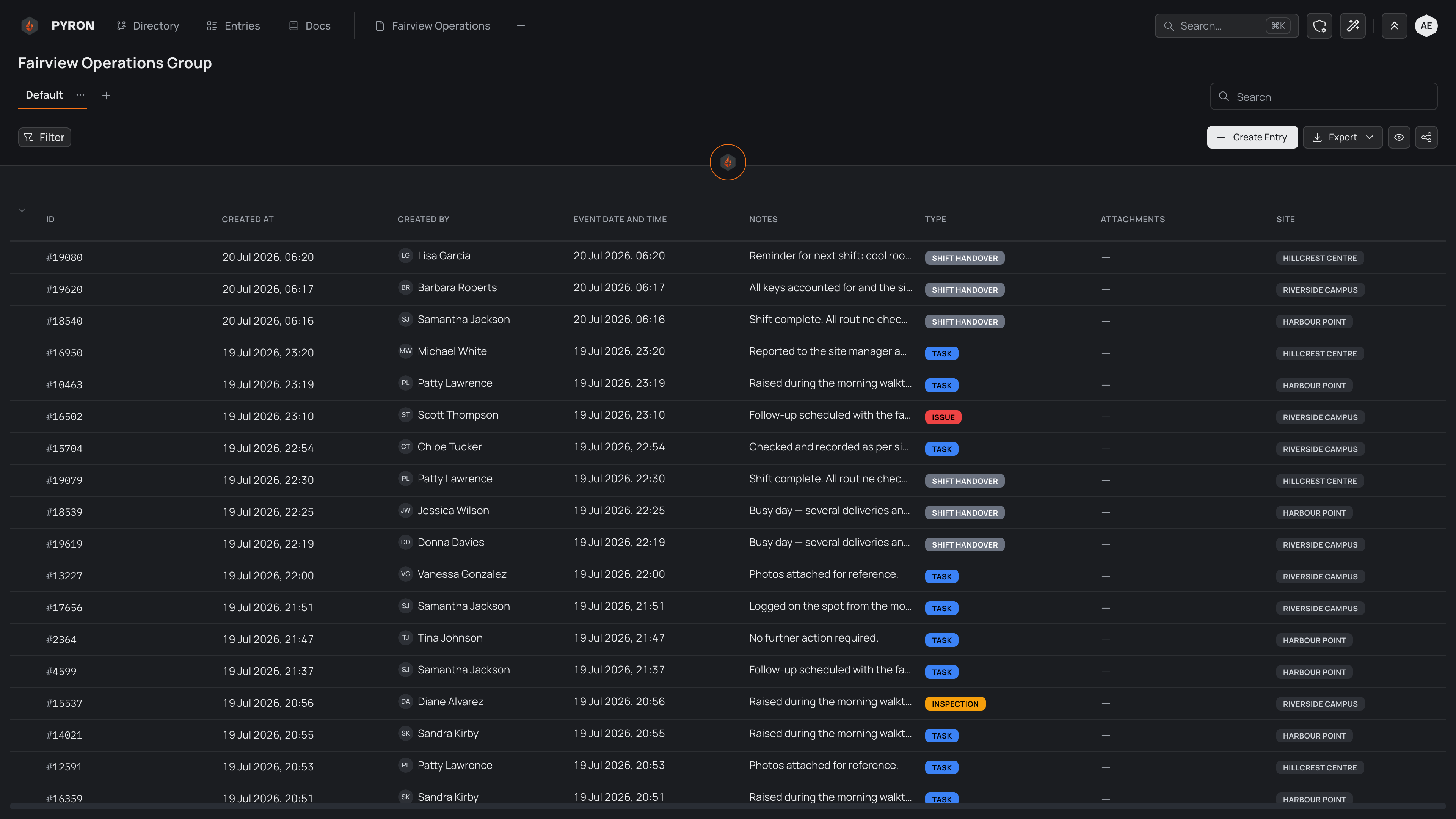
What fills the page is a set of widgets — the tables, charts, tiles and forms that show and collect the data. Pages and widgets explains how those pieces fit together, and entries covers the data a table lists.
Overview and entities
Opening an item always lands on its Overview, which shows the item as a place: the places inside it (each opens that place's own Overview), the latest entries recorded there and beneath it, and anything filed there that no record type here shows yet. Beside it, across the top, is one tab for each record type kept here — Incidents or Inspections, say — with how many entries it holds, and each opens that record type's own page, with its table of entries. Choosing one takes you to that page; the address changes, so you can share or bookmark it.
If you can edit here, Add record type at the end of the row starts keeping a record type across this item and everything beneath it. It doesn't offer one already kept here or by an item above this one.
Editing a page
An entity's page opens with one table of the entries kept here, with its own saved columns, filters and sort. If you can edit here, Edit page opens the page's draft, where Add places another table, a form, a board or a calendar beside it, and the assistant builds anything else you describe. Nothing changes for anyone else until you select Publish.
A page holds its widgets on a grid — tables, charts, forms and canvases side by side. To keep a page of your own that no one else sees, make a new page: it stays private until you share it.