
A form link is a web address that opens a single form — the one form, and nothing else around it. Whoever holds the link fills it in and submits, often without signing in at all. It works on a phone as readily as on a computer, which makes it a quick way to collect something from someone in the field or outside your organisation.
Opening a form link
Open the link the way you would any web address: tap it on your phone, or paste it into a browser. Pyron shows the form on its own — its title, a short line telling you what to do, and the fields to fill in.
The example below opens a form for logging a site event. Every form link is laid out the same way: the form's name at the top, a one-line instruction beneath it, then the fields, then a button to send it in. Which fields you see depends on the form behind the link.
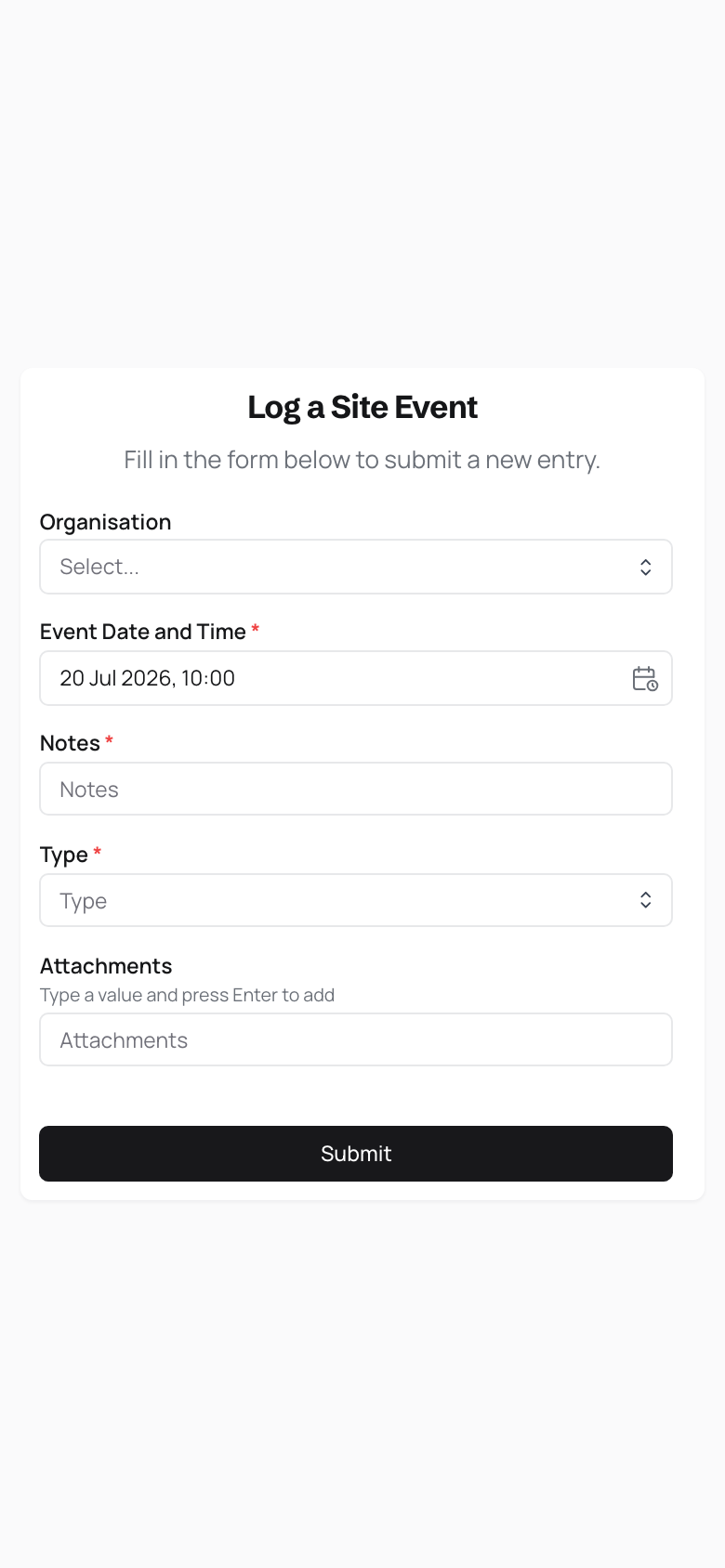
You do not see the rest of Pyron — no navigation, no other pages. The link opens one form and stays on it.
Submitting
Work down the form, filling in each field. Some fields let you pick from a list, some you type into, and some ask you to choose a date and time — fill in each according to what it asks for. Fields marked with a red asterisk are required, and you cannot send the form until they are filled.
- Fill in each field, giving the required ones at least.
- Check what you have entered.
- Choose Submit.
When you submit, Pyron logs a matching entry in the table the link belongs to, beside entries added the usual way inside the app. That entry then follows the same path as any other.
A form can ask for a photo or a document. Choose or take one, and wait until it stops saying Checking for viruses…. Each file can be up to 25 MB. A program or an installer is refused, with the reason. Your files are kept only with the entry you submit: if you leave without submitting, they are deleted the next day.
Links that need sign-in
Not every form link is public. By default a link asks you to sign in before you can submit, and it opens to anyone only when its creator deliberately makes it public.
If a link asks you to sign in, you land on the ordinary Pyron sign-in screen first and reach the form once you are signed in. Use your own account — see signing in if you need a hand. From there, filling in and submitting the form works the same way as above.
Some links go a step further and invite you to create your own account as part of submitting: you set a password, and after that you sign in like anyone else on your team.
If your team shares one device on site rather than each person signing in separately, that is a portal rather than a form link. See the portal for what using one looks like, and portals and form links for how to choose between the two.