
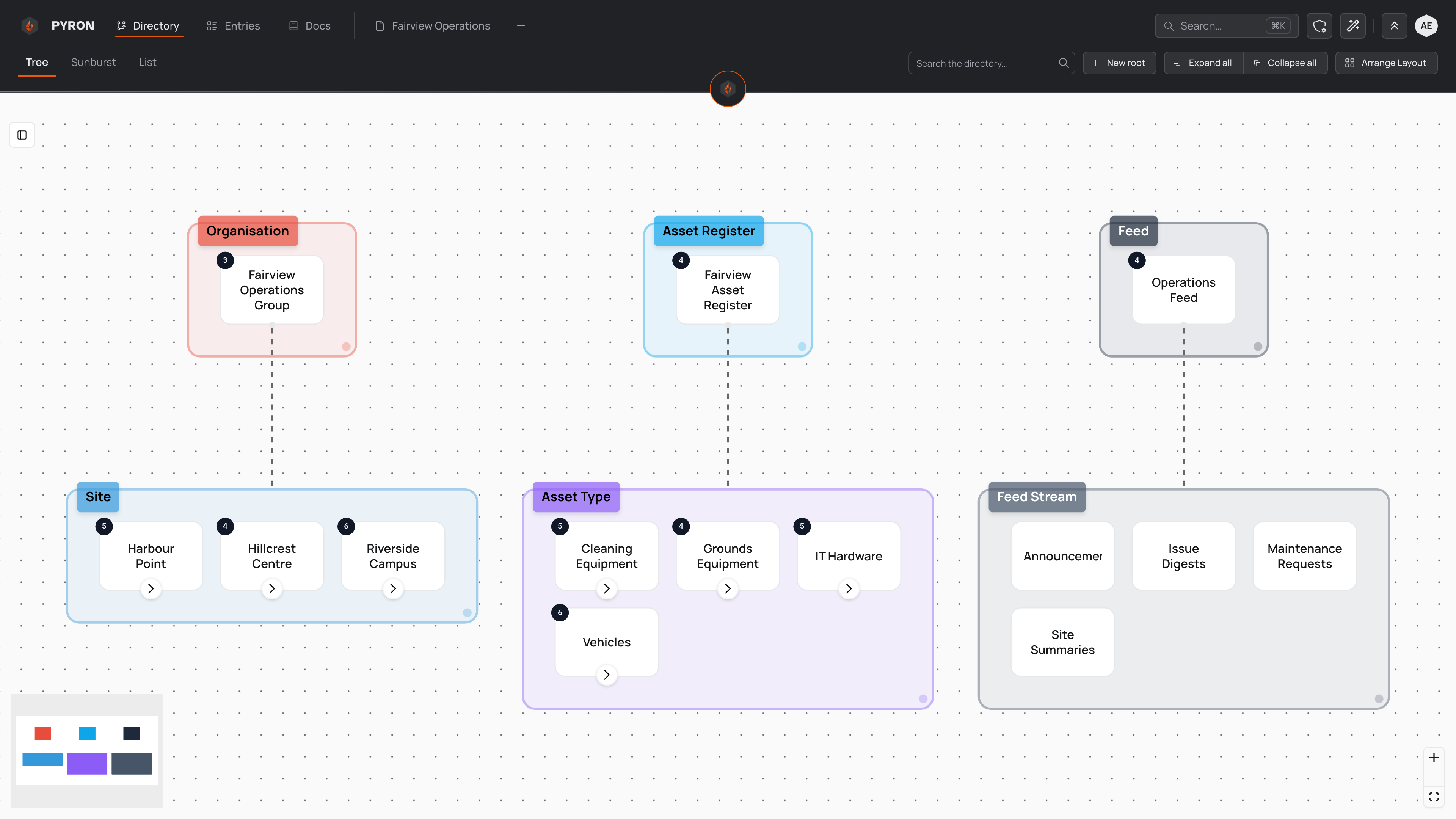
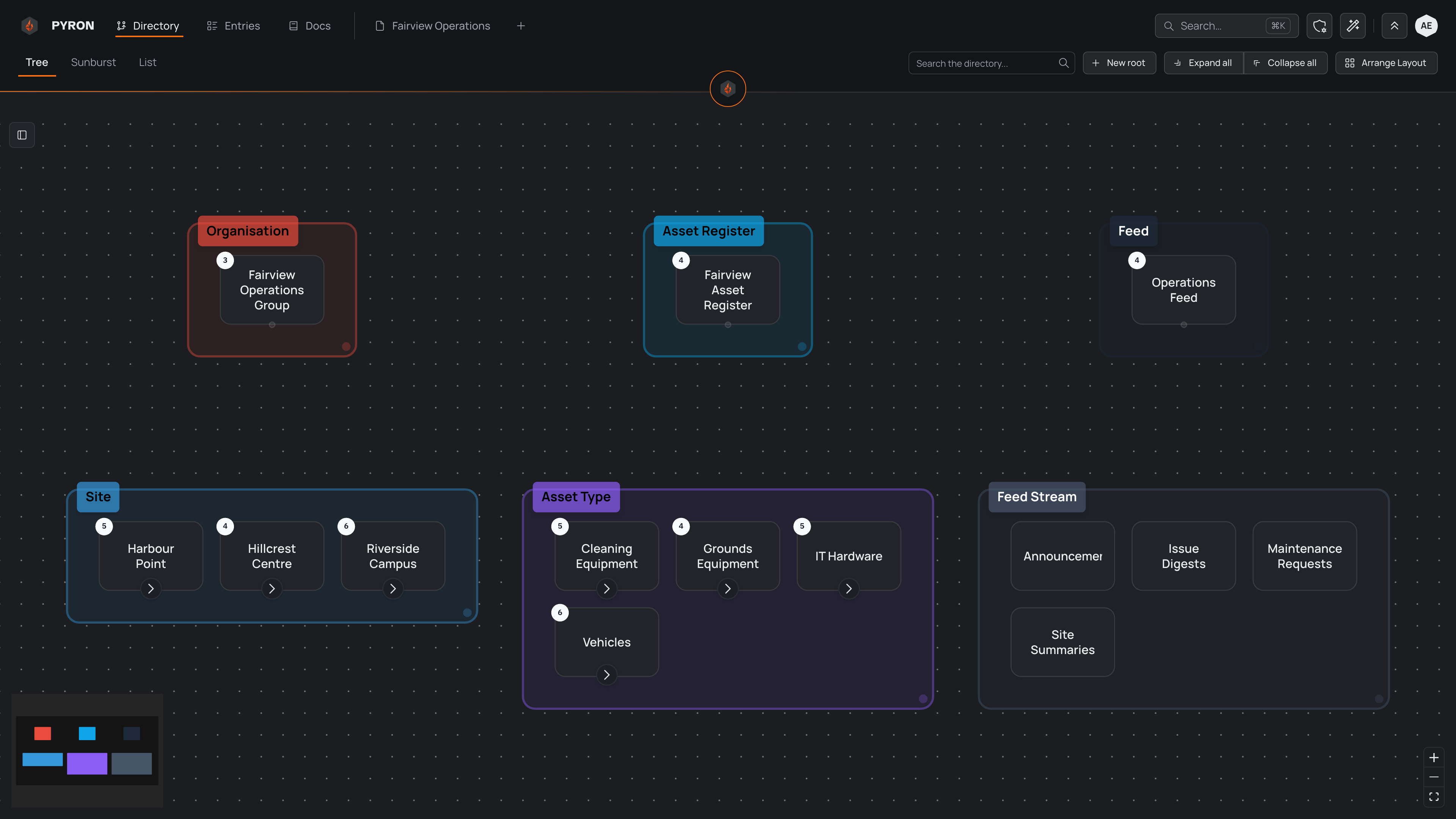
The Tree view lays your whole directory out as a branching diagram: everything is a card, joined to its parent and children by lines, so you can see how it all fits together and move around it. It is one of three ways to look at the same directory.
Opening the tree
Select Directory in the top navigation to open the page, headed Directory. Beneath the heading sit three tabs — Tree, Sunburst and List — that show the same directory three ways. Tree is selected to begin with and draws the branching diagram; the sunburst view shows the same structure as a radial ring, and the list view walks it as columns.
Each place or thing is a card, and lines run from every parent down to its children. Cards that belong together are grouped into coloured blocks by category, so the diagram reads as clusters rather than a wall of boxes.
A few controls help you move around a large tree:
- A search field, labelled Search the directory..., jumps you straight to anything by name. It is the page's one search: it finds things wherever they sit, open branches or closed.
- Zoom In, Zoom Out and Fit View, in the bottom-right corner, frame the diagram — Fit View pulls the whole tree back into view once you have panned away from it.
- A small overview map sits just above those controls, showing the whole diagram in its category colours. Drag or scroll on it to move around a large tree.
- Outline opens a side panel down the left that lists the tree as plain text, which is quicker to scan when a tree is tall. It follows the tree: branches you open or close in one open or close in the other, and selecting a name in the outline moves the diagram to it.
If you have permission to change the layout, an arrange mode lets you place the boxes by hand and save that arrangement — see arranging the tree.
Expanding and selecting
When the Tree view opens, each top-level card is expanded to show its direct children, while the branches below them stay closed. That keeps a big directory readable — you see the shape from the top and open only the parts you care about.
Cards with children carry a small number showing how many sit directly beneath them — hover over it and it reads in words, such as "12 places inside". A card with no number is the end of a branch, with nothing left to open.
To open and close branches:
- Open one branch by selecting its expand control — labelled Expand — or by double-clicking the card. Its children slide into view.
- Close the branch again with the same control, or with another double-click.
- Open or close the entire tree at once with Expand all and Collapse all in the toolbar.
Click a card once to select it. The card is highlighted, the view centres on it, and the path back to the top — each of its parents in turn — appears along the top of the page, so you can see where you are.
Selecting keeps you in the tree. To open something's own page, use its actions menu — right-click the card, or use the menu button on it — and choose to open it. The same menu is where you add a child or change details; see renaming and editing for what you can change.
What the colours mean
Everything in the directory belongs to a category, and each category has its own colour. Things of the same kind share that colour, so one kind stands apart from another at a glance.
The colour follows a card wherever it appears:
- Zoomed out, each card becomes a solid tile in its category's colour. The map of your directory then reads as blocks of colour, even when the names are too small to make out.
- Zoomed in, the colour settles into a quieter accent on each card.
- Beside something elsewhere in the view — as a dot next to a search result, or in the trail of parents along the top of the page — the same colour marks it, so everything keeps its identity wherever you meet it.
Categories and their colours are part of how your directory is set up. To read more about the directory, categories and how things nest, see the directory.