
Pyron keeps the same header across the top of every screen, so the main sections and search stay within reach wherever you are. Each screen adds its own controls just beneath that header, but the way you move between sections is the same everywhere.
The header bar
The header runs across the top of Pyron and stays in place as you work. At one end sit the Pyron mark and the links to the main sections; at the other end are the tools you reach from any screen — search, the assistant, and your account.


The three section links are marked 1, 2 and 3 above: Directory, Entries and Docs. The next section covers where each one leads.
Grouped at the other end, Search looks across Pyron, the assistant answers questions in plain language, and Your account opens your profile or signs you out. If you have administrator access, a Setup link sits here as well.
When a screen brings its own filters, tabs or buttons, they appear in a row just beneath the links. Use Collapse header to tuck that row away when you want more room for the page, and open it again the same way.
The three main tabs
The three links introduced above open the main parts of Pyron.
- Directory (1) opens the directory — the organised structure of the sites, teams and other things your organisation keeps track of. See the directory for the idea, and opening an item for moving around inside it.
- Entries (2) opens the forms, logs and checks people have filled in across the directory. See what entries are and viewing entries.
- Docs (3) opens this help centre — the guide you are reading.
Home opens on Today: a box to ask the assistant, with a few suggestions drawn from your own places and record types, then what needs you from your Inbox, the records still open, what happened lately in your places, today's automation runs and your places. Nothing on Today uses the assistant until you send it something.
Pages you pin, and the pages pinned for everyone, follow Today as tabs you can drag into the order that suits you. Pin a page from its ⋯ menu with Pin to Home; Unpin from Home takes your own copy off, even of a page pinned for everyone.
You can pin a place too, from the ⋯ menu on its Overview. A pinned place shows among Today's places, and above your pinned pages, as a card: its name and level, what was logged this week against the usual, how many records are in progress and how long the oldest has waited, and when and where the last record was logged. Select the card to open the place, or use its own ⋯ to unpin it.
Setup
Setup is where administration lives. If your role includes administrator access, its link appears in the header; open it to reach a single page that gathers the management tools in one place.
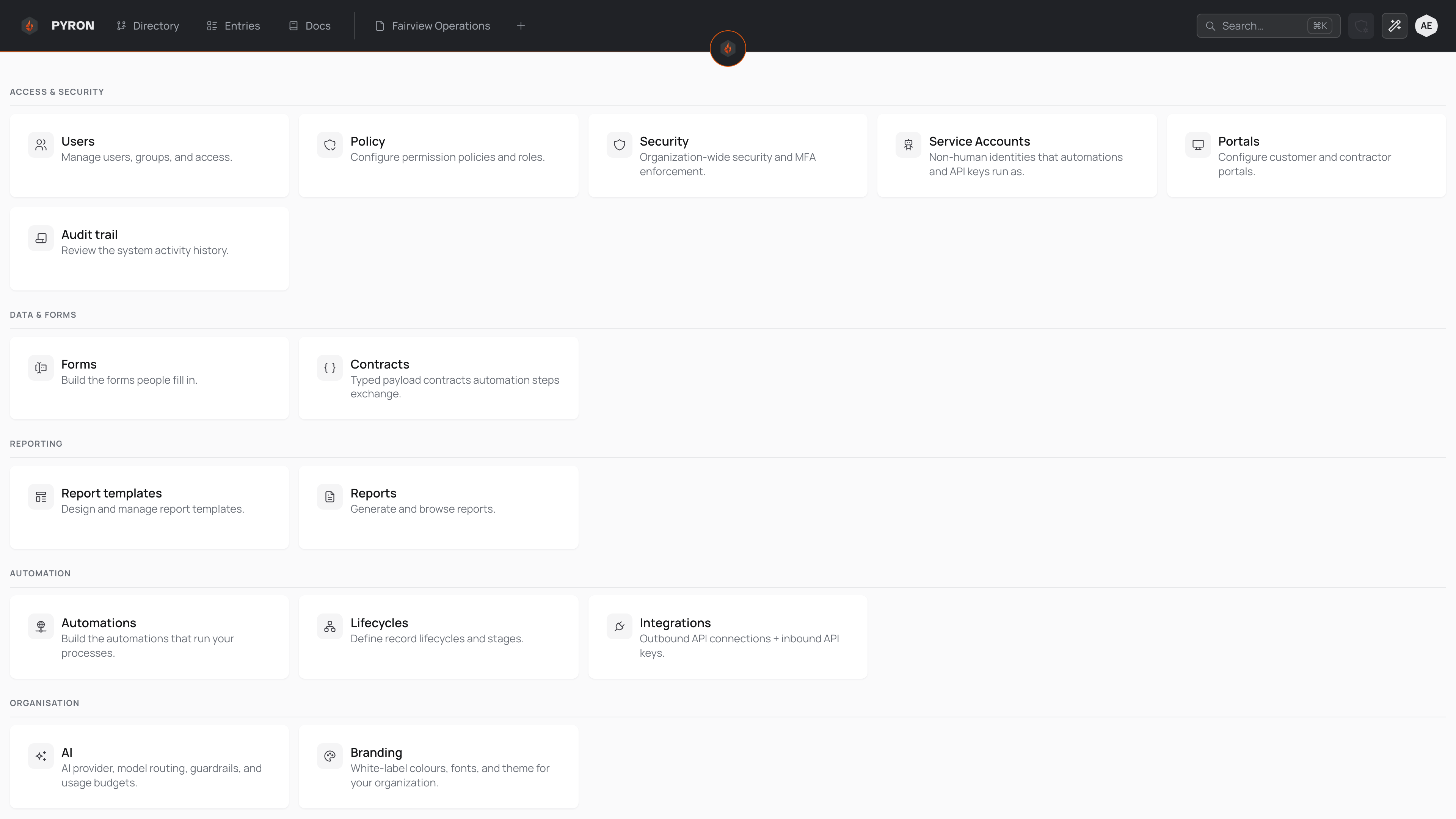
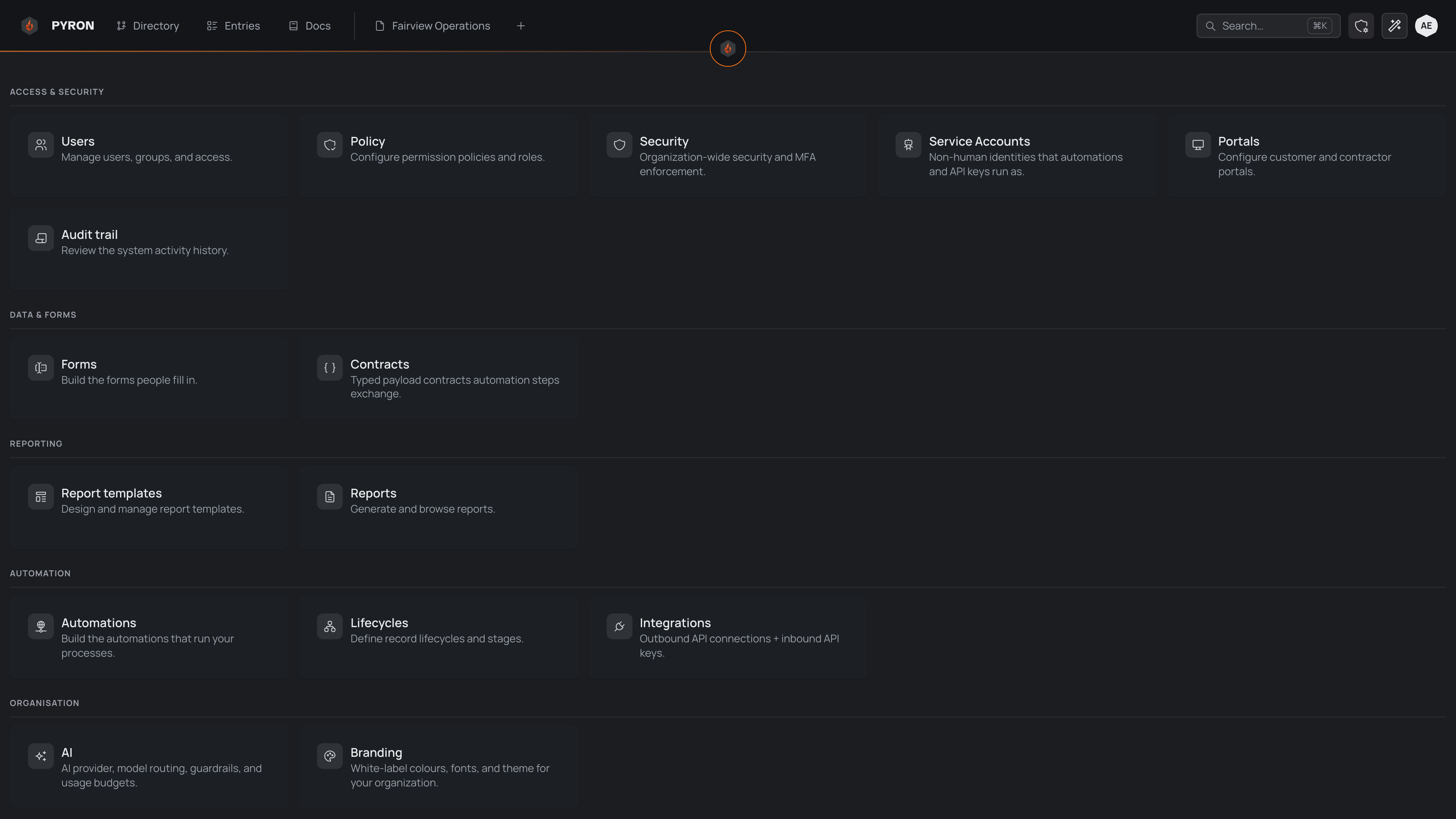
The tools sit in two groups: Workflows, the parts your automations are built from, and Organisation, the settings for your organisation as a whole. For a tour of what each area covers, see the Setup overview. If you do not have administrator access, this link does not appear.
While you are in Setup, the header lists its areas — Records, Automation, Connections, Reporting and Organisation — and, on a second line beneath, the pages of the area you are in.
Search from anywhere
The Search button in the header opens a search you can use from any screen. Start typing and Pyron looks across your directory, entries, pages and more, listing matches as you go; choose one to go straight to it.
Search matches on the words you type. If your organisation has turned it on, search can also match on meaning, so a question like 'which checks mention a safety concern' turns up relevant entries even when they use different words. For the full guide, see Spotlight search and searching by meaning.