
You reach Pyron at your organisation's own web address and sign in with the email address your organisation set up for you. If you forget your password, you can reset it yourself, and if your organisation uses single sign-on you sign in with the work account you already have.
Your organisation's address
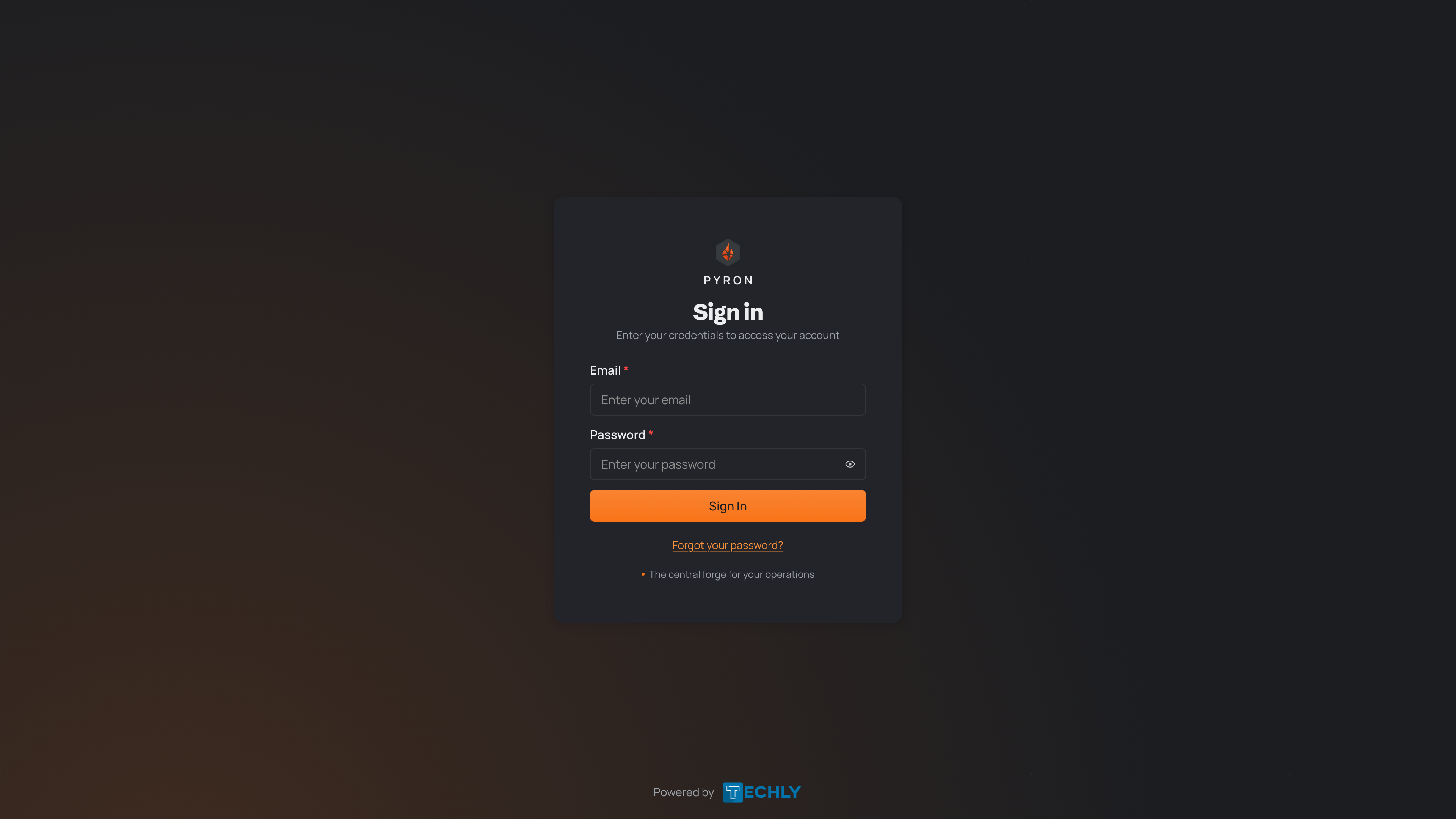
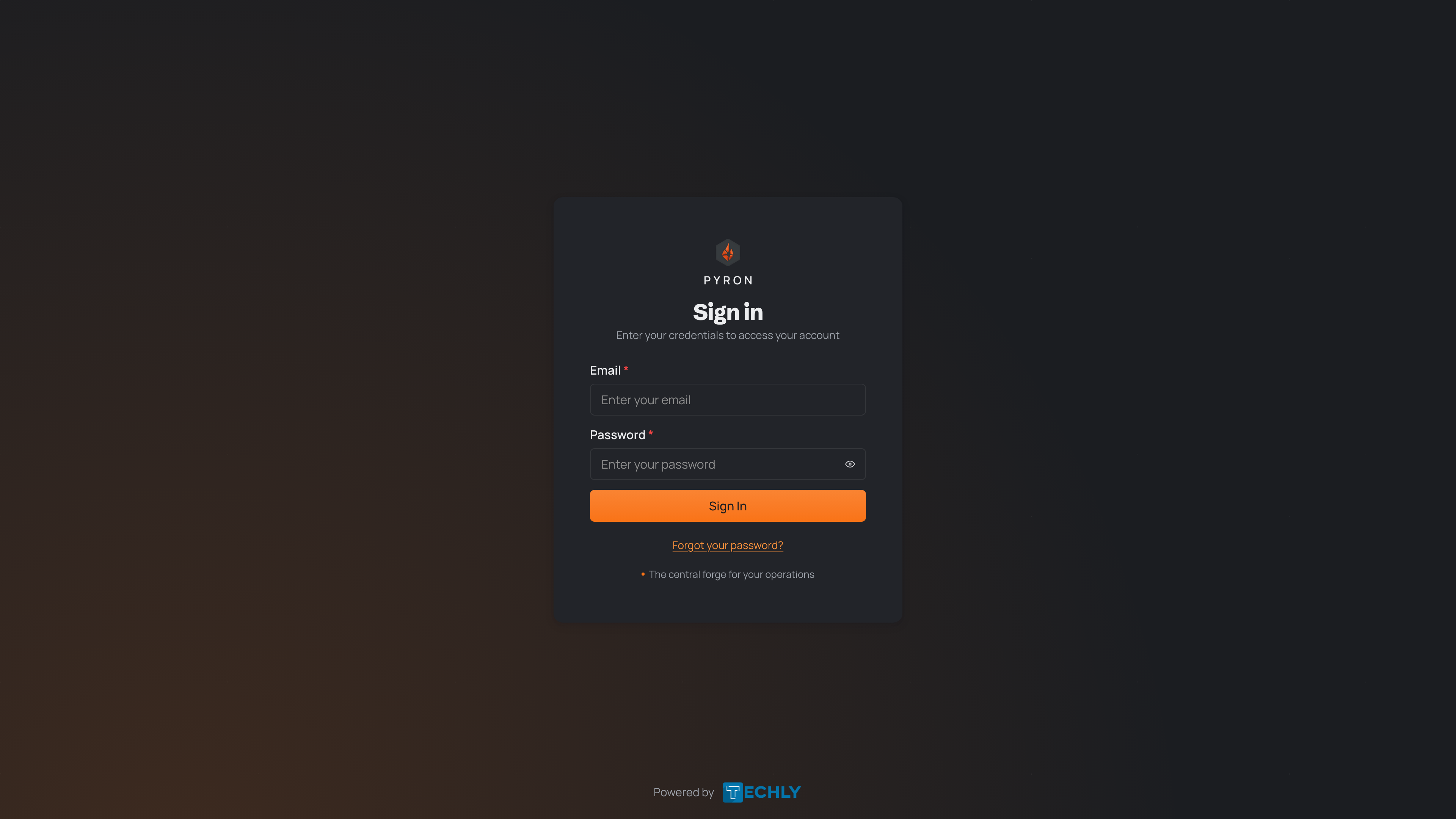
Each organisation has its own web address for Pyron — usually your organisation's name as part of the address your administrator shares with you. Open that address in your browser and you land on the sign-in page, headed Sign in.
It is worth bookmarking the address so you can return to it quickly. If you are not sure what your organisation's address is, ask the person who set up your account.
Signing in with your email
The sign-in page asks for two things: your email address and your password.
- In the Email field, enter the address set up for you.
- In the Password field, enter your password. To check what you have typed, use Toggle password visibility beside the field to show or hide it.
- Select Sign In.
If the email address and password match, Pyron opens your workspace. If they do not, the page tells you the sign-in did not work — check for typing mistakes and try again, or reset your password using the steps below.
Signing in through a kiosk
Some organisations set up a kiosk — a separate sign-in page, often for a shared device at a particular site or team. Instead of typing an email address and password, you open the kiosk's web address and choose your name from the list to continue. For how a shared kiosk works day to day, see using a kiosk or kiosk.
Your administrator sets up the kiosk and shares its address with the people who use it. If your organisation does not use a kiosk, sign in with your email address as described above.
Forgot your password?
If you cannot remember your password, you can reset it yourself from the sign-in page.
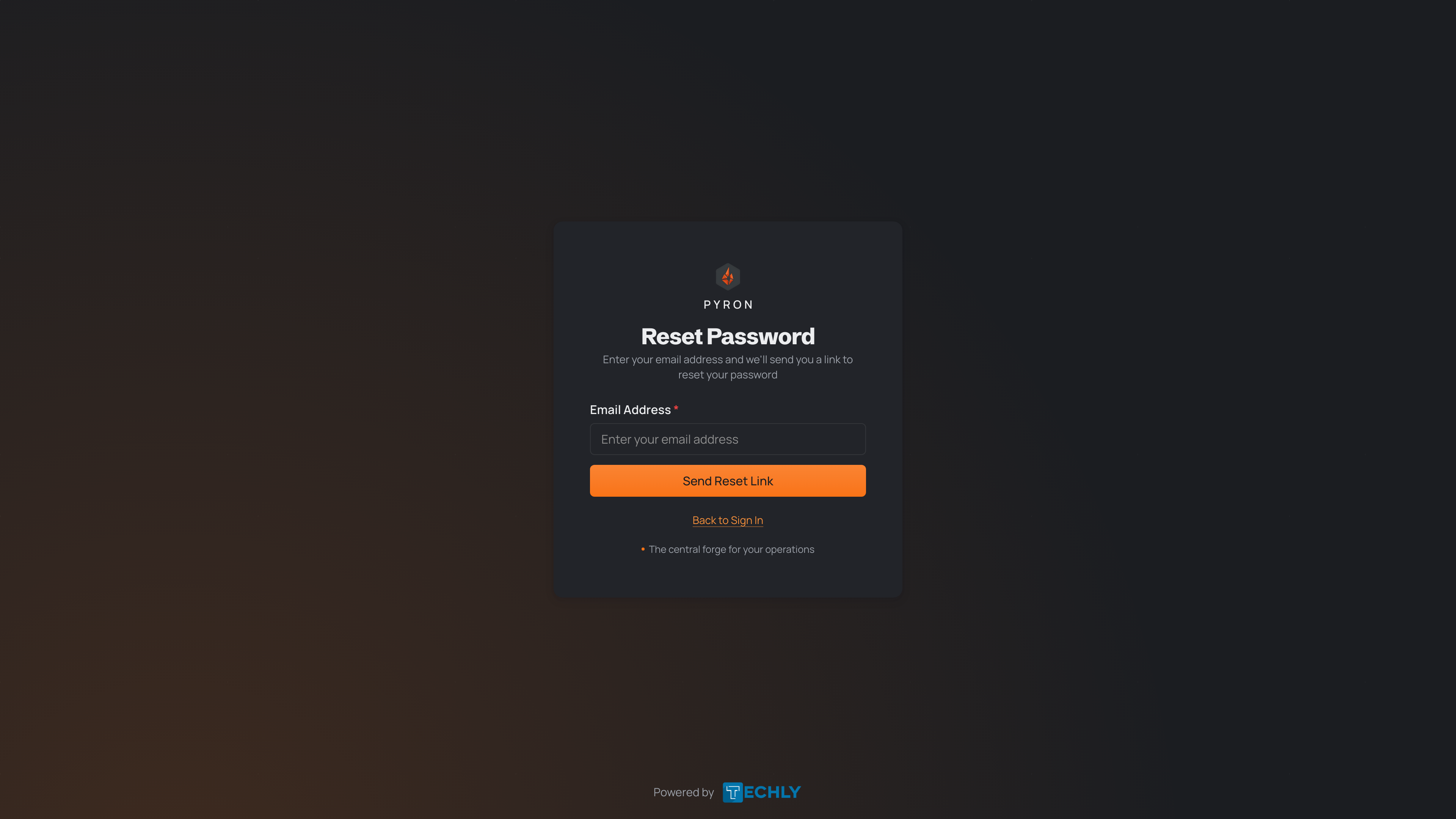
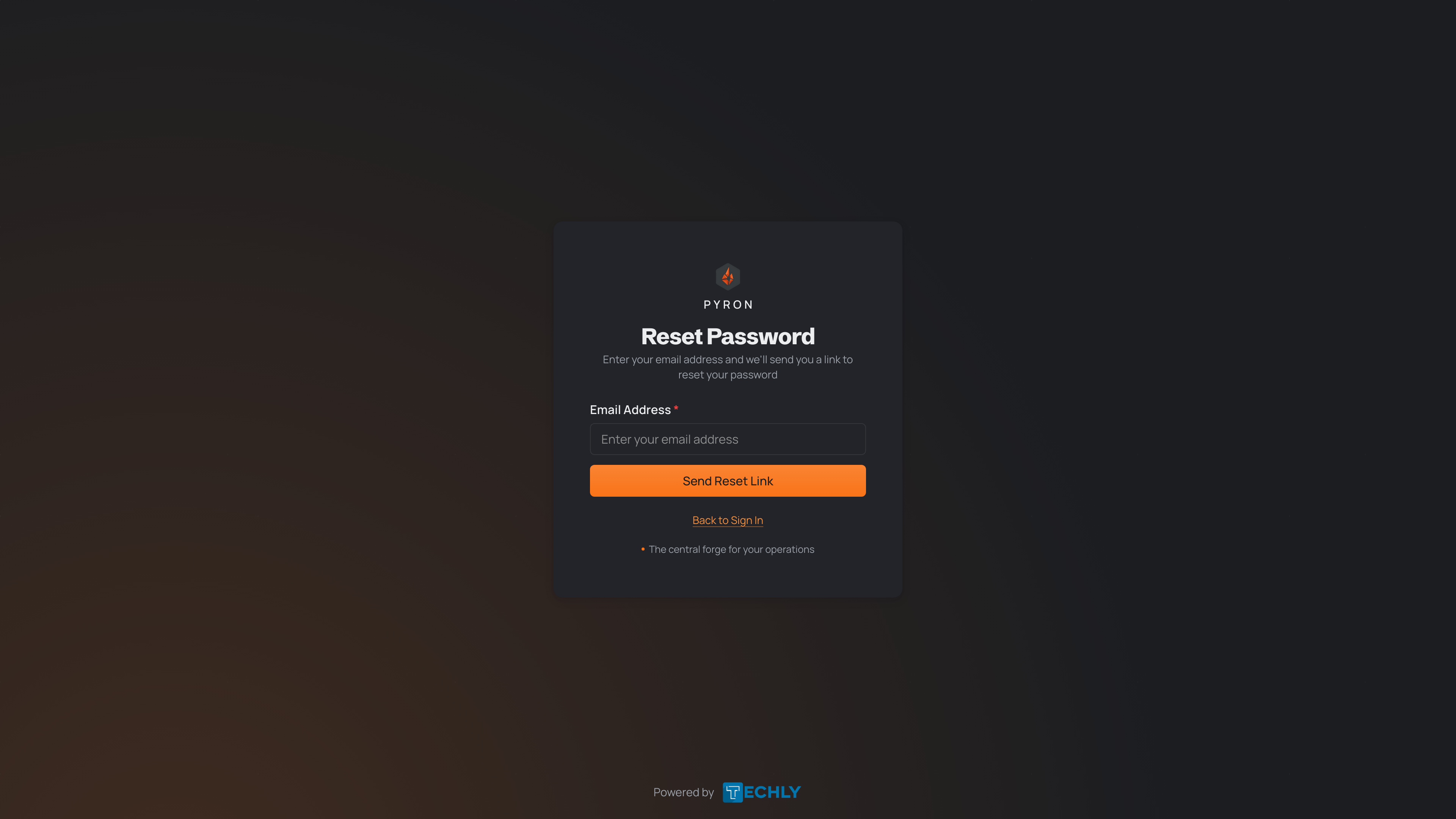
- Select Forgot your password?.
- On the reset page, enter your address in the Email address field.
- Select Send Reset Link.
Pyron sends a reset link to that address. Open the email, follow the link, and choose a new password. The link is valid for a short time only, so reset your password soon after the email arrives.
If the email does not appear, check your junk mail and make sure you entered the address set up for your account. To go back without resetting, select Back to Sign In.
If your organisation uses single sign-on
Some organisations connect Pyron to their own single sign-on system, so you sign in with the account you already use at work — for example, your work Google or Microsoft account — rather than a separate Pyron password.
If yours is set up this way, the sign-in page offers a single sign-on option. Select it, sign in with your work account when prompted, and Pyron returns you to your workspace. Where single sign-on is required, you use it in place of the email and password fields, and a forgotten password is handled through your work account rather than through Pyron.
If you are not sure whether your organisation uses single sign-on, ask your administrator.