
Your settings in Pyron sit in two places: your account menu in the header, and your Account page. Between them you control how the app looks, sign out, and set up the extra checks that protect your account.
Your account
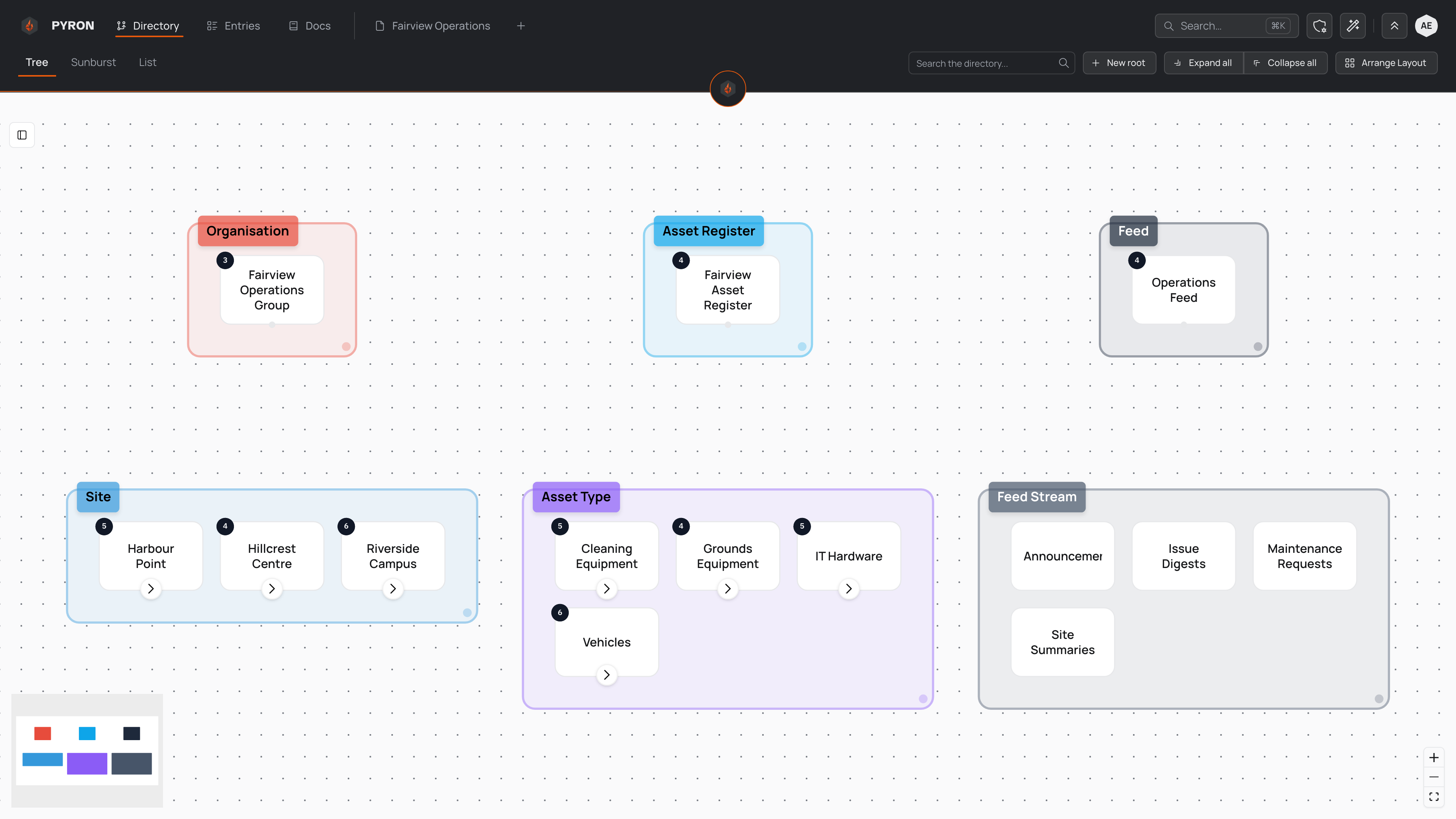
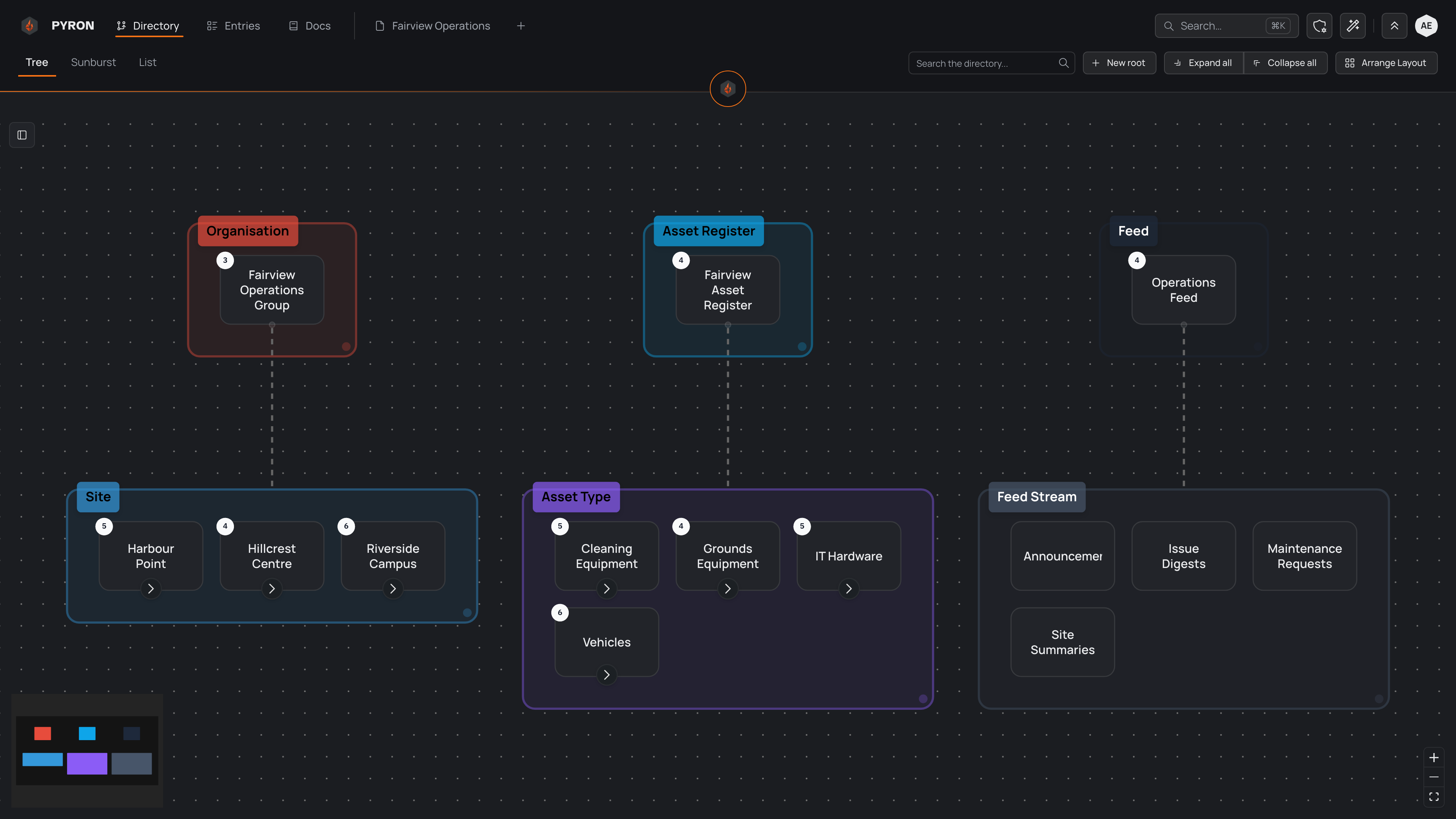
Open the account menu from the round avatar at the top-right of the header, labelled "Your account", to switch between light and dark appearance, change how compact the interface is, open your Account, and sign out. Your name at the top of the menu opens your Account too.
Your Account has four views: Details, Sign-in, Notifications and AI usage.
On Details you change your first and last name, your time zone and your answers under About you — the details your organisation keeps about everyone, such as a mobile number — then select Save at the top of the page. Pyron identifies you by the email address you sign in with. To change it, select Change beside it, type the new address, then the code Pyron sends to that address; your old address is told it moved. If your organisation uses single sign-on, your email comes from there and changes there. Details also shows your workspace, your roles, the places shared with you and when you joined. Your administrators change those — the same goes for your role and permissions, which decide what you can see and do.
Changing your password
On your Account's Sign-in view, select Change password, type your current password, then your new one. If you have forgotten your password, choose the forgot-your-password option on the sign-in screen and Pyron sends a reset link to your email address. The signing in guide walks through that flow.
If you cannot sign in at all — for example, because you have lost access to your email — your administrator can help you back in.
Multi-factor authentication
Multi-factor authentication (MFA) adds a second step to signing in: after your password, you confirm a code or a device that only you have. Someone who learns your password still cannot reach your account without that second factor.
If your organisation requires two-step sign-in, you are asked to set up one way before you can continue.
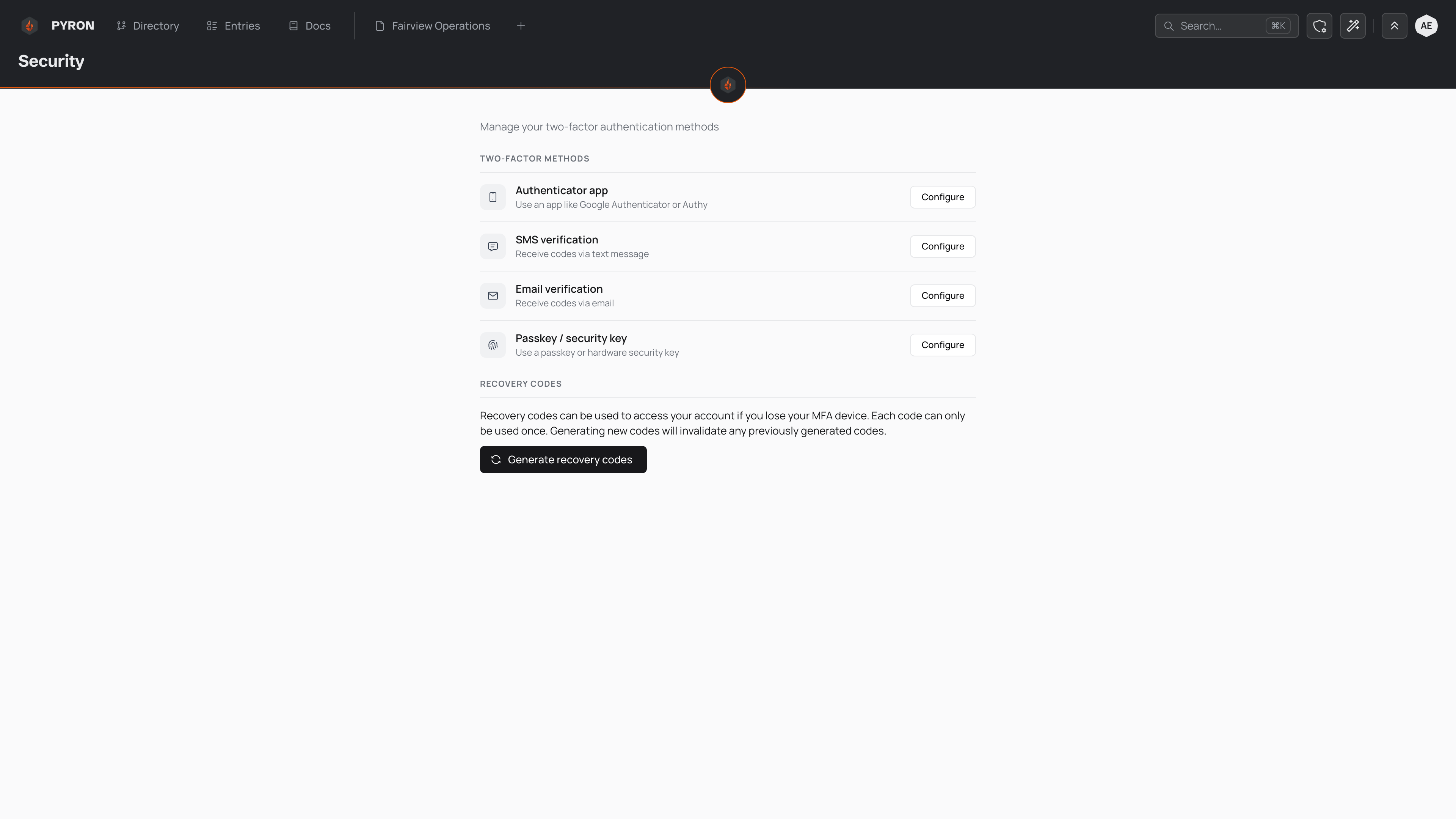
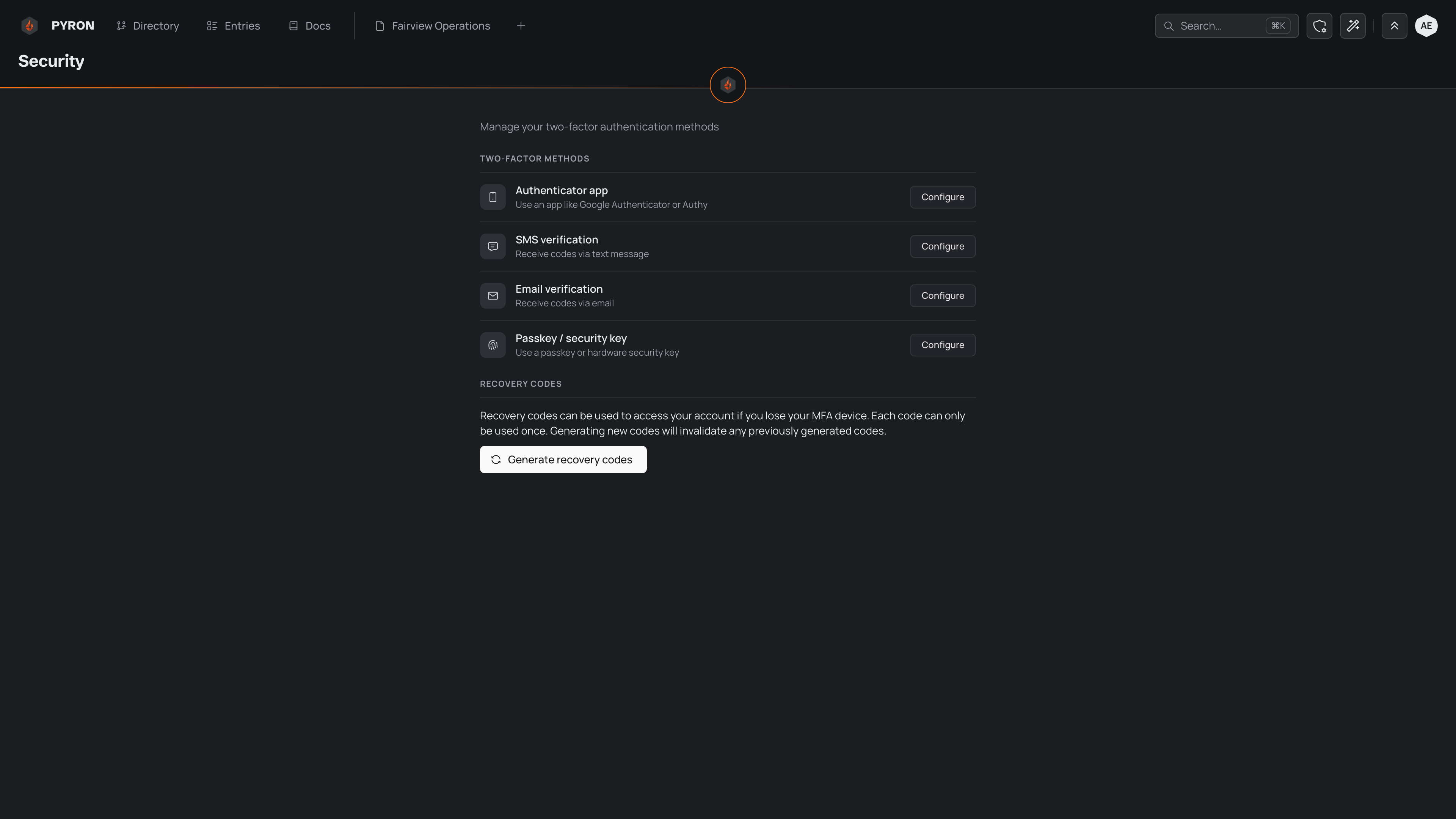
You manage your methods on your Account's Sign-in view, which you reach from your account menu. It says whether two-step sign-in is on, and lists the second-factor options your organisation makes available:
- Passkey — Face ID, a fingerprint or your device's PIN.
- Authenticator app — a code from an app such as Google Authenticator.
- Email code — a code sent to your email.
To turn one on, select Set up next to it and follow the prompts. Once a method is active, the page marks it as set up and you can remove it from the same place. For step-by-step setup of each option, see multi-factor authentication methods.
Where you're signed in
The Sign-in view lists every device you're signed in on, this one first, with where it is and when it was last used. Select ⋯ beside a device and Sign out to sign it out. If you lose a phone or think someone else is using your account, select Sign out everywhere else: every other device has to sign in again, and this one stays signed in. When you change your password, Pyron offers to sign out your other devices too.
Recovery codes
Recovery codes let you get back into your account if you lose access to your usual second factor. Once a way to sign in is on, select Make codes in the recovery codes section, then store them somewhere safe and private. Each code works once, and the section says how many you have left.
Select Make new codes whenever you need a fresh set.