
Pyron gathers every administrative surface — the people, permissions, forms, reports, automations, and organisation settings that keep your site running — onto one screen. From here you reach each management area without hunting through menus, and every surface opens in the same familiar layout.
Opening the control centre
You reach it from the Setup link in the app's top navigation. Selecting it brings you to the home screen, with a tile for every management surface you have access to.
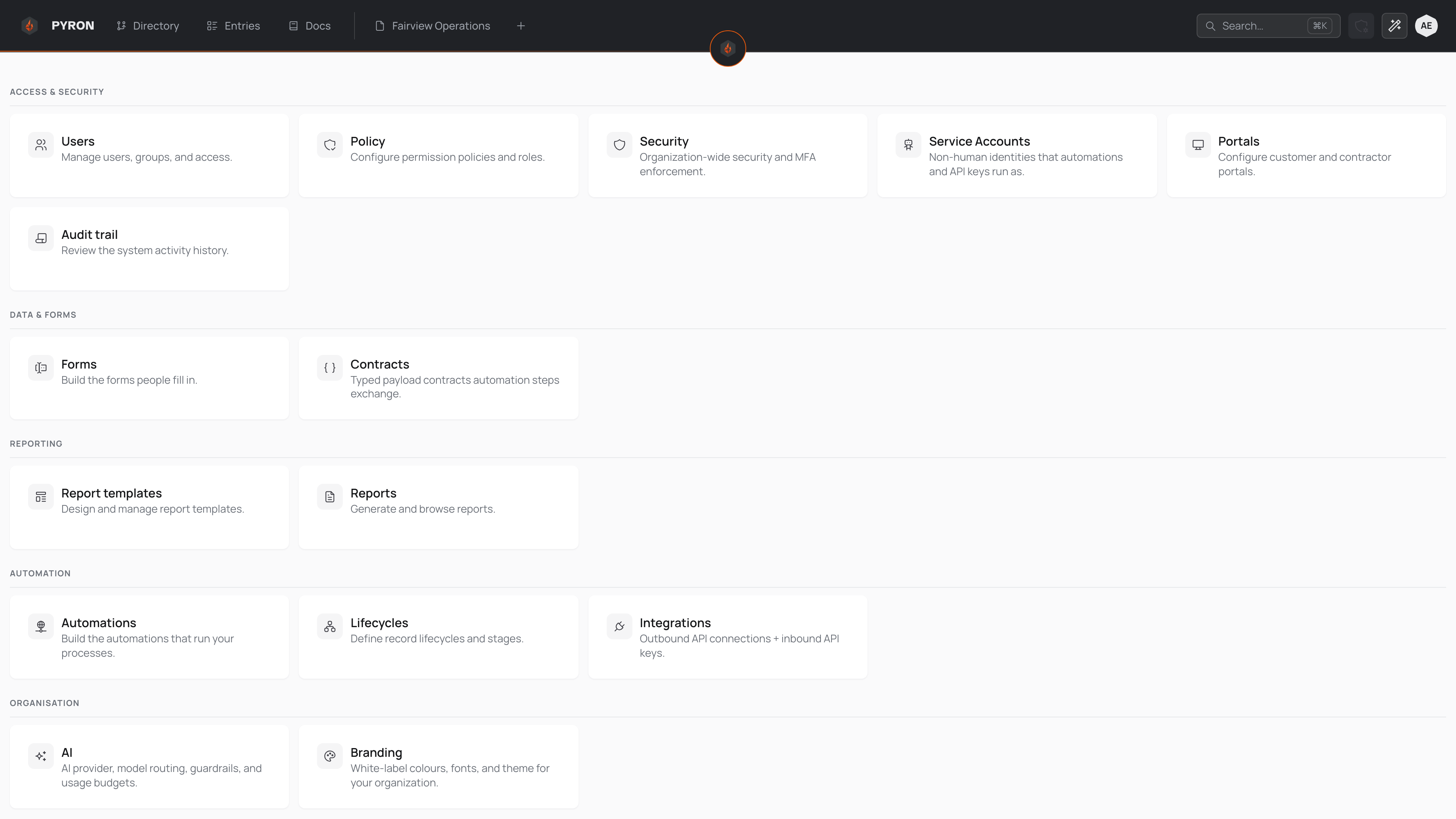
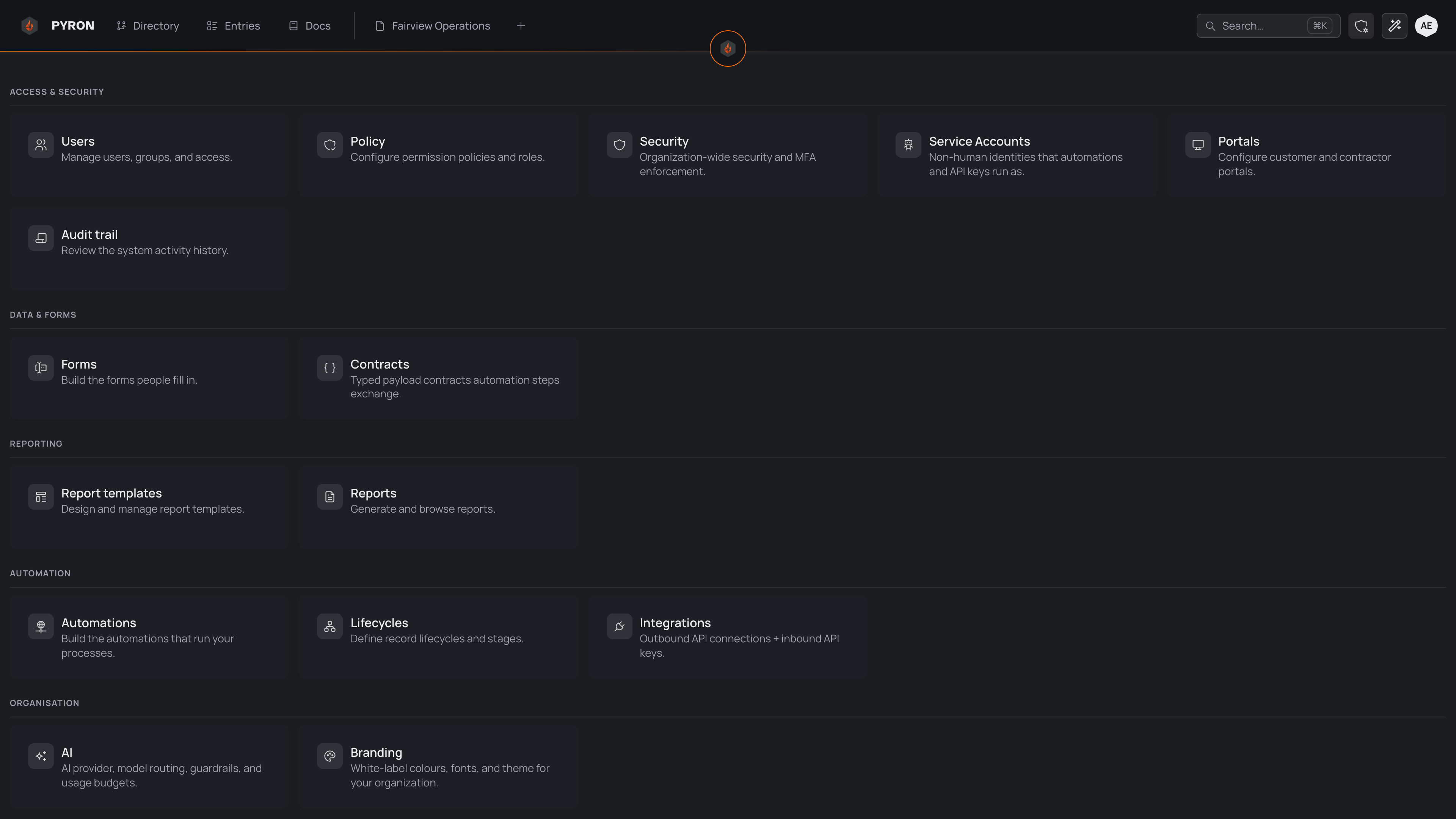
Select any tile to open it. Once you are inside a surface, the top navigation lists every surface in the same order, so you can move from one to the next — from Automations to Reports to People — without returning home each time.
The sections
Setup sorts the management surfaces into two groups, so the parts you build with sit apart from the settings for your organisation as a whole. Each surface below opens a screen dedicated to that job; the pages linked here explain the concepts behind them in depth.
Workflows holds everything your automations are built from, grouped by what each part is: the records people capture, what runs, what it connects to, and what it reports.
Organisation holds the settings for your organisation as a whole, with the ones administrators reach for most often first.
Who can see it
What you see here depends on the permissions your roles carry. Each surface is tied to a permission, so Setup is filtered to the surfaces you are allowed to manage — an administrator with full access sees every section, while someone with a narrower role sees only the surfaces their role opens. A group or row with none of your surfaces in it is left out altogether.
Because access flows from your roles, the roles and permissions an administrator grants you decide the whole picture. Hold no administrative permissions, and the Setup link does not appear in your navigation at all.