
Pyron gives your organisation one place to run its day-to-day operations — the sites you look after, the checks and forms your people fill in, and everything you do with what they capture. Whether you manage a single site or a whole group, you and the people you work with draw on the same connected picture.
One place for your operations
Pyron holds your whole operation as a single tree — a branching structure of the places, teams and things you keep track of. At the top sits your organisation; beneath it are your sites, and beneath each site the areas, vehicles, equipment or registers that belong to them. You move around this structure from the Directory section, which shows the same tree three ways — Tree, Sunburst and List — so you can pick a branching diagram, a circular overview or a plain list to suit the moment.
Each item in the tree can be a site such as Harbour Point or Hillcrest Centre, a register such as Vehicles or IT Hardware, or any grouping in between. Where something sits in the directory decides both what belongs to it and who can reach it, so the structure you build is also how access and information flow. To explore this idea, see The directory.
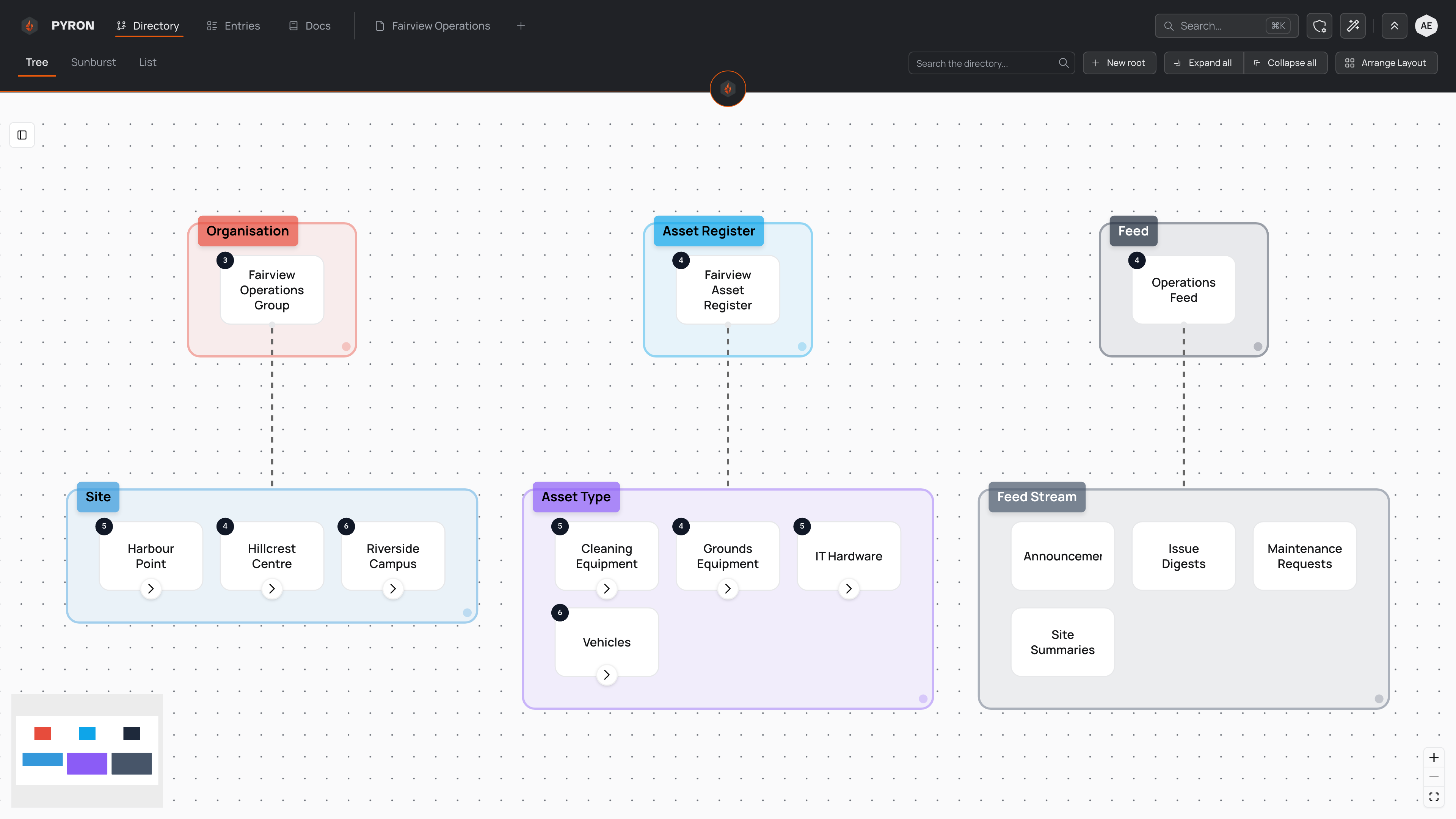
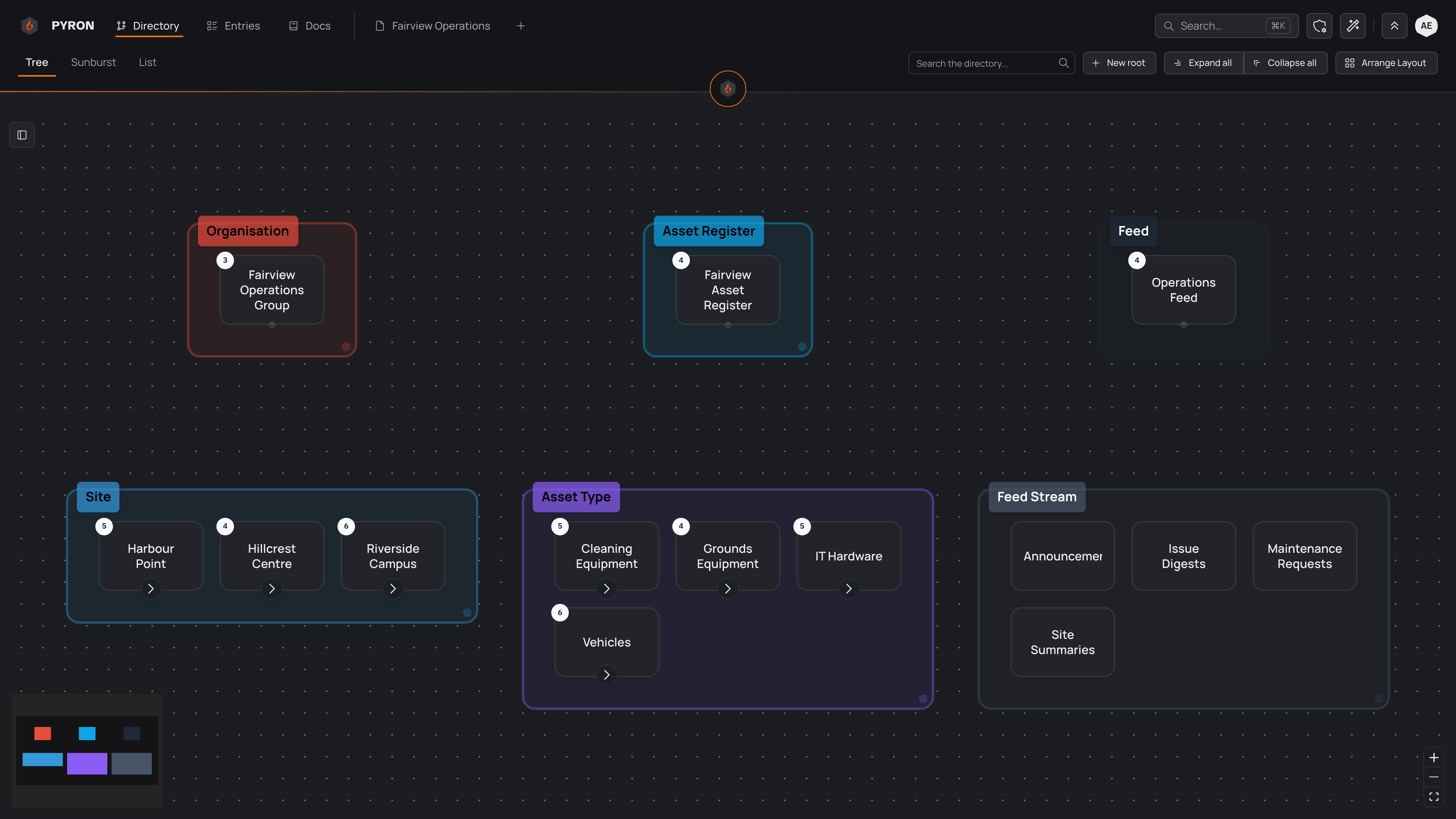
The top of every screen stays the same wherever you are: links to Directory, Entries and Docs, a Search for jumping straight to what you need, and the Assistant for asking Pyron in plain words. For a tour of the header and how to move between sections, see navigating the app.
What you can log
Most of what your work produces can be logged in Pyron as an entry. An entry is a single thing someone has captured — an inspection, a shift check, an incident, a completed job — filed against the place it belongs to. People add entries by filling in a form, and each form asks only for the fields that matter for that kind of entry.
Forms adapt to what you are logging. A form can mark some fields as required so nothing important is missed, and it can reveal extra fields only when they apply — for example, asking for a reason once someone marks an issue as urgent. Because every entry is filed somewhere in the directory, you can look at just the entries for one part of it, or gather them all in the Entries section to sort, filter and search.
To go deeper, see Entries and forms; to work with them day to day, see creating an entry and viewing entries.
What Pyron does with it
Once information is flowing in as entries, Pyron helps you act on it rather than just store it:
- Dashboards turn your entries into a live picture — headline numbers, charts and tables that refresh as entries arrive (dashboards).
- Reports turn entries into finished documents you can share or schedule, built from templates that fill themselves in from your data (reports and templates).
- Automations watch for things happening and respond on their own — sending a notice, starting a follow-up or updating an entry (automations).
- Lifecycles move an entry through states, such as from open to resolved, so the team can see where each one stands (lifecycles).
- Permissions and sharing decide who can reach and change each part of the tree, while a running history keeps track of who did what (access and sharing).
Administrators set up and manage much of this from the Setup, while the people you work with see the results woven into their everyday screens. You can ask the Assistant about your data in plain words, or use Search to jump straight to anything in the directory or an entry — see the assistant and searching Pyron.
Where to start
New to Pyron? A short path will get you comfortable:
- Sign in and reach your organisation.
- Find your way around the header, the sections and search.
- See the big picture of how the directory, entries, dashboards and automations fit together.
- Learn about the directory, the structure everything else hangs from.