
A directory page opens on its entries laid out in a table: one row per entry, the newest at the top, with a toolbar above for searching, filtering and shaping the columns. The table is a widget — one of the building blocks a page is made from — and the same table turns up on dashboards.
Reading the table
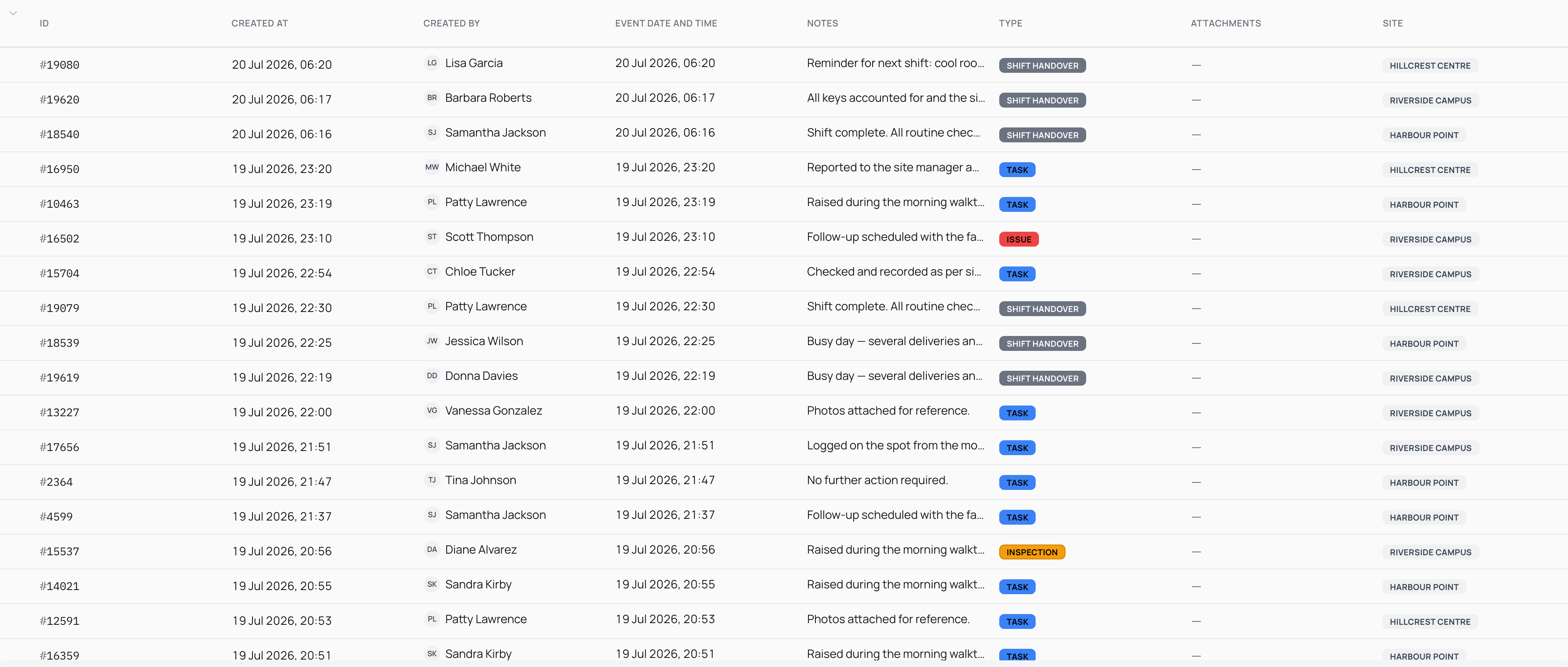
Each row is one entry logged here. The first columns cover what Pyron keeps for every entry — its ID, when it was logged and who logged it — and the rest are the fields from the form each entry was logged with, such as its type and a note. Where a page gathers entries from the sites beneath it, a site column tells you where each one came from.
The newest entries sit at the top. Along the toolbar you can:
- type in the Search box to match text across the entries,
- open Filter to narrow the list to the entries you want,
- select New entry (or the page's kind, such as New incident) to log a new one,
- use Export to take the current list out as a spreadsheet,
- open Show/Hide Columns to choose which columns appear.
Select a row to open that entry in full. The row stays highlighted while it is open. For moving through and reading a filtered list, see viewing entries.
Columns and widths
The columns come from the forms that log entries here: every field those forms capture can stand as a column, alongside the built-in ID, created and site details. You decide which of them show and how they sit.
- Reorder — drag a heading to move a column. With the keyboard, focus a heading, press the space bar to pick it up, move it with the arrow keys, and press space again to drop it.
- Resize — drag the edge of a heading to make a column wider or narrower.
- Sort — select a heading to order the table by that column, and select it again to reverse the order. Each heading also carries a column actions control that offers the same options.
- Show or hide — open Show/Hide Columns to tick the columns you want on screen and untick the rest.
The order, the widths and which columns show are all part of the view, so they hold once you save it.
Filters that stick
A busy site or register can hold thousands of entries, so the table does not load them all at once. It brings in a batch, newest first, and fetches more as you scroll — the list grows under you without a wait. Whatever filters and sorting you have set stay applied as those extra rows arrive, so scrolling never loosens the slice you built.
Filters you set as you work are tied to your visit. They hold while you are on the page, but a reload returns the table to the starting point saved on the page — nothing you try sticks by accident. To keep a set of filters, save it as a view: the page then opens on that slice each time, for you and for anyone you share it with.
For how to build filters, the operators each column offers, and how to save a view, see filtering and sorting.