
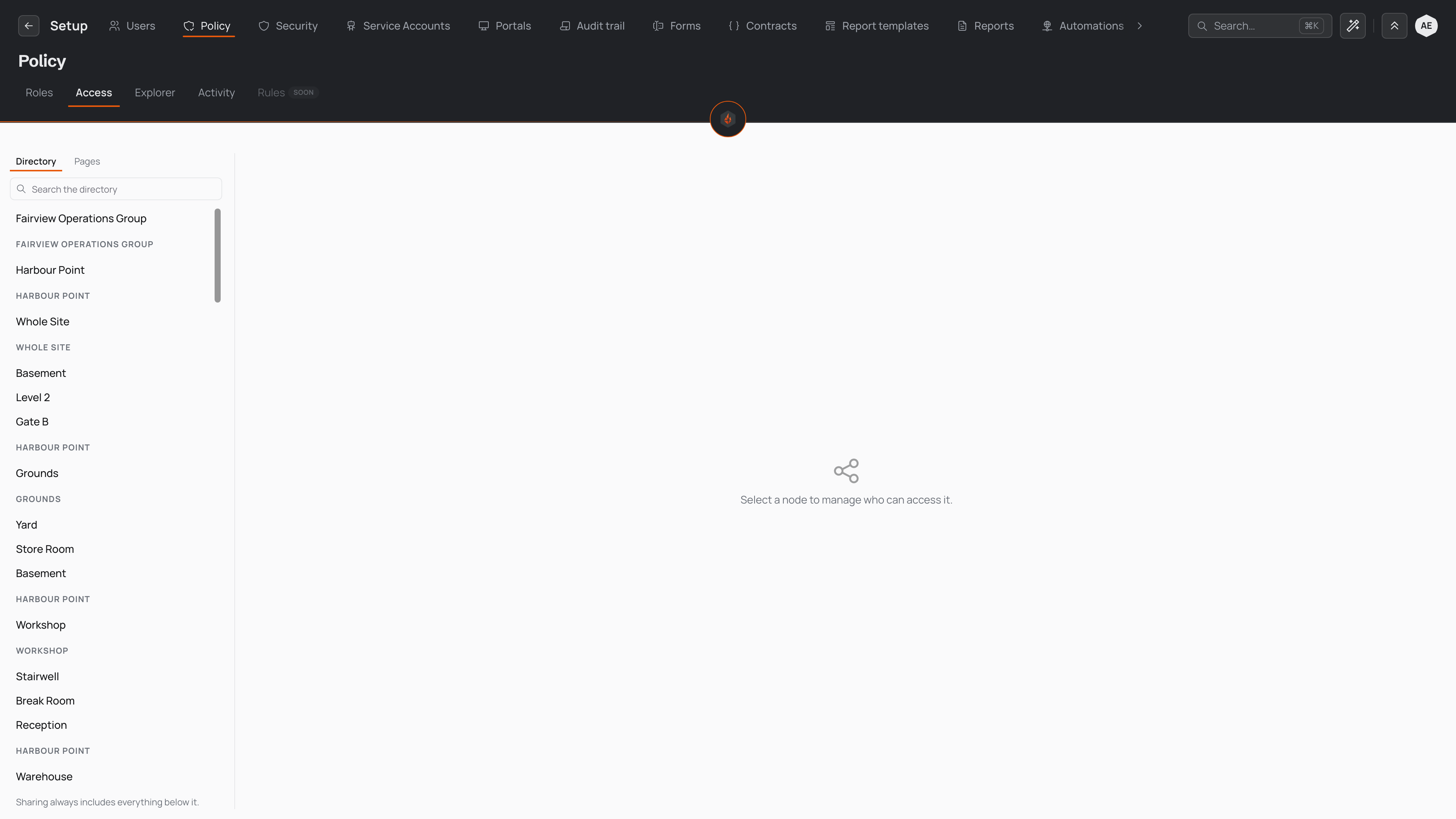
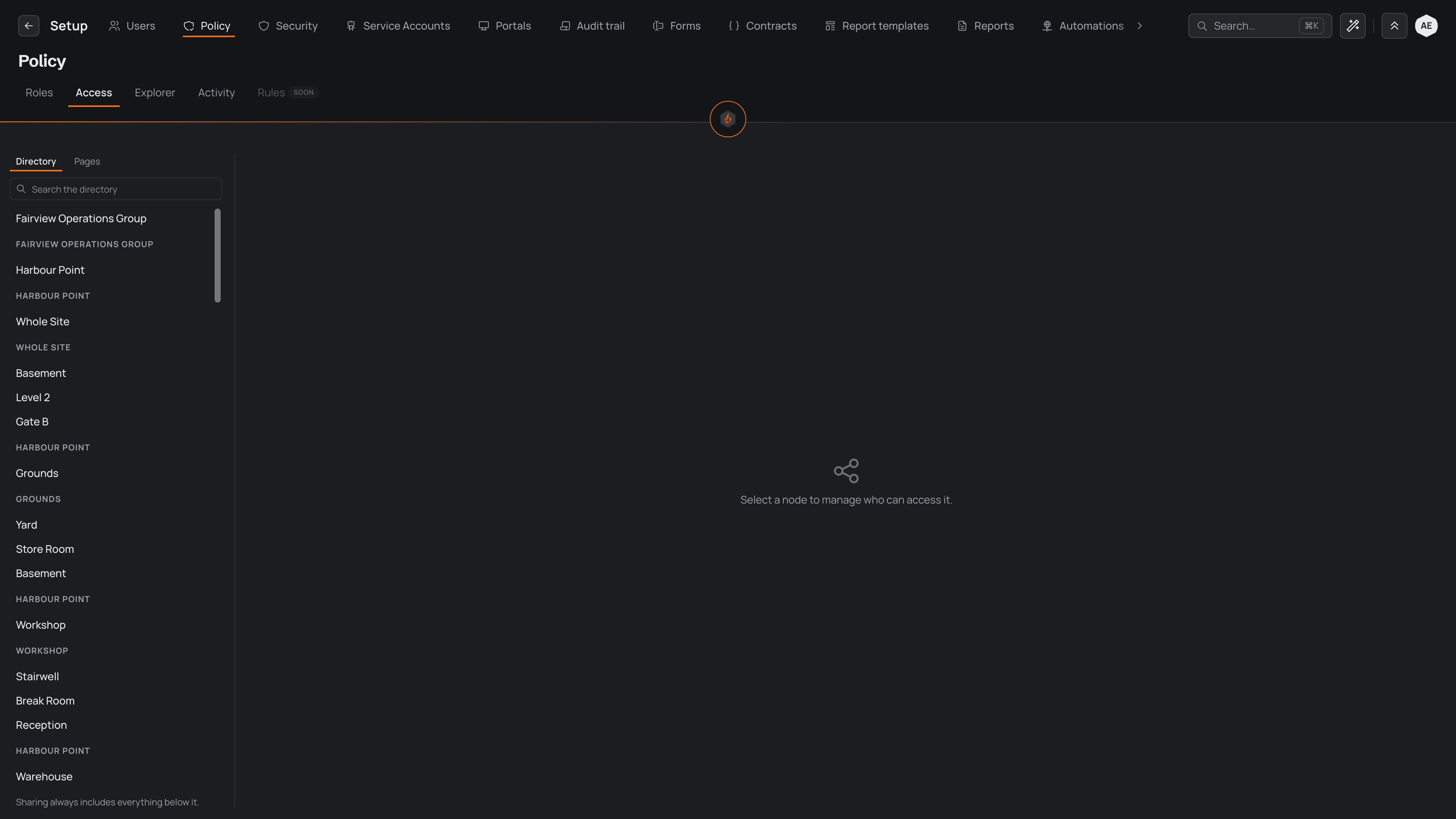
Sharing gives one person access to a single place in the directory — a site, an area, or one item — together with every place inside it, without changing the roles they hold everywhere else. You share a place from the place itself.
Sharing a place
In the Directory, open the place's ⋯ menu and choose Share. The panel that opens shows who can already reach the place and lets you add someone.
- In Share with, start typing a person's name or email address and pick them.
- Choose a level. Each one includes the one before:
- See — see this place and its records.
- Log — see, and log records here.
- Edit — log, and change records here.
- Manage — edit, and delete here.
- Choose Share.
Each person with access shows their level and who gave it to them, and when. A person who has access from a place above this one shows where it comes from, such as "Log from Peninsula Health"; change it on that place.
People whose role lets them see every place, such as Staff, can see this place whatever you share here. The line at the foot of the panel names those roles and how many people hold them; choose Show to list them.
You can also give someone a place from their own page in Setup → People, with Add place.
Two limits keep sharing safe. You can grant only the access you hold yourself, never more. And a share never hands over the right to share — deciding who may share a place stays an administrator's job. Every share also includes the ability to see the place, because you cannot give someone the right to change something they cannot open.
Access flows downward
A share is never limited to the one place you pick. When you share a place, the person reaches every place inside it, and every entry filed on them, all the way down. The Share panel says so: "Sharing this site shares the places inside it too."
Share a whole site and you have shared its areas, its items and their entries. Share a single area and the person reaches that area and what sits inside it, and nothing above. To give someone a narrower slice, share a lower branch rather than the whole site.
The level of access you choose applies at the branch you share and reaches the same way down. For the reasoning behind this, see Access and sharing.
Removing access
Remove a share from the same panel you created it in: open the place's ⋯ menu, choose Share, then choose Remove access from the person's ⋯ menu. To give someone less, pick a lower level beside their name.
Before anything changes, Pyron names what they lose and where, and asks you to confirm. Because access flows downward, removing it at a place removes it from every place inside it as well. Any access the person holds on other places, or through a role, stays as it was — taking back one share never touches another.
When a person needs the same access across many places, a role is a better fit than a stack of separate shares. See Roles for organisation-wide access, and the Access Explorer to review what someone holds before you change it.