
The Policy activity feed brings every access change in your organisation into one running history — sign-ins, role changes, and denied attempts, newest first. Use it to check who signed in, whose permissions changed, and where an action was refused, without leaving the Policy screen.
The activity feed
Open the feed from the Activity tab on the Policy screen, which sits alongside Roles, Access, and Explorer. Activities are listed newest first and grouped by the day they happened, with the most recent day at the top.
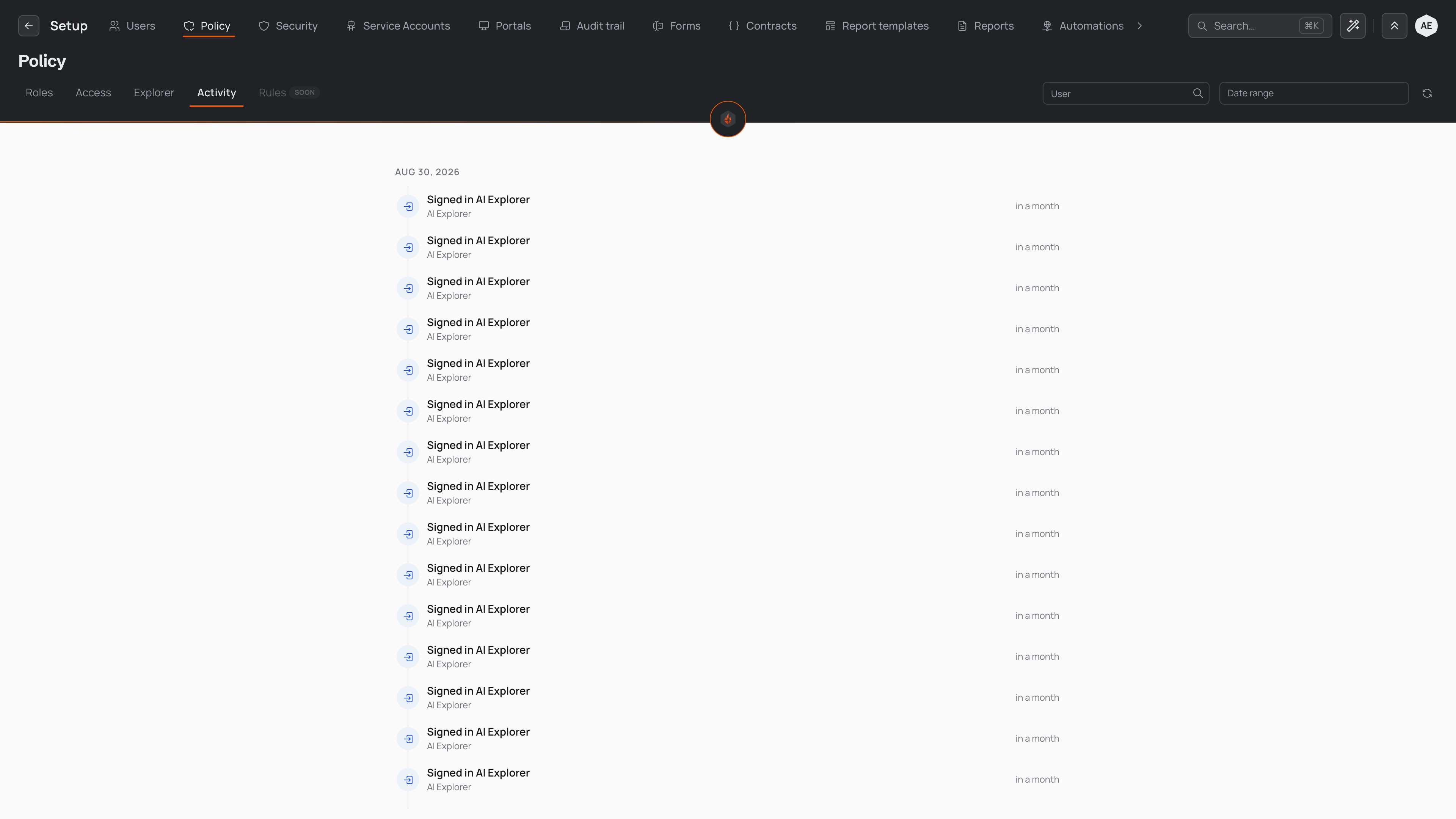
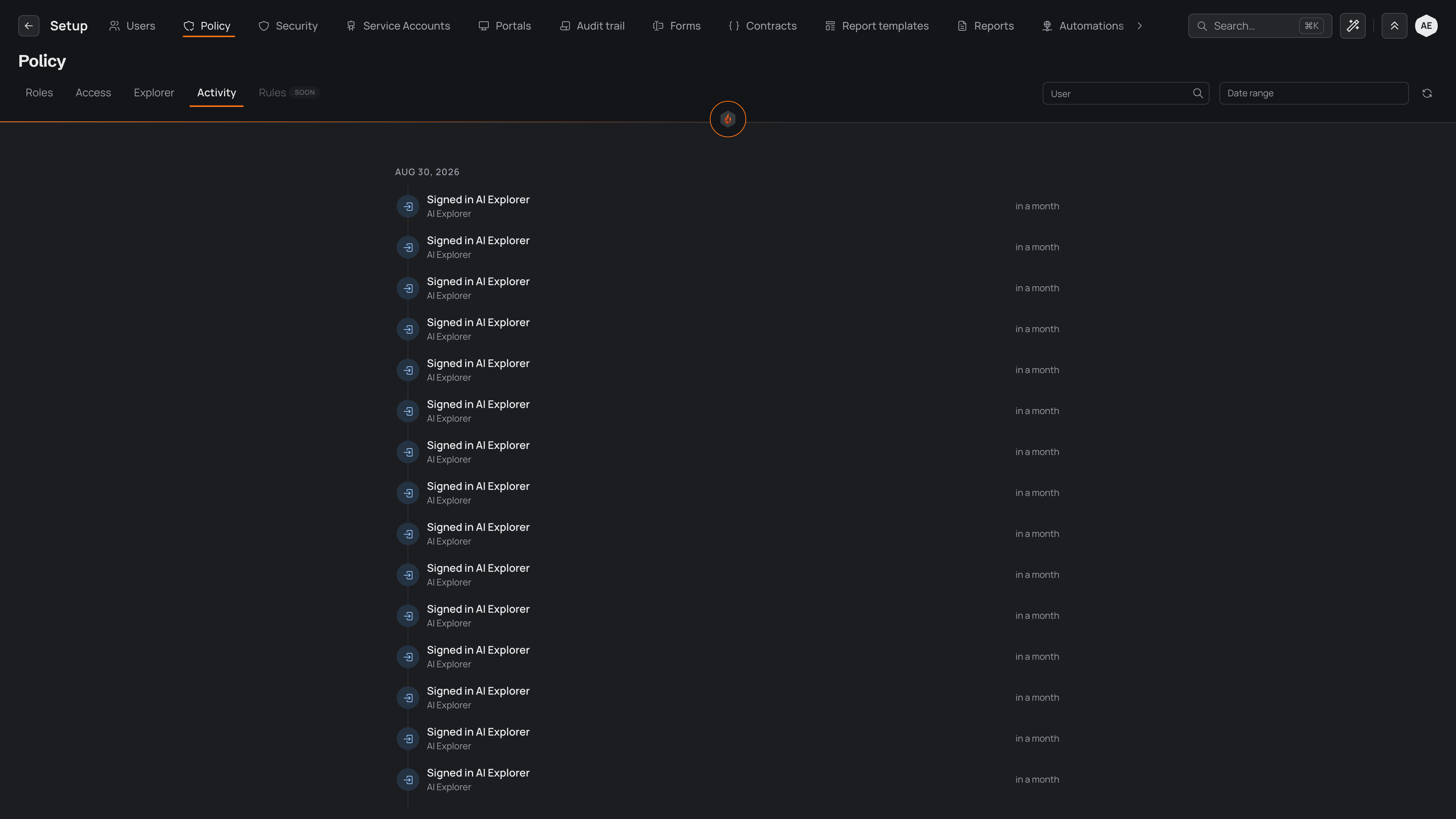
Each row is one activity, written in plain language rather than raw codes: it names what happened and who was involved — a sign-in such as Signed in Alex Reid, or a change to a role such as Updated role · Viewer. Select any row to open it in full and read its detail.
Two controls narrow what you see. The User box focuses the feed on a single person, and Date range limits it to a window of time. Refresh reloads the feed to pull in anything captured since you opened the page.
What gets recorded
Policy activity covers the access and security slice of your organisation's history:
- Sign-ins — each time a person signs in, and each failed attempt.
- Role and permission changes — when someone's access changes, such as Updated role · Administrator.
- Denied access — an action a person's permissions did not allow.
The full audit trail records these alongside every other change made across your organisation; Policy activity narrows the same history to the events that affect who can do what. To change roles and permissions yourself, see Roles.