
Roles group permissions so you can grant the same access to many people at once. A role says what its people do — log records, read reports, manage people — and where they do it.
The roles list
Roles live in Setup, under Roles, on the All roles tab. The list shows each role with what its people do, where they work — Every place, or Their places for a role whose people see only the places they're given — and how many people hold it.
Choose New role to add one. Give it a name and a line about what its people do, then choose what it starts from: an existing role, copied with everything it can do (never the people who hold it), or nothing but what every role holds. Duplicate, in a role's ⋯ menu, starts a new role from that one.
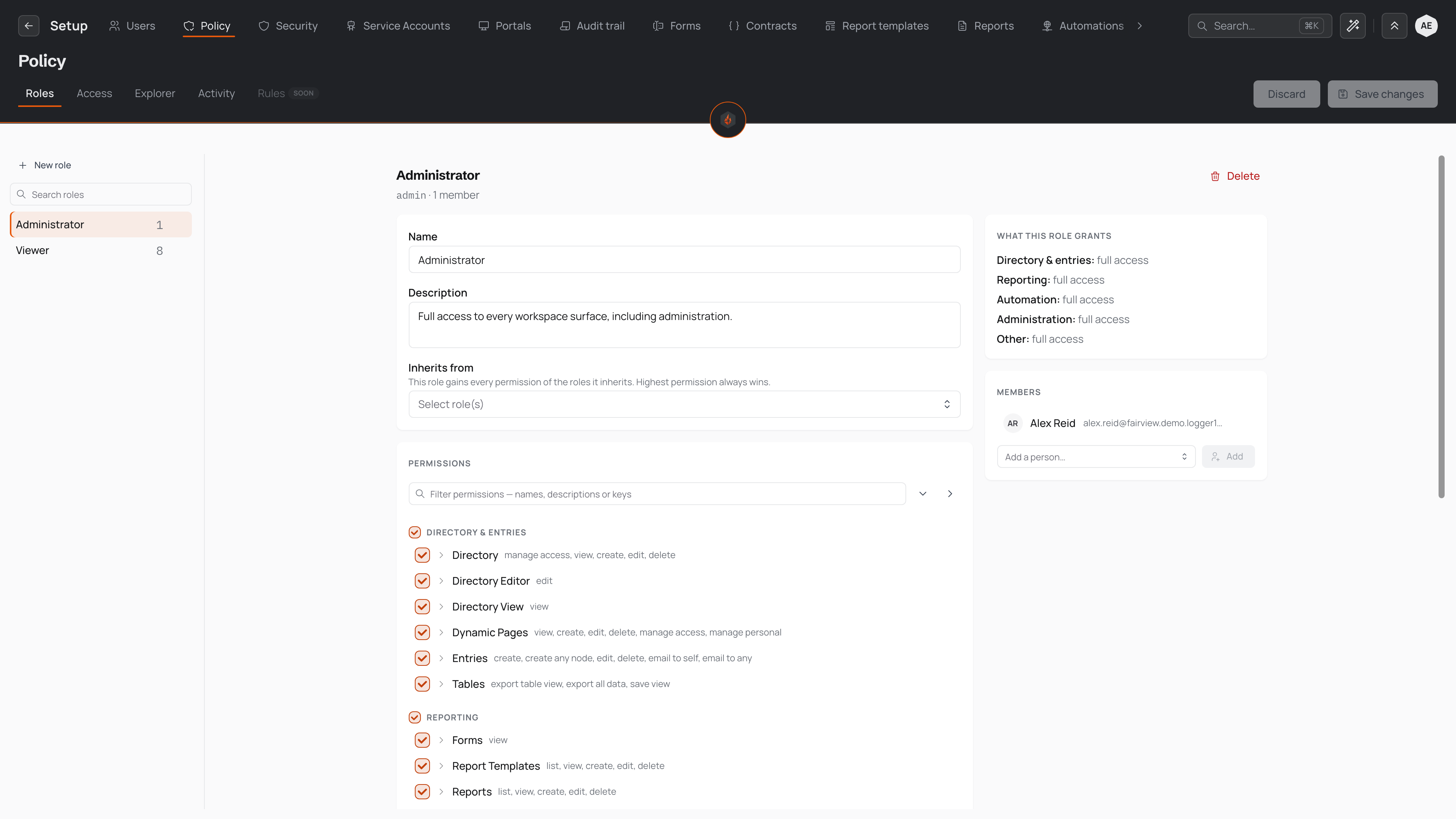
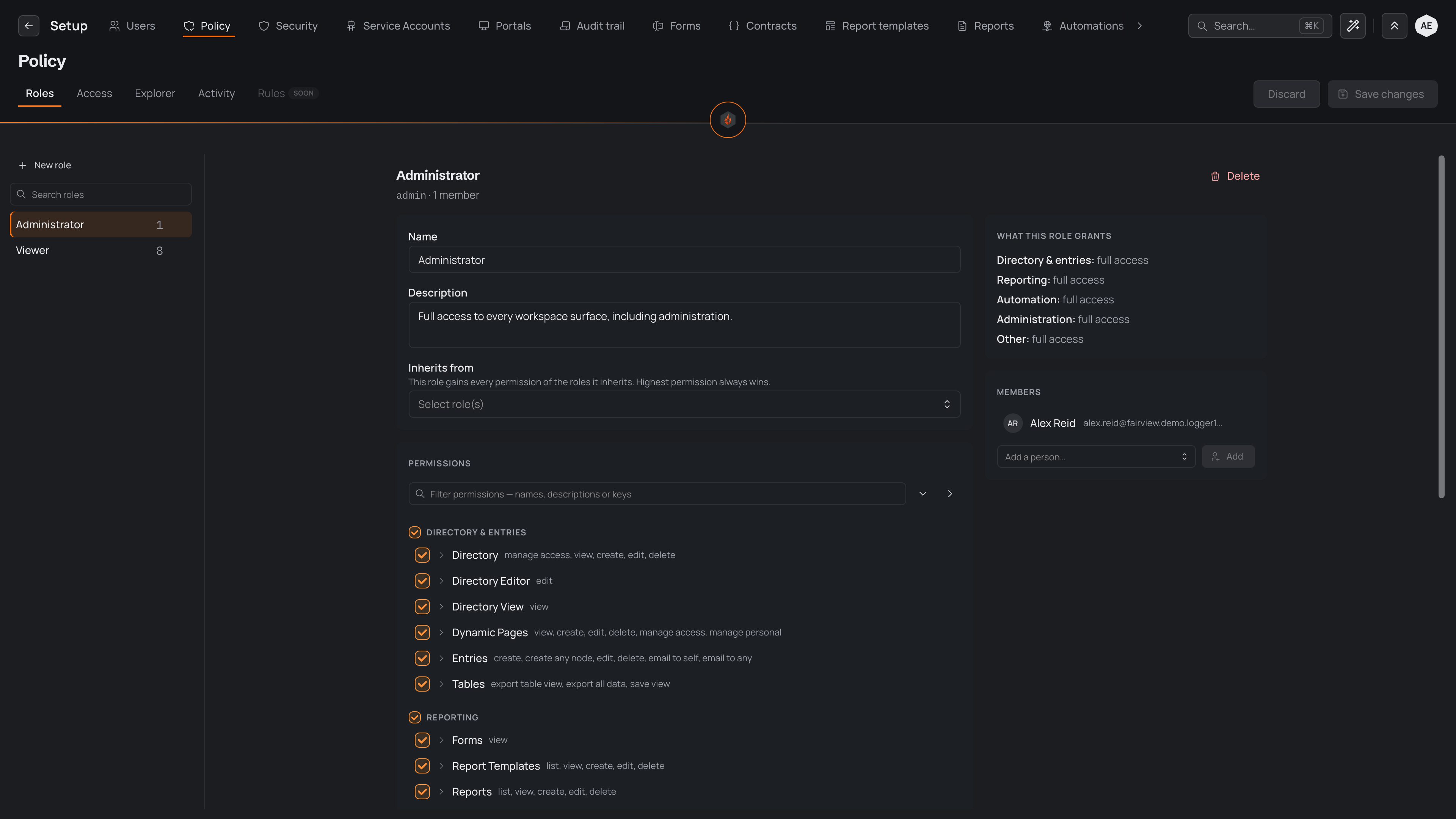
A role's page
Select a role to open its page, titled with its name and how many people hold it. It has two tabs.
Can do says what the role does:
- In short sums the role up in one sentence.
- Where decides whether its people see every place, or only the places each of them is given.
- Then a switch for each job, such as Log records, Edit records, Read reports or Manage people, each with a line about what it covers. A switch shows part-way when the role holds only some of what the job needs; switch it on to give all of it.
- If the role gives part of something people do in several steps, a note above says what else it needs.
- One line lists what every role can do anyway, such as finding people by name.
- All permissions opens every individual permission, and Inherits from, for the rare change a switch can't make.
People lists who holds the role, and lets you add or remove people.
Any change stays pending until you choose Save; Discard reverts it. The page's ⋯ menu holds Rename, Duplicate and Delete. Before you confirm a delete, Pyron tells you how many people will lose the role. The Staff and Administrator roles are built in: what they can do is fixed, and only who holds them changes.
A project's role
When a project's automations need to act on their own, the project makes a service account for them and gives it a role of its own. The role is named after the project, such as Fairview intake — file entries, and carries a Project badge in the list.
A project's role belongs to its project, so its page is read-only. It says which project it belongs to and links to it. The role's name follows the project's name, and what it can do follows what the project's automations need. Only the project's own service account holds it, so you can't give it to a person or to another account, take it from its account, or delete it. Duplicate still starts a role of your own from it. The role goes when its service account is deleted, which deleting the project does too.
The Access tab covers a different job — sharing individual items with specific people — rather than the workspace-wide permissions you set here.
All permissions
Behind All permissions, permissions are grouped into four areas: Directory & entries, Reporting, Automation, and Administration. Each area holds a set of items — such as Entries, Forms, and Tables under Directory & entries — and each item holds the individual permissions that control it.
Within an item, permissions run from viewing information through to the changes that carry the most weight, such as editing, deleting, or administering it. Grant or clear everything in an area, or in a single item, with one control, or open an item to choose individual permissions. Narrow the list with the box labelled Filter permissions by what they allow or where they apply when you know what you are after.
Roles can build on one another. Use Inherits from to base a role on others: it then gains every permission those roles grant, and where two roles differ the higher permission wins. Inherited permissions appear as already granted and cannot be cleared here — change them on the role they come from.
For the full list of areas, items, and permissions, see the roles and permissions catalogue.
Screen access
A role also decides which screens its members can open. Screen access is not a separate setting — it follows the permissions you grant. When a role has permissions for an area, the matching screens appear for the people in that role, and a role without them never sees those screens.
For example, a role with Policy permissions can open the Roles screen, while a role with only Reporting permissions reaches the reporting screens and nothing more. As you adjust a role's permissions, the screens its members can reach change to match.