
A kiosk is a shared screen a whole team uses — a tablet by the loading dock, a screen in the security room. You set the device up once, with a code; from then on each person steps up, picks their name, enters their PIN, and logs their work as themselves. You create and manage kiosks from Kiosks in Setup.
The kiosks list
The kiosks list sits under Kiosks in Setup and shows every shared account you have set up.
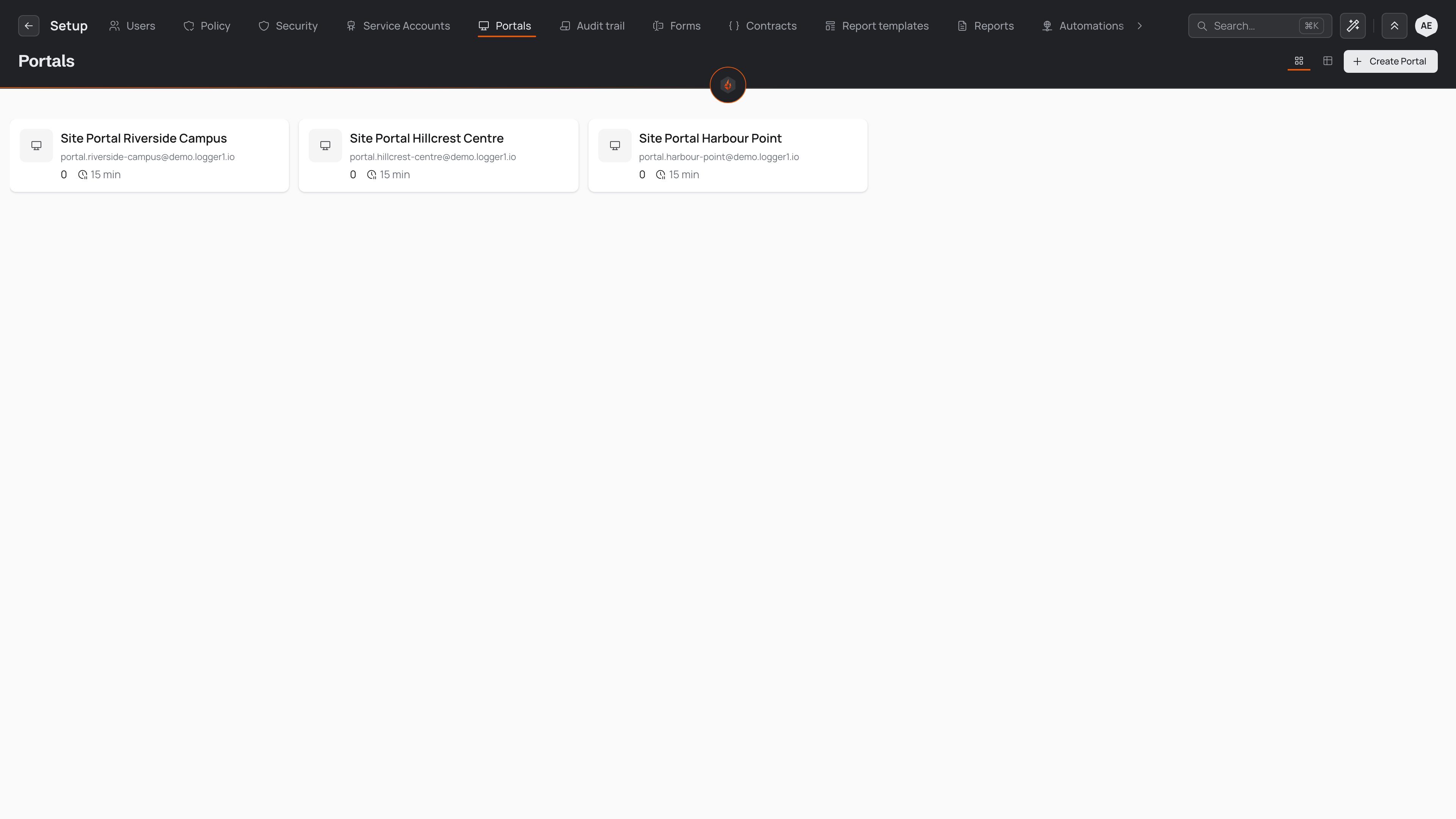
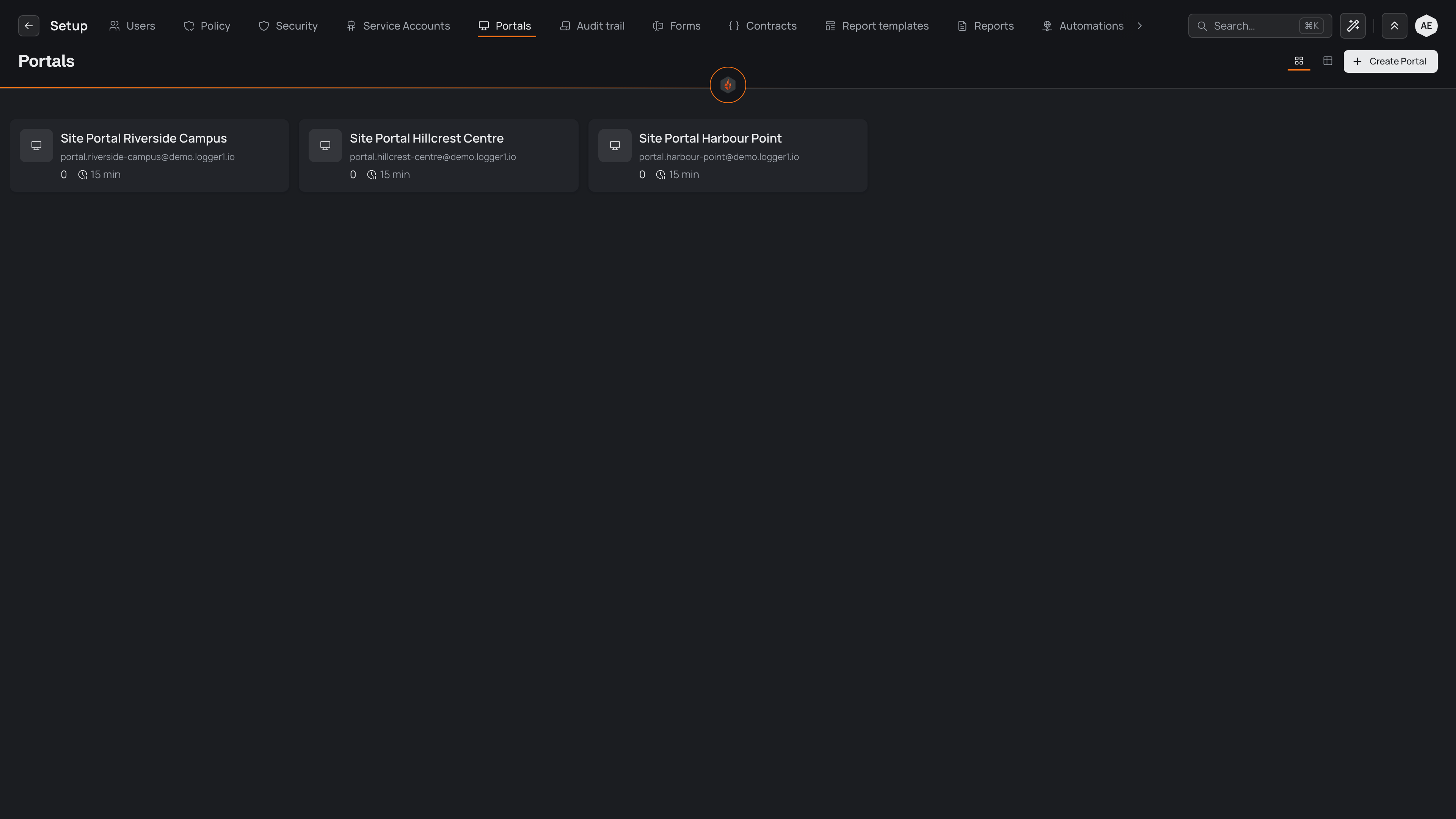
You can read the list as tiles or as a grid, using Card view and Table view. The table shows each kiosk's name, the place it opens to, how many devices are set up as it (Not set up until one is), when it was last used, how many people are on it, and whether it is Ready.
Open a kiosk — select it, or choose Open from its ⋯ menu — to go to its page. The same menu holds Set up a device, which opens the kiosk's page with a code, and Delete, which removes the kiosk once you confirm it by name. Above the list, New kiosk adds a new one.
Creating a kiosk
- Choose New kiosk.
- Give the kiosk a display name and pick an icon. This is what people see on the tile here and on the chooser at the device.
- Enter the kiosk's email. It names the kiosk in your workspace; each kiosk needs one of its own that no other account uses. A kiosk has no password.
- Set Lock after in minutes — how long the device waits, untouched, before it returns to the chooser and hands the session back.
- Choose a page for the device to open after someone enters their PIN. A device that only ever does one job — a table to log against, or a team dashboard — opens ready for it. This step is optional.
- Choose Create kiosk. Its page opens with a code to set its device up.
Setting a device up
A kiosk works on the devices you set up as it, each with a code — never a password.
- On the kiosk's page, choose Set up a device (it is already open for a new kiosk). A code like K7Q 4MZ appears, with a QR code beside it.
- On the tablet, open your workspace address followed by /kiosk — the page shows it — and type the code, or scan the QR code with the tablet's camera.
- The tablet shows the kiosk's chooser, and the kiosk's page lists the device.
A code works once, for 15 minutes. New code makes another and stops the last one working. The device stays set up until you sign it out: under Devices on the kiosk's page, choose Sign out beside it, and it stops at once. Setting it up again takes a new code.
The timeout matters because a shared device should not stay open under one person's account after they walk away. When it lapses, the device drops back to the chooser so the next person signs in as themselves.
A kiosk's page
A kiosk's page is titled with its display name, the place it opens to and whether it is Ready. It has three sections, and a ⋯ menu at the top.
Devices lists every device set up as the kiosk, with when it was set up and last used, and Sign out beside each.
People lists everyone who has joined the kiosk at its screen, with their email and whether they have set their PIN yet. Someone who has joined but not set a PIN is asked for one the next time they pick their name. Select a person to open them in People, or choose Remove from kiosk from their ⋯ menu to take them off its screen; they can join it again.
Settings holds the icon, the display name, the email, Lock after and the page the device opens after someone enters their PIN — the same choices you made when you created it. Change what you need, then choose Save at the top of the page. Discard puts back what was saved. Both stay unavailable until you change something.
The ⋯ menu holds Set up a device and Delete, the same as in the list. Deleting a kiosk stops every device set up as it, and takes you back to the list.
People at a kiosk act as themselves
A kiosk keeps sign-in quick without hiding who did what. The first time someone uses a kiosk, they confirm who they are with their own password and choose a six-digit PIN. After that, they pick their name at the device and enter the PIN — no password at the start of every shift.
From that point the app acts as that person: every page they open and every entry they log is filed under their own account, and they see exactly what their own roles allow. The shared device neither widens nor narrows what a person can reach.
A person's PIN is their own: each person sets and resets it at the kiosk, using their password to confirm who they are. A kiosk never asks for two-step sign-in — the person at it confirms who they are with their PIN.
The kiosk walks through what this looks like from the field — the chooser, the PIN, and handing the device back. For how a kiosk compares with the other lightweight way to log away from a desk, see Kiosks and form links.