
The Security screen gathers your organisation's sign-in protection in one place: whether people need two-step sign-in, which ways to confirm it's them they can use, how single sign-on connects to your identity provider, how long people stay signed in, and the password rule. Only administrators can open it, and nothing takes effect until you save, except where a section says otherwise.
The security screen
Open the Security screen from Setup. It holds six sections, one under another: Two-step sign-in, Single sign-on, Sessions, Support access, Passwords and Activity.
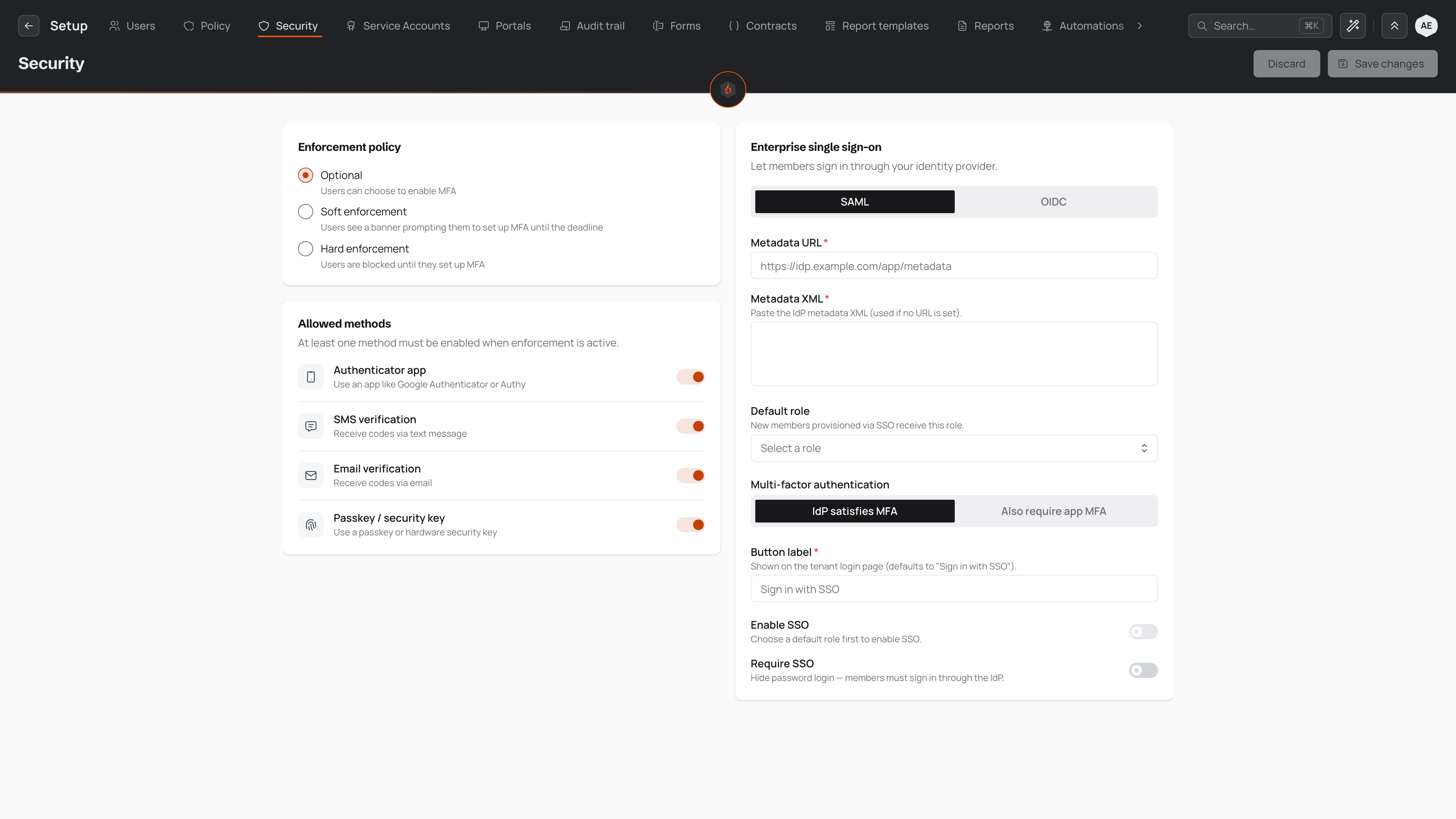
The Discard and Save buttons stay inactive until you change a setting. Adjust the controls you need, then choose Save to apply them across your organisation, or Discard to drop your edits and return to the last saved state.
Single sign-on and Support access are the exceptions. Single sign-on is set up in its own panel, which saves each step as you go, so a half-finished setup never holds up the rest of the page (see Single sign-on below). Support access changes as soon as you switch it (see Support access below).
Two-step sign-in
Two-step sign-in asks people for a second step after their password, so a password alone can't open an account. The top of the section shows how many people have set it up, such as "31 of 48 people have set it up", and the section's label says what your rule does now, such as "Asked for by 1 Nov 2026". Choose Show who to see who hasn't yet, by name and email.
While the rule is By a date or Required now, choose Remind them to email everyone who hasn't set it up. It says how many first, such as "Email the 17 people who haven't set up two-step sign-in?", and the email links straight to where they set it up. The same reminder waits in each person's Inbox, with Set up, until they have. Each person gets at most one reminder every 3 days, whoever sends it, so the answer says if anyone was left out: "Sent to 12. 5 were reminded in the last 3 days."
Choose one of three settings:
- Off — people can set it up on their own profile.
- By a date — people are asked when they sign in, and from the date you choose they can't continue until they set it up.
- Required now — people who haven't set it up are stopped at their next sign-in until they do.
When it's on, For decides whom it asks: Everyone, or Only these roles. It asks people only: a kiosk is a shared device, and the person at it signs in with their PIN.
Before you save a change, the section says what it would do, such as "17 people haven't set it up. They'll be stopped at their next sign-in until they do." Choosing Required now shows this as a warning, with the same count, before you save.
Ways to sign in
Each way to confirm it's them has its own switch, so you control which ones people can use. The easiest on a phone comes first:
- Passkey — Face ID, a fingerprint or the phone's PIN.
- Authenticator app — a code from an app such as Google Authenticator.
- Email code — a code sent to their email.
For how people set up each of these, see the two-step sign-in methods.
Single sign-on
Single sign-on lets people sign in with the account your company already gives them. Choose Set up and a panel opens with five steps. Each step saves when you choose Next, so you can close the panel and come back.
- Your provider — choose it by name: Microsoft Entra ID, Google Workspace, Okta, JumpCloud, or Other (SAML or OpenID Connect). You never have to know which protocol it uses.
- Give it these — where to go in your provider's own admin pages, and the values it needs from us, each with Copy.
- Paste its details — what your provider gave you back, the role a person gets the first time they sign in this way, whether your provider's second step is enough, and the label on the sign-in button.
- Test — opens your provider in a new tab. Signing in there signs nobody into Pyron: it shows "Worked: signed in as …" when your provider answered as it should.
- Turn on — Off, Allowed alongside passwords (the sign-in page offers your provider, and passwords still work) or Required (passwords are off for everyone).
Allowed alongside passwords and Required become available only after a test sign-in works, and again after any change to your provider's details. Once it's set up, the section shows your provider, the role new people join as and the last test, with Edit and Test sign-in.
Sessions
- Stay signed in for — 1 day, 7 days or 30 days. Someone who doesn't use Pyron for that long signs in again.
- Sign out when idle — never, or after 30 minutes, 2 hours or 8 hours away.
A shorter setting reaches people already signed in, the next time their session renews.
Sign everyone out ends every session in your organisation, yours included, so everyone signs in again. Kiosks stay paired. Use it when you think a password or a device has got out.
Support access
Pyron Support can access this workspace lets the Pyron support team sign in to help you. Every action they take is on the audit trail as Support. It is on unless you turn it off, and the switch takes effect straight away, without Save.
Turning it off asks you to confirm, then stops all Support access: Support can't sign in, and anyone from Support who is signed in, including someone viewing Pyron as one of your people, is signed out at their next step. Automations and connections Support set up for you keep running. You can turn it back on at any time; Support can't turn it back on for you.
Passwords
Every password needs at least 8 characters. The page that welcomes a new person shows the rule as they type.
Activity
Open takes you to the audit trail's Security tab: sign-ins, and every change to these settings, with who made it.