
The audit trail records every change made across your organisation — who made it, when, and what the affected item looked like before. Use it to trace a single action, review sensitive changes to roles and data, and keep one shared history of what happened.
The audit screen
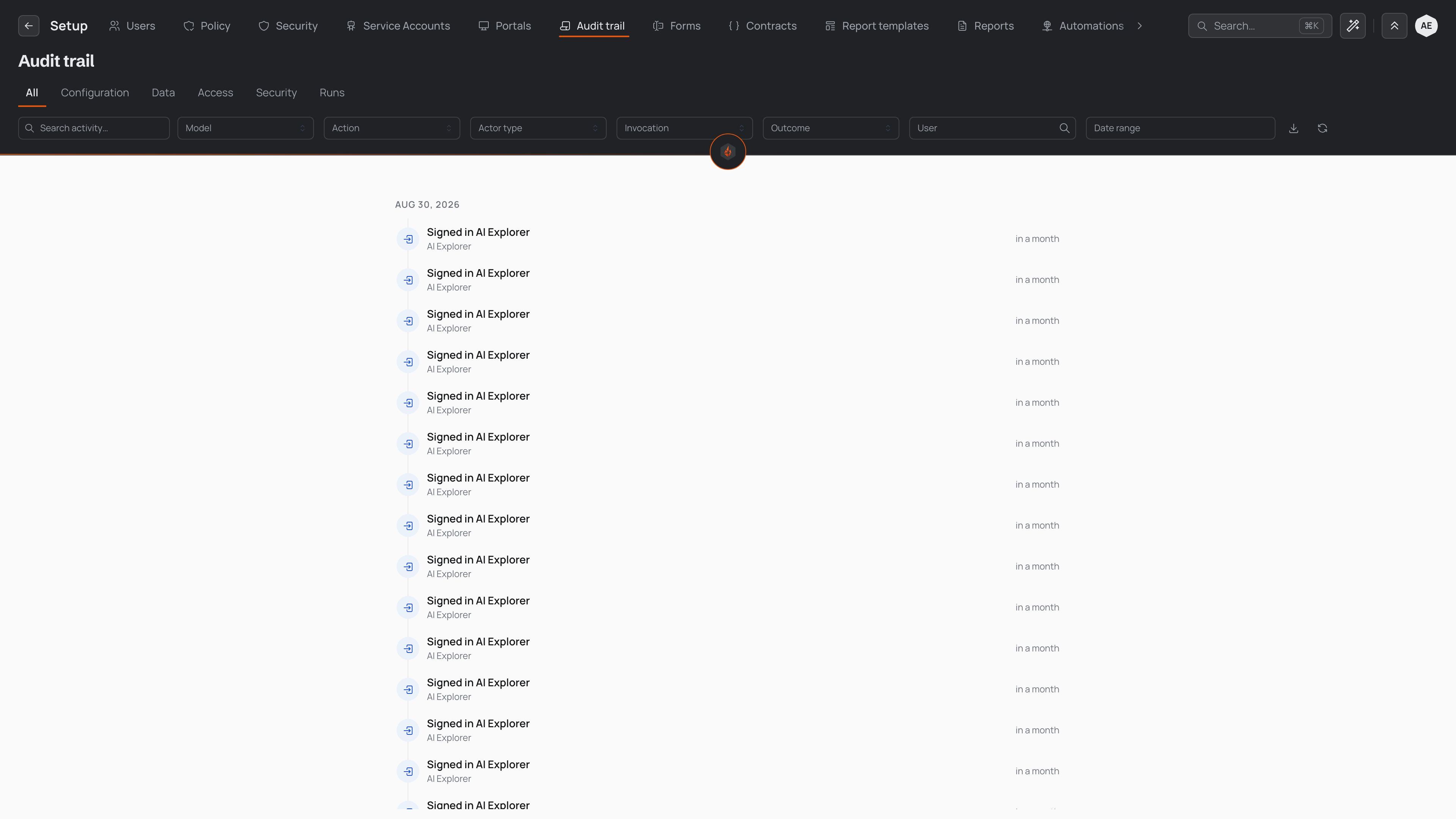
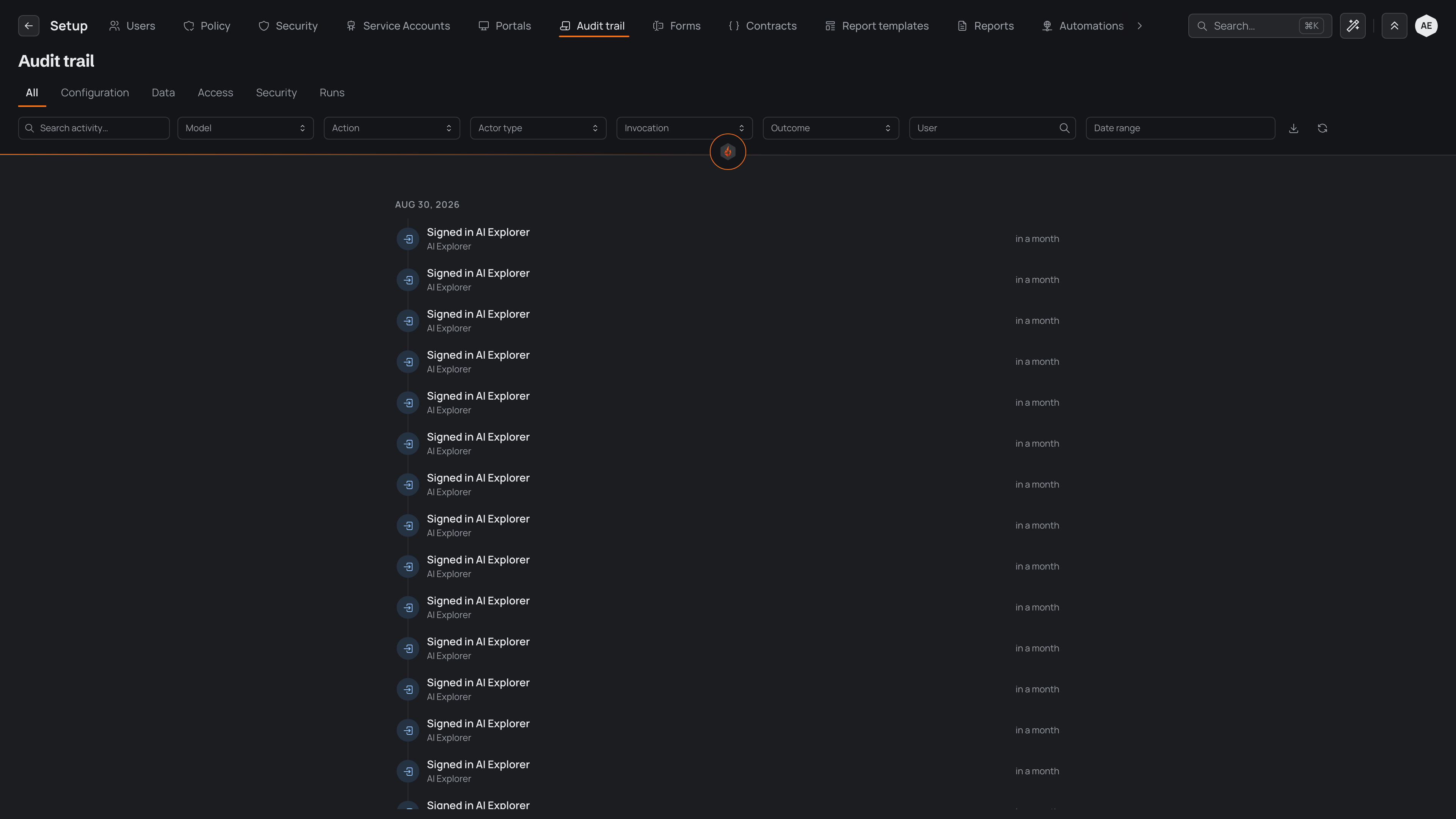
Open the audit trail from Setup. The screen shows a timeline of what happened, newest first, under a header for each day. Beside the title, today's facts give the day at a glance — how many changes, the people who made them, automation runs and failed sign-ins. Select a fact to see just those lines.
Three tabs narrow the timeline:
- Activity shows changes, sign-in problems, refused attempts, data leaving Pyron (exports, prints and emails), visits by the Pyron support team and Pyron's own updates.
- Security shows sign-ins, two-step sign-in, roles and permissions, sharing, keys, refused attempts, support visits and anyone viewing as someone else.
- Access shows who viewed what, one line for each visit, and data leaving Pyron.
An automation's runs are listed under Automations → Runs; what an automation changed is in the trail like any other change.
Lines
Each line is one sentence: who did what, to which item — Dana Mercer gave Jacob Greer the Staff role, or Cheryl Durham changed the status of the security log "Gate 3 found unlocked" — with what changed beneath it. Who comes first, so you can tell at a glance whether it was a person, the assistant, an automation (by its name — Automation: Shift report), the Pyron support team or Pyron itself. A change made through a page, or by applying one of the assistant's proposals, still names the person who made it, with where it came from beside it.
Related things read as one line: everything one automation run did, a person saving the same item several times in a few minutes, everything someone viewed in one visit, and repeated failed sign-ins with the same address. A line that holds several shows how many; open it to see each one in place.
Names, settings and dates appear in a readable form instead of internal identifiers, and each time is shown in your own time zone. Sensitive values such as passwords are never shown — the trail notes that a secret changed without revealing what it was.
Opening a line
Select a line to open it beside the timeline (on a phone, it fills the screen). It shows:
- Changes — each field it changed, before and after, read the way the field is: a long text word by word, with added words highlighted and removed ones struck through; choices and people as what was added and removed; a number with how far it moved; a date with how far it moved; files and photos as thumbnails; repeating rows as the rows added, removed or changed.
- How — who did it, and where it came from.
- In the same save — anything else the same save changed.
- Details — the device and IP address it came from, how the person signed in, and a reference to copy for a support ticket. Details stay closed until you open them.
Open goes to the item it changed. Ask opens the assistant beside the trail with the line ready, so you can ask about it — what else happened to that item, or who else changed it. The assistant reads the trail as you: it sees only what you may see.
Each line's ⋯ menu opens it, shows that item's whole history, shows only what that person (or automation) did, or copies a reference for a support ticket.
Filtering and export
Above the timeline, four filters and a search narrow what you see:
- Who — a person, the assistant, the Pyron support team, Pyron, an automation or an API key.
- What — a kind of item, such as security logs or forms, or one item you search for by name.
- Change — added, changed, status, deleted, restored, shared, roles, sign-ins, refused, failed, exported or viewed.
- When — today, yesterday, the last 7 days, this month, last month, or dates you choose.
- Search the trail — match words anywhere in the lines.
On a phone, the four filters sit behind one Filters button that shows how many are on.
Export saves the lines you are looking at, with the tab and filters applied: as a spreadsheet, one row for each change with its date and time in your time zone, who made it, where it came from (a page, an automation, a key) and what it was before and after; or as a file for a security system. Exporting is itself recorded, under Security.