Every AI feature in Pyron — the assistant and the builders that draft forms, reports, dashboards, and flow graphs — runs on a language model hosted by a provider. These settings decide which provider that model runs on, which model handles each job, and how much your organisation spends on AI each day.
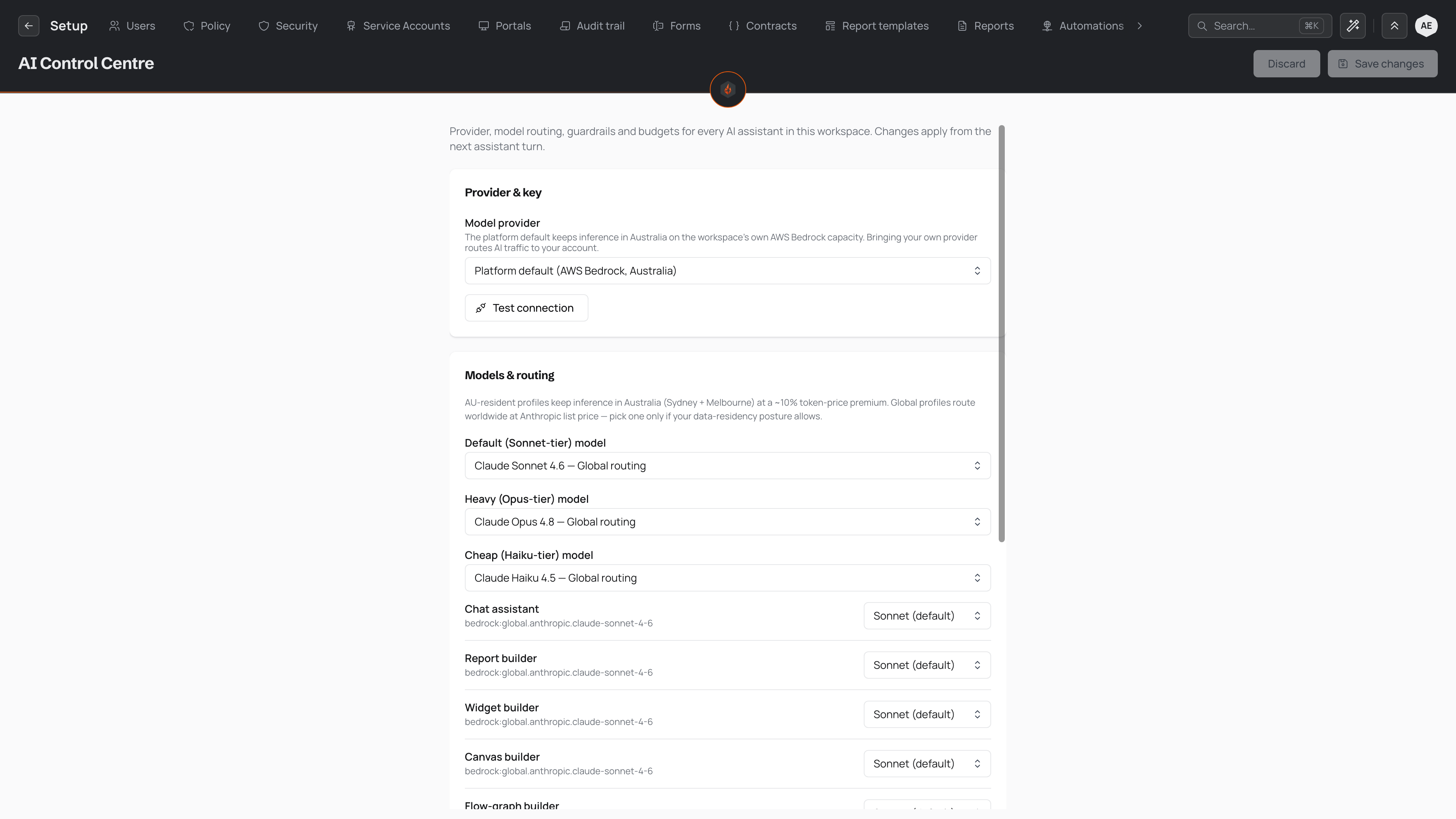
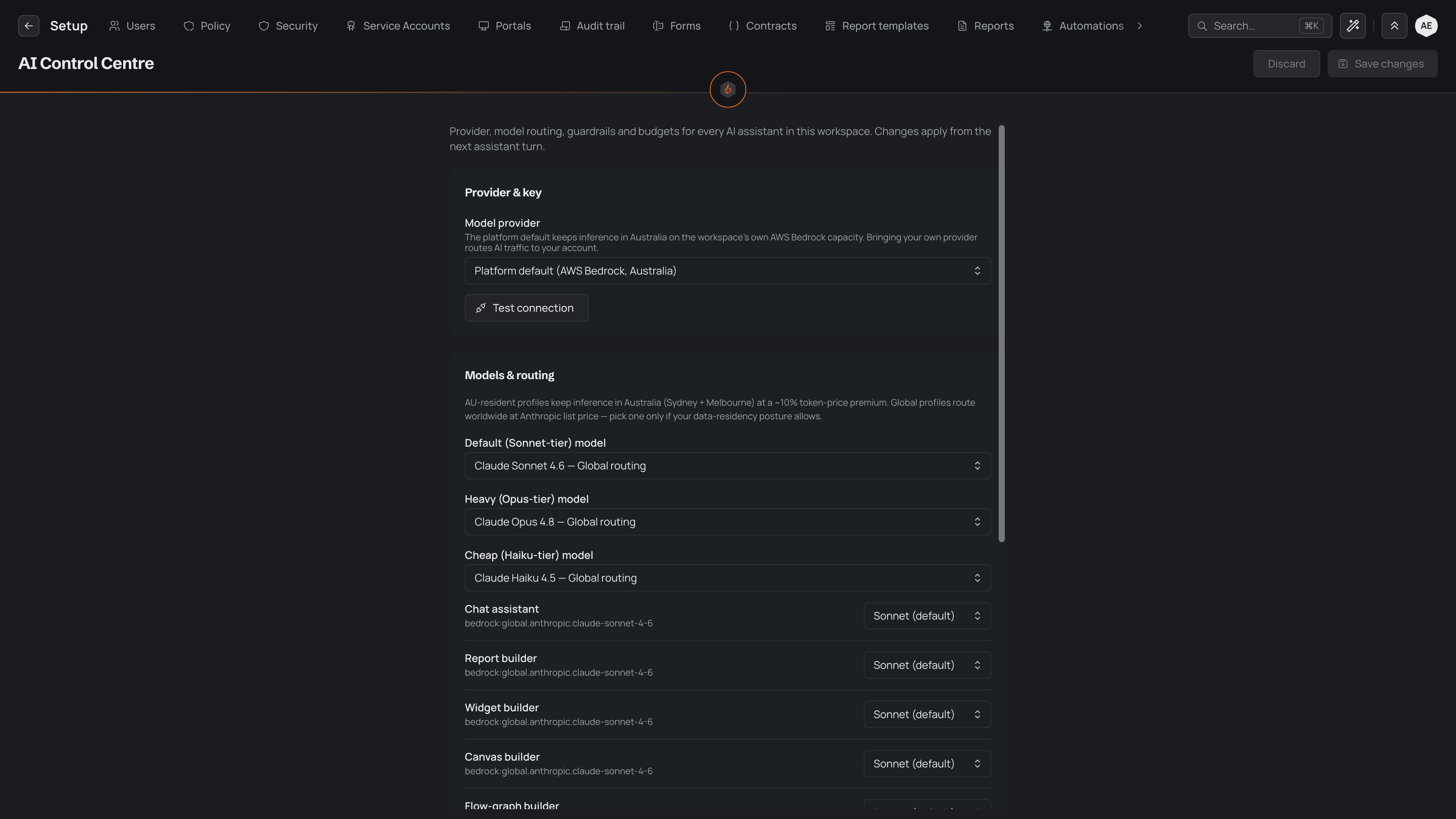
The AI settings screen
You reach these settings from the AI surface in the Setup area. The screen gathers everything into four areas: Provider & key, Models & routing, Guardrails, and Usage & budgets.


Nothing you change here takes effect until you save. Save changes and Discard stay inactive until you edit a setting; once you do, save your edits to keep them or discard to return to what was stored. Saved changes apply from the next assistant turn, so a reply already on its way finishes on the settings it began with.
The managed default
Pyron comes with a provider built in, so AI works without any setup. The Model provider setting starts on Platform default (AWS Bedrock, Australia): inference runs on Pyron's own AWS Bedrock capacity, hosted in Australia, and you supply no keys of your own. For most organisations this is the setting to leave in place.
Models and routing
Under Models & routing you choose which model backs each level of work. Three are available:
- Default (Sonnet-tier) model — the everyday choice for most requests.
- Heavy (Opus-tier) model — for the most demanding drafting and reasoning.
- Cheap (Haiku-tier) model — for lighter, faster jobs.
Each model comes in two routing profiles. Australian-resident profiles keep inference in Australia (Sydney and Melbourne). Global profiles route worldwide at list price. Pick a global profile only where your data-residency rules allow it.
Below these, each AI feature — the chat assistant, and the report, widget, canvas, flow-graph, and form builders — is pointed at one of the three, with the exact model it resolves to shown beside it. Leave a feature on its default, or move a heavier one up to the Opus tier and a routine one down to Haiku to balance quality against cost.
Guardrails
The Guardrails section is where content protection for AI traffic is configured. When a guardrail set is published for your organisation you select it here; when none is available, the section tells you so. Guardrails screen the messages that pass to and from the assistant — see the AI assistant for what they cover.
Usage and budgets
Usage & budgets caps and tracks AI spend. Enter a Daily AI budget (USD) to set a rolling 24-hour limit on platform-billed spend across everyone in your organisation; leave it empty for no organisation-wide cap, and per-user limits still apply. Beneath the field, a summary reports the past 24 hours — SPEND (24H), TOKENS (24H), INPUT TOKENS, OUTPUT TOKENS, and ASSISTANT TURNS — so you can see how much the assistant is being used before you settle on a cap.
Bringing your own provider
If your organisation would rather run AI on its own account, choose your provider from the Model provider list in place of the platform default. AI traffic then routes to your account rather than Pyron's managed capacity, which lets you meet a data-residency or contractual requirement of your own.
Before you save, use Test connection to confirm Pyron can reach the provider with the details you entered. Catching a wrong key or endpoint here is quicker than finding it on the next assistant turn.
Usage on your own provider bills your own account, and it does not count against the Daily AI budget (USD) on this screen — that cap covers platform-billed spend. Per-user limits still apply either way.