
Everyone who works in your organisation has an account, and you manage all of them from one list. You can invite new people, open anyone's page to see who they are and what they can do, and remove their account when they move on.
The people list
The people list lives in Setup, under People, with the number of people beside its title. It shows everyone who has an account in your organisation, and the invites still waiting to be accepted, in one table.
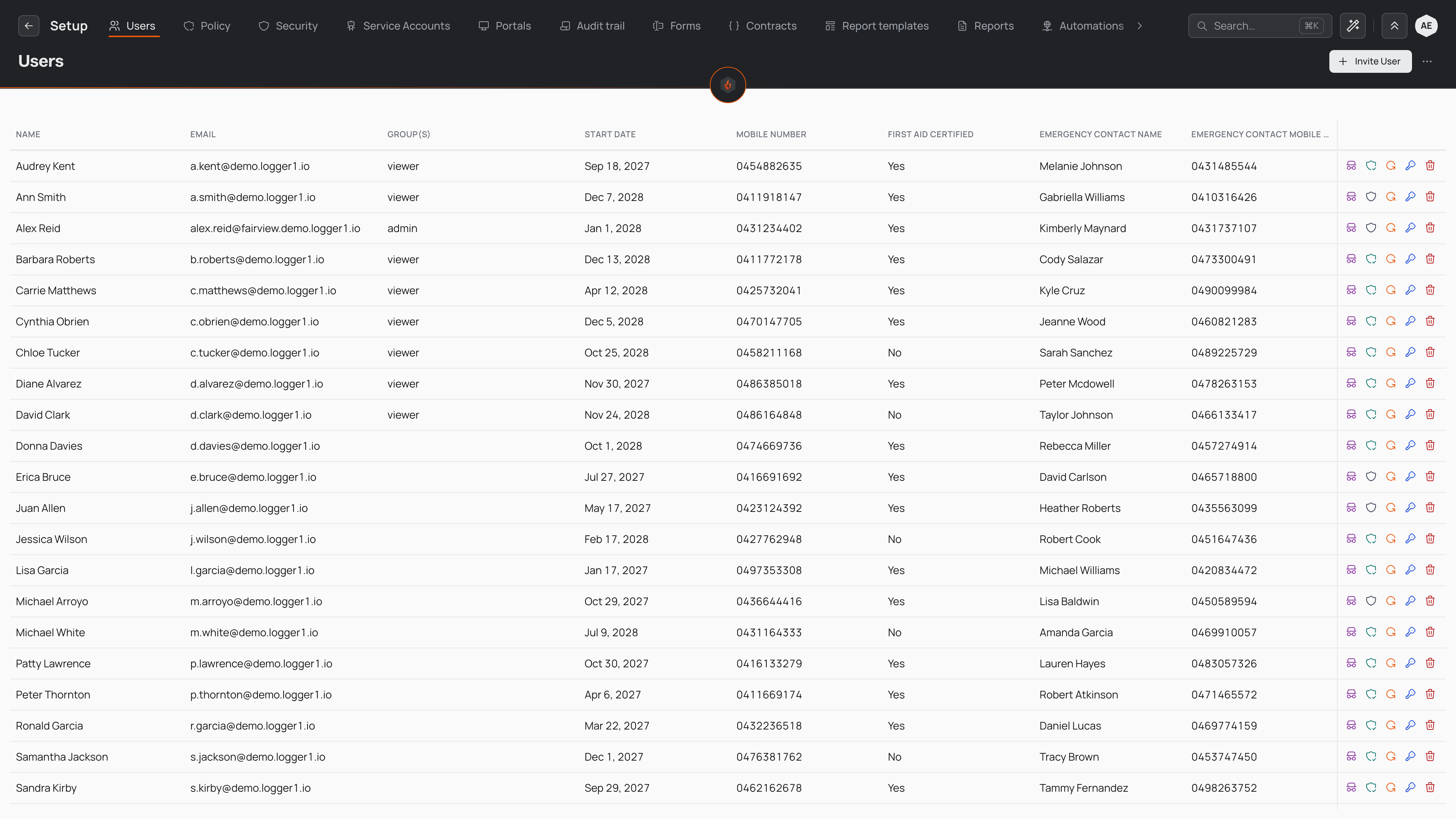
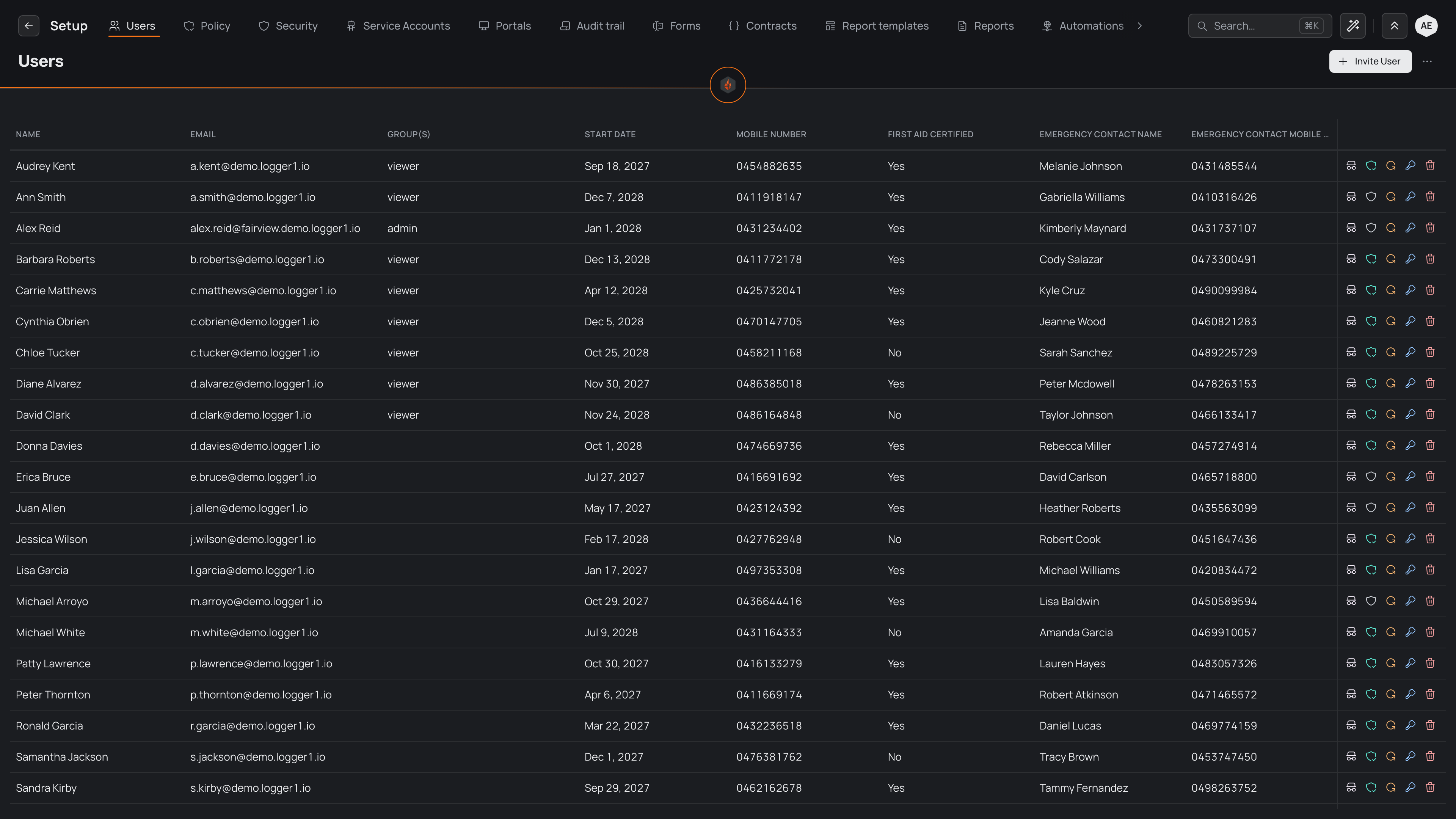
Each row says:
- Person — their name, with their email address beneath it.
- Role — the roles they hold, by name.
- Places — the places shared with them, such as "Head office +1", or Every place when one of their roles can see everywhere.
- Status — Invited (with how long ago), Invite expired, Suspended or Needs two-step. Someone who can sign in and owes nothing has no status, so the column stays quiet.
- Last signed in — when they last signed in, or Never.
A column for each of your profile fields follows, such as a licence number.
Above the list:
- Search people finds people by name, email or username, and invites by email address.
- Role, Place and Status narrow the list to the people you're looking for. They search everyone, however long the list is.
- Profile fields opens the details you keep about each person in the form builder. It shows if your role lets you edit forms.
- Invite someone opens a form for adding someone new.
Select a person — or choose Open from their ⋯ menu — to go to their page. The menu also holds Change role, Suspend (or Reactivate) and, last, Delete. The rarer tools — seeing the app as they do (View as, read-only), kiosk access, Reset MFA and One-time code — are on their page. You only see the actions your role allows.
Changing someone's role
Choose Change role from their ⋯ menu. Each role is listed with the line that says what it is for; choose one and select Save. Most people hold one role. If someone needs more, select Add another role to choose several.
Only an Administrator can give or take the Staff and Administrator roles. If someone changed this person's roles while you had the dialog open, your change is refused and you're shown what they hold now, so you never overwrite each other.
Inviting someone
Select Invite someone to open the invite sheet.
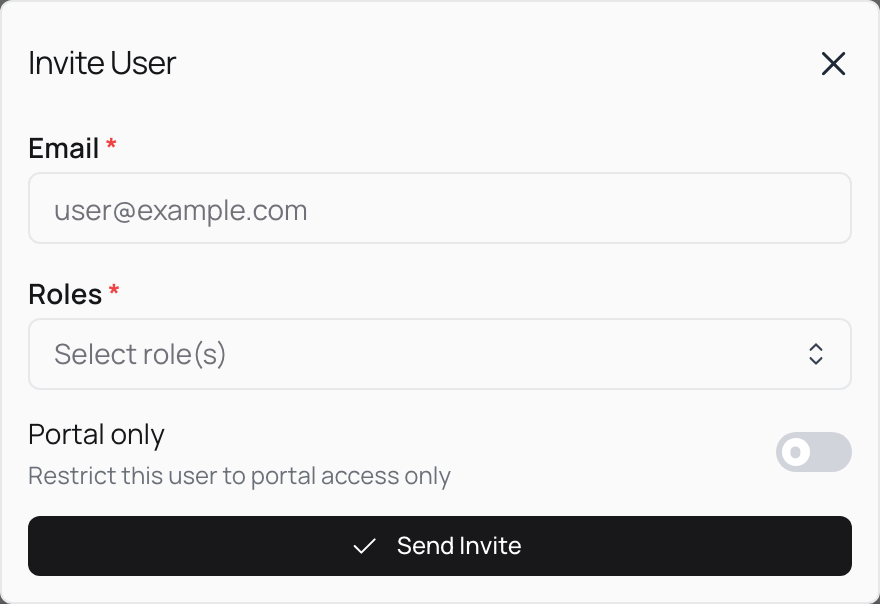
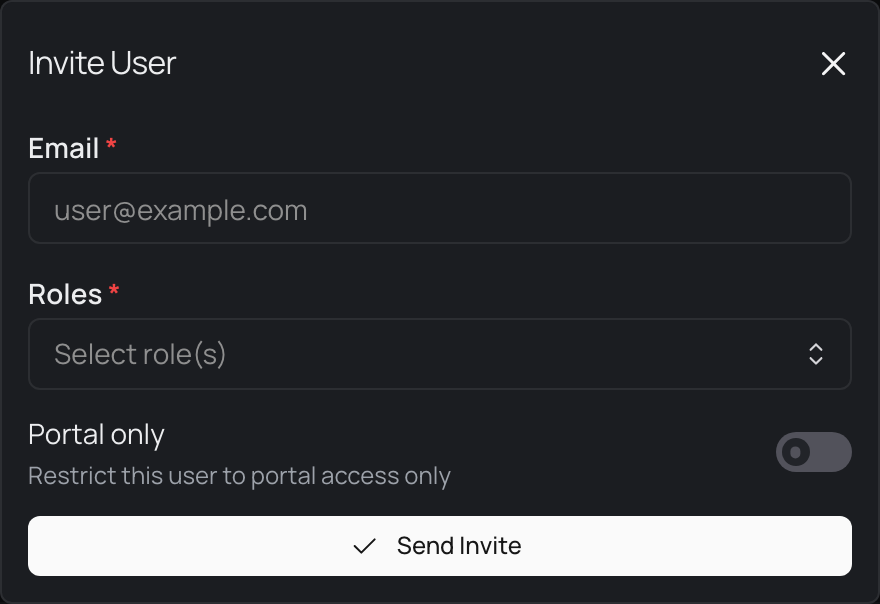
- Type each person's email address and press Enter, or paste several at once.
- Choose the role that matches what they'll do. Each role is listed with the line that says what it is for; the roles page explains them. If someone needs more than one, select Add another role.
- If the role works only at the places someone is given, choose the places they work at. They'll be able to see each place and log records there once they join.
- Read the sentence above the button. It says who will join, as what and where, before anything is sent.
- Choose Send invites.
Each person gets an email from you that works for 7 days. When they open it, they see your organisation's name and who invited them, set their name and password, and are signed straight in. If your organisation asks for two-step sign-in, they set it up next.
If someone can't receive email from us, choose Copy link instead from the sheet's ⋯ menu with one address typed, and send them the link yourself.
Until they join, the invitation is a row of the people list, named by the email address it went to and marked Invited, or Invite expired once its 7 days are up. Choose Resend from its ⋯ menu to email it again for another 7 days, or open it to copy its link. Choose Revoke to cancel it, which stops the link working.
A person's page
Each person has a page of their own, titled with their name. A Suspended, Needs two-step or Kiosk only badge beside the name says when someone can't sign in, still owes the second step, or signs in only through a shared-device kiosk. The page has four sections:
- Access — the role they hold, with the line that says what it is for, and the places shared with them. Each place shows what they can do there — See, Log, Edit or Manage — and who gave it to them and when. Use Change role to change their role, Add place to share a place with them, and a place's ⋯ menu to change its level or remove it.
- History — the latest changes to their access: roles given and taken, places shared and removed, two-step sign-in set up, a suspension.
- Details — their name and email address, which you change by selecting them, their time zone, and their answers on the profile fields.
- Sign-in — whether they have set up two-step sign-in and since when, when they last signed in, and whether they sign in directly or only through a shared-device kiosk.
View as, at the top right, shows you the app as they see it, read-only — see Viewing as someone else. The page's ⋯ menu holds Suspend or Reactivate, the sign-in tools (kiosk access, Reset MFA, One-time code) and Delete.
Suspending someone
When someone shouldn't sign in for now — leave, an investigation, a contractor between rosters — choose Suspend from their ⋯ menu, in the list or on their page, and confirm by name. They are signed out of every device straight away, and they keep their role and places. Choose Reactivate to let them back in exactly as they were.
You can't suspend yourself, or your organisation's last Administrator.
Profile fields
The profile fields are the details your organisation keeps about every person, such as a mobile number or a licence expiry. They make the extra columns in the people list, the Details on each person's page, and the questions a new person answers when they accept an invitation.
Select Profile fields above the list to change them. They open in the form builder, headed People › Profile fields, where you add, reorder and remove fields just as you would on any form, then choose Save. Your organisation has one set of profile fields, so they never appear among the forms under Forms, and they can't be copied or deleted.
Removing someone
When someone leaves, choose Delete from their ⋯ menu — in the list or on their page — and confirm by name. The confirmation says what goes with them: their roles and the places shared with them are removed. Suspend keeps both, so use it when they might come back. They can't sign in, and they don't appear in the people list. Deleting from their page brings you back to the list.