
A busy site's entry table can hold thousands of logged entries, far more than you can read at a glance. Filters cut that list down to the ones that matter right now — this shift, this site, this kind of issue — while sorting sets their order and a saved view keeps the arrangement for next time.
Quick filters
Entry tables turn up wherever entries are listed: on a directory page and on dashboards. Above the rows sits a toolbar, and on it a Filter button that opens a panel for building filters.
To narrow a table:
- Select Filter on the table's toolbar.
- Choose the column you want to narrow by from the panel.
- Choose how it should match, then set the value or values.
The table updates as you add each condition, keeping only the entries that fit.
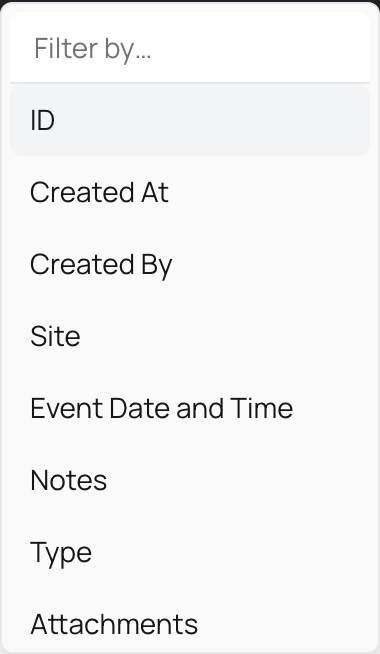
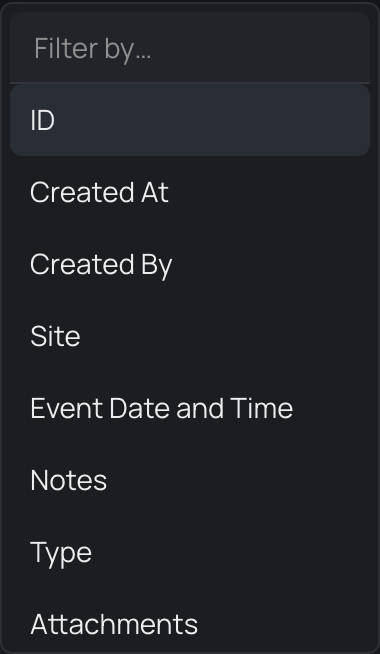
Each filter you add shows as its own condition, and you can stack several at once. The two ways they combine are worth keeping straight:
- Separate filters narrow the list together. An entry has to satisfy every condition to stay on screen.
- Several values inside one filter widen it. An entry that matches any of those values stays.
For columns with a fixed set of choices, the panel shows how many entries sit behind each value, so you can gauge the size of a group before you commit to it.
Beside the Filter button, a Search box matches free text across the entries — reach for it when you remember a word from an entry but not the column it lives in. The entries that hold your words stay in the table's sort and filters, and the count above the table says how many hold them. Below them, a band labelled Close in meaning lists entries that are about what you typed without using your words, closest first rather than in the table's sort. Select Hide to fold the band away; the table remembers that for next time, and Show brings it back. When you search for a number, such as a patient or asset number, and an entry holds it, the band is left out. For finding entries across the whole app rather than one table, see searching across the app. The stream on the Entries screen has its own search and its place and kind-of-record filters, covered in viewing entries.
Filter operators
Each filter is a condition in three parts: a column, an operator, and one or more values. The operator decides how the value has to match, and the choices on offer follow the kind of column you picked.
A positive operator keeps the entries that match; its negative counterpart keeps everything else. One quirk is worth knowing: a negative operator also keeps entries that have no value in that column at all. Filter a type column to is not, and entries with no type recorded come through as well — so a negative filter can return more than you first expect.
The combining rules still hold. Separate conditions narrow the list together, and several values inside one condition widen it, whichever operators you choose.
Sorting and grouping
Sorting sets the order of the rows. You can sort every column in an entry table: select its heading to order the table by that column, and select it again to flip between ascending and descending. Each heading also carries a column actions control that offers the same sort options.
Sorting by when each entry was logged is the quick way to bring the newest to the top; sorting by a status or type gathers similar entries together.
You can also group a table by a column, so entries that share a value sit together under a heading you can collapse. Grouping by type, or by the day an entry was logged, turns a long flat list into a handful of labelled sections — a fast way to see how the entries divide up.
Saving a view
Filters and sorting you set as you work are temporary. They hold while you are on the page, but reload it or come back tomorrow and the table returns to its starting state. This keeps everyday exploring cheap — nothing you try sticks by accident.
When an arrangement earns its keep, save it as a view. A view remembers the filters, the sort order, and which columns show in what order and width, so opening the page brings the same slice of entries back without rebuilding it. Views are also how you share a slice: a colleague who opens the same view sees the list set up the same way.
Once the list shows the entries you want, you can take it further: export it as a spreadsheet, or open an entry to read it in full. For moving through and reading a filtered list, see viewing entries.