
When an entry carries a lifecycle, it sits in one named state at a time and moves forward when someone takes an action. You can see where the entry stands, move it to its next state, and add a note as it goes — all from the same places you already work with entries.
Seeing the current state
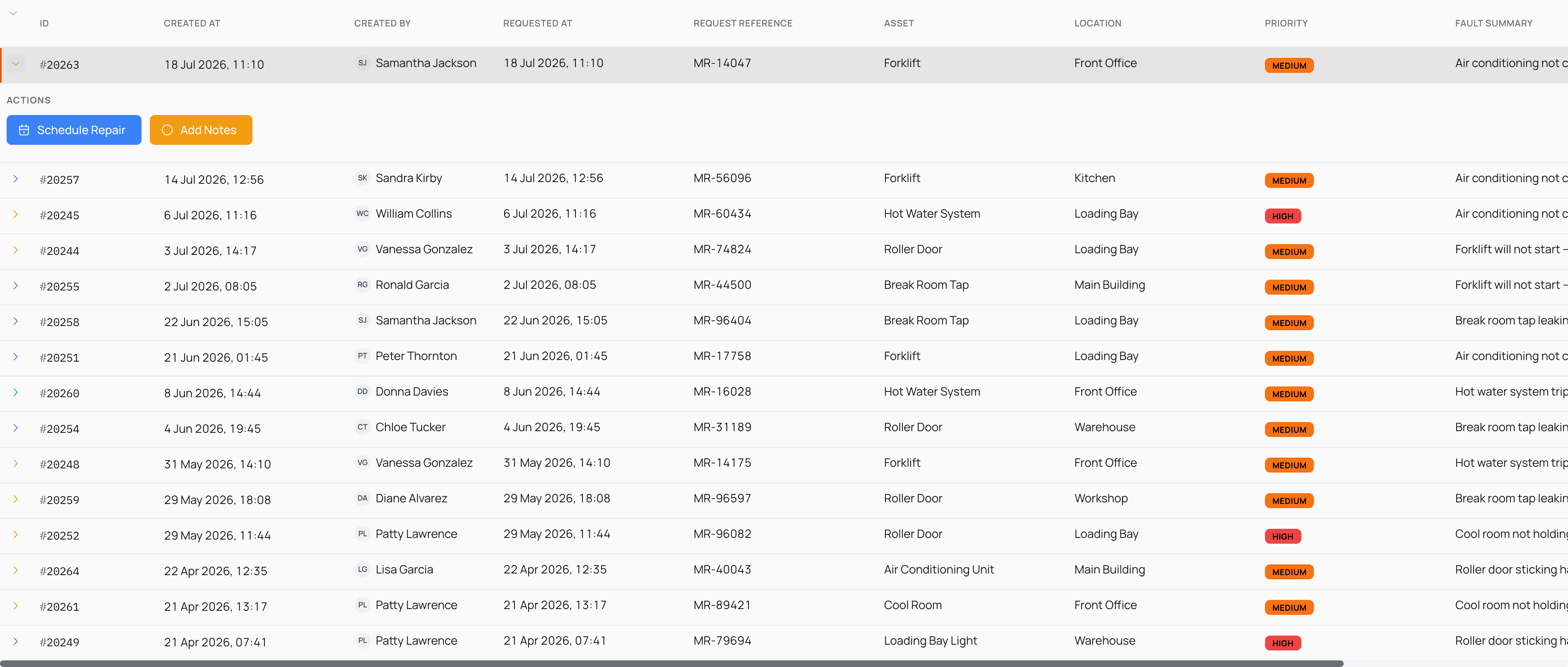
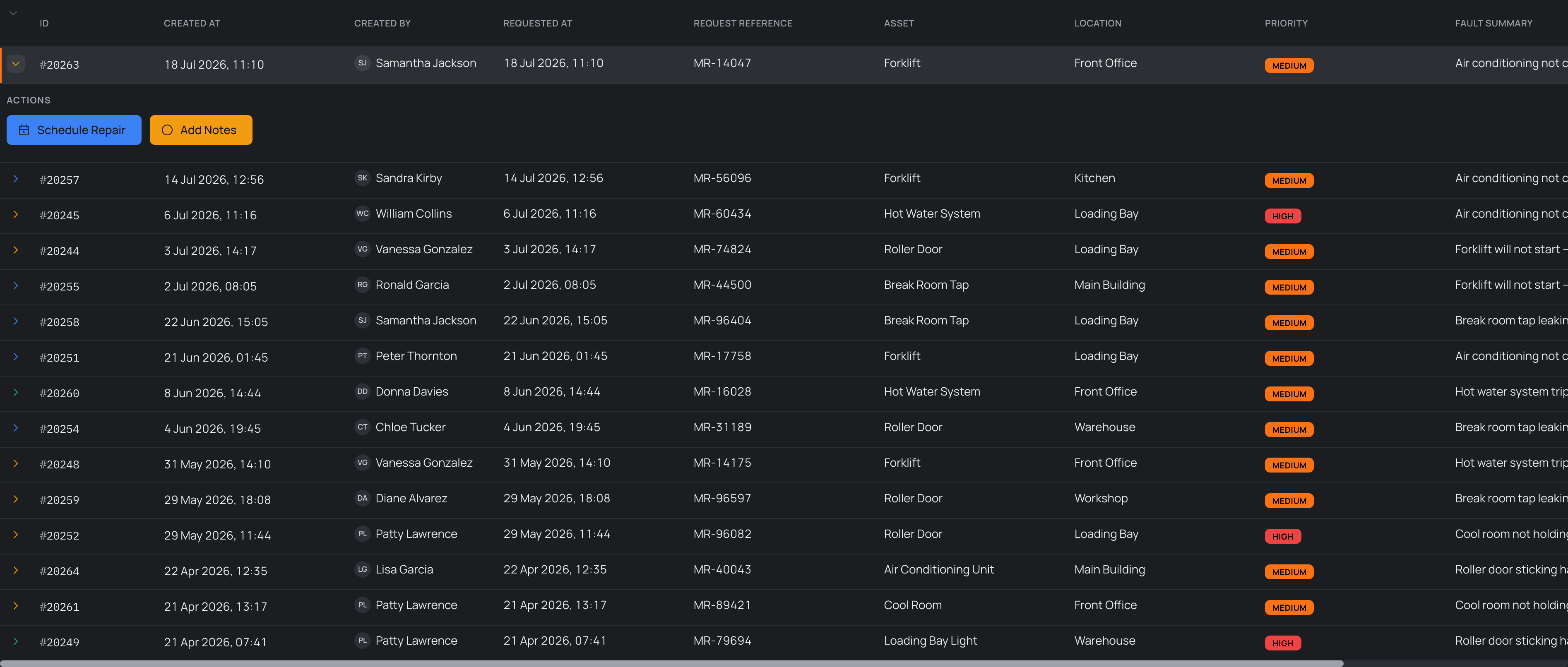
An entry that carries a lifecycle sits in one named state at a time, and the first sign of where it stands is a splash of colour. In the entries table, the control you select to expand a row is tinted with the state's own colour, so you can run your eye down a list and tell what is open, what is under way and what is finished without opening a single one.
That colour is a hint, not the whole story. To read the state by name — and to reach the moves available from it — expand the row. A panel opens beneath it that names the state the entry has arrived at and lays out the actions that can carry it on.
Not every entry has a lifecycle. An entry takes on a state only once a lifecycle has been attached to it, which happens on its own based on what the entry is and where it is filed. An entry with no lifecycle shows no state colour on its row at all — that is expected, not a fault. For how a lifecycle reaches an entry, see Attaching lifecycles automatically.
Taking an action
An action is a named step that carries an entry from its current state to the state that action leads to. Only the actions that are valid from the entry's current state are offered, so the choices in front of you are the moves you can make from here.
- Expand the entry's row in the table, or open the entry in full. See Viewing entries for the ways to reach one.
- Find the actions that lead out of the current state — each appears as a button, coloured to match the state it leads to.
- Select the action for the move you want. The entry travels to the destination state, and the colour on its row shifts to match.
Every move is kept. The entry holds a history of each state change, including who made it and when, so there is a trail of how it got where it is. Expanding the row lays that history out as a timeline, newest at the top, each state named on a coloured pill beside the action that reached it.
A state with no actions leaving it is an end point. Once an entry reaches it, the lifecycle is complete and no further actions are offered — the entry has arrived where it was headed.
Adding notes along the way
Some actions ask for a little more before they complete. When you take one, a short form can appear first — a place to give a reason or a note explaining the move — and the action finishes only once you fill it in and confirm.
What you enter travels with that state change. Opening the entry later shows the note beside the move it belongs to, so its history reads as a clear account of why each step was taken, not a bare list of states.
An entry also carries its own notes, shown in the NOTES column of the entries table and on the entry itself. These are a running summary of the entry rather than a note about a single move — keep them up to date as work progresses. To keep working on an entry's details, see Editing an entry.