
Every entry your team logs is captured through a form, and you build those forms in the form builder. You add the questions, put them in order, check how they look, and save when the form is ready for your team.
The form builder
Forms live in Setup. Open Setup and choose Forms to see every form your organisation uses.
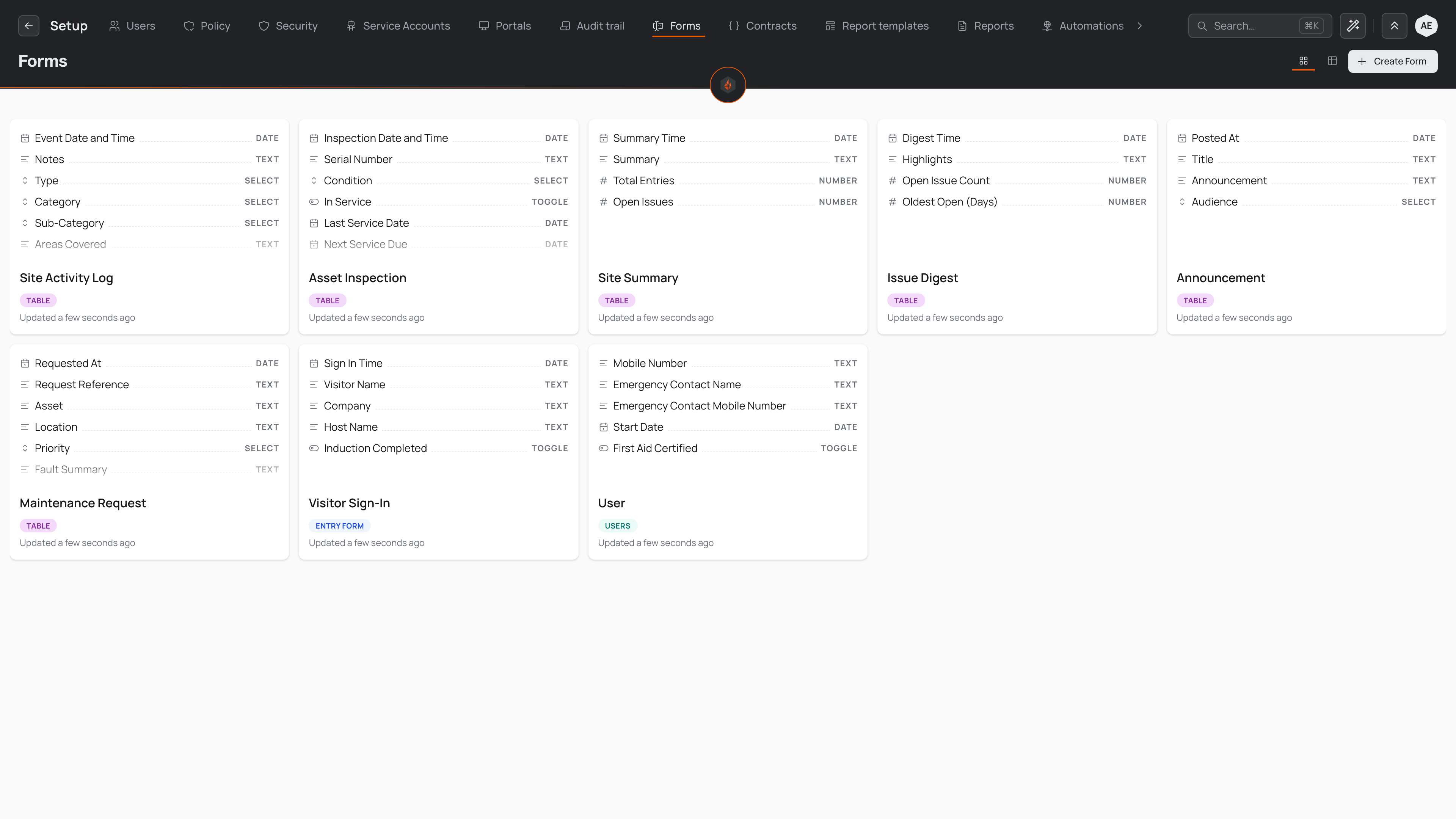
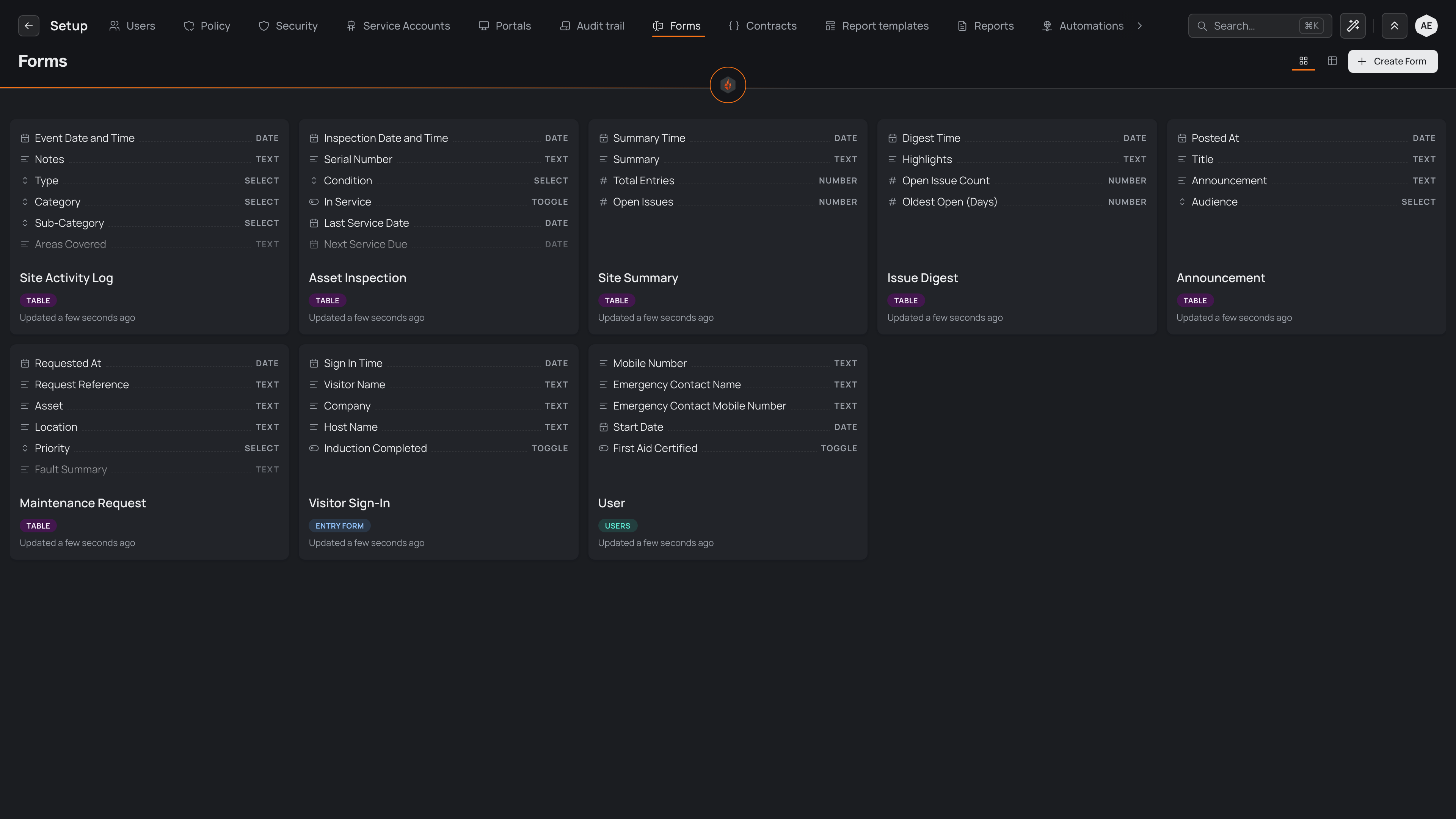
Each card draws a small picture of the form as it first opens — its section headings, each field's label and type, and what a person fills in, such as a list's choices or a box to drop photos in — and says how many more fields follow, so you can tell forms apart at a glance. Under the form's name, the card shows what the form files: the kind of record it collects, such as Incidents, or for any other form what it is used for. A last line gives its number of fields and when it was last updated. Switch to Table view for a compact list, or back to Card view for the pictures.
From this page you can:
- Select a card to open that form in the builder.
- Select New form to start a new form (see below).
- Open a card's actions menu to make a copy of the form or delete it. Entries already logged with a form keep their answers when the form is deleted.
Starting a new form
A new form opens in the builder itself. Type its name where the header says Untitled form, and choose what it is Used for beside the name: an entry form, or a table. Then pick one of three starts:
- Describe it — say what the form is for, such as "Night patrol incident report: site, what happened, who was involved, whether police attended, photos", and select Draft. Pyron makes the form and the assistant drafts its fields for you to review; nothing is kept until you save.
- Start blank — add the first field yourself.
- Copy a form — choose a form you already have, and its fields arrive as a starting point. The new form is separate: changing it never changes the one you copied.
Select Create form to save it for the first time.
One view
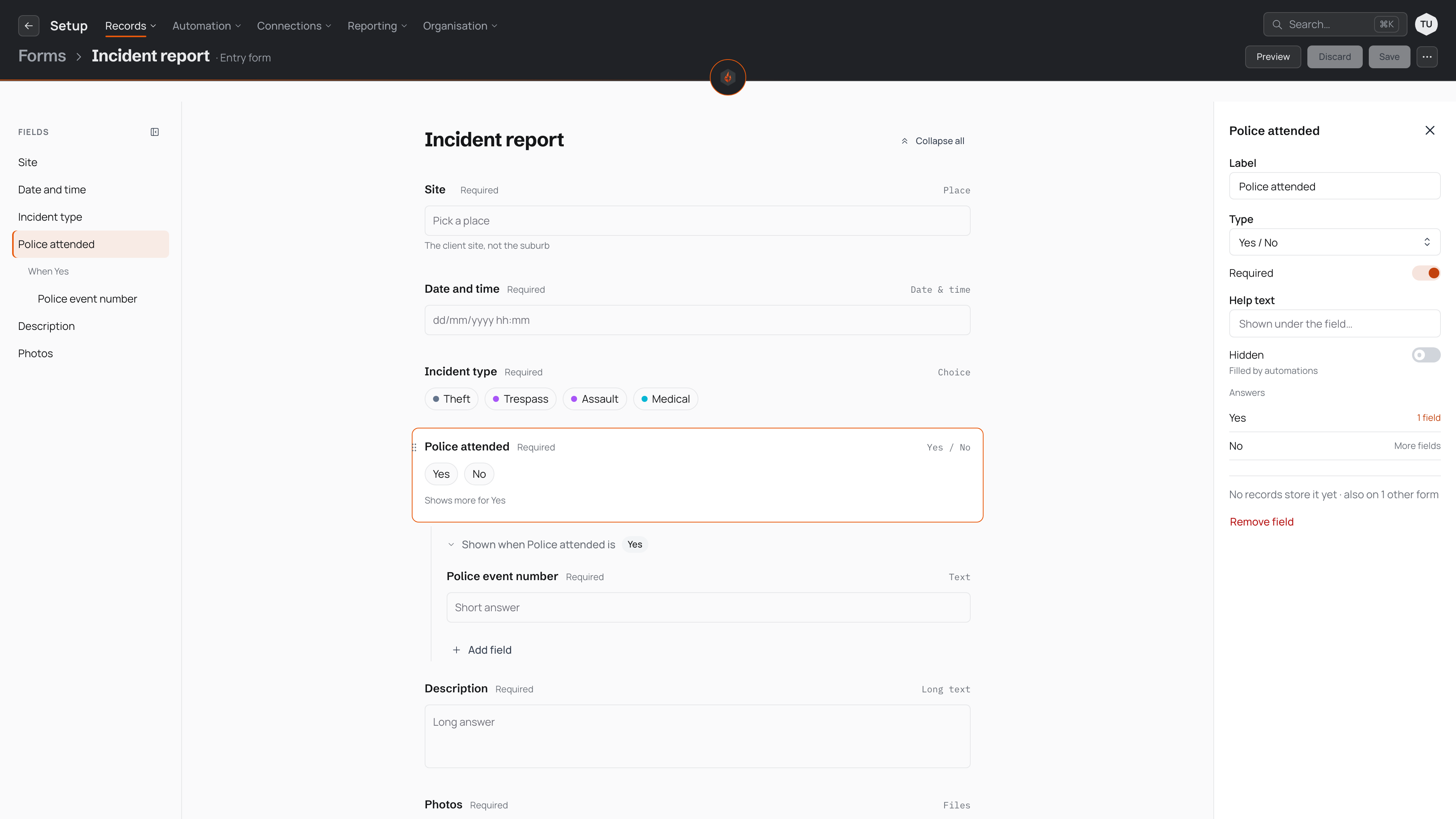
An open form shows the form itself, laid out the way your team will see it. You build it by typing into it:
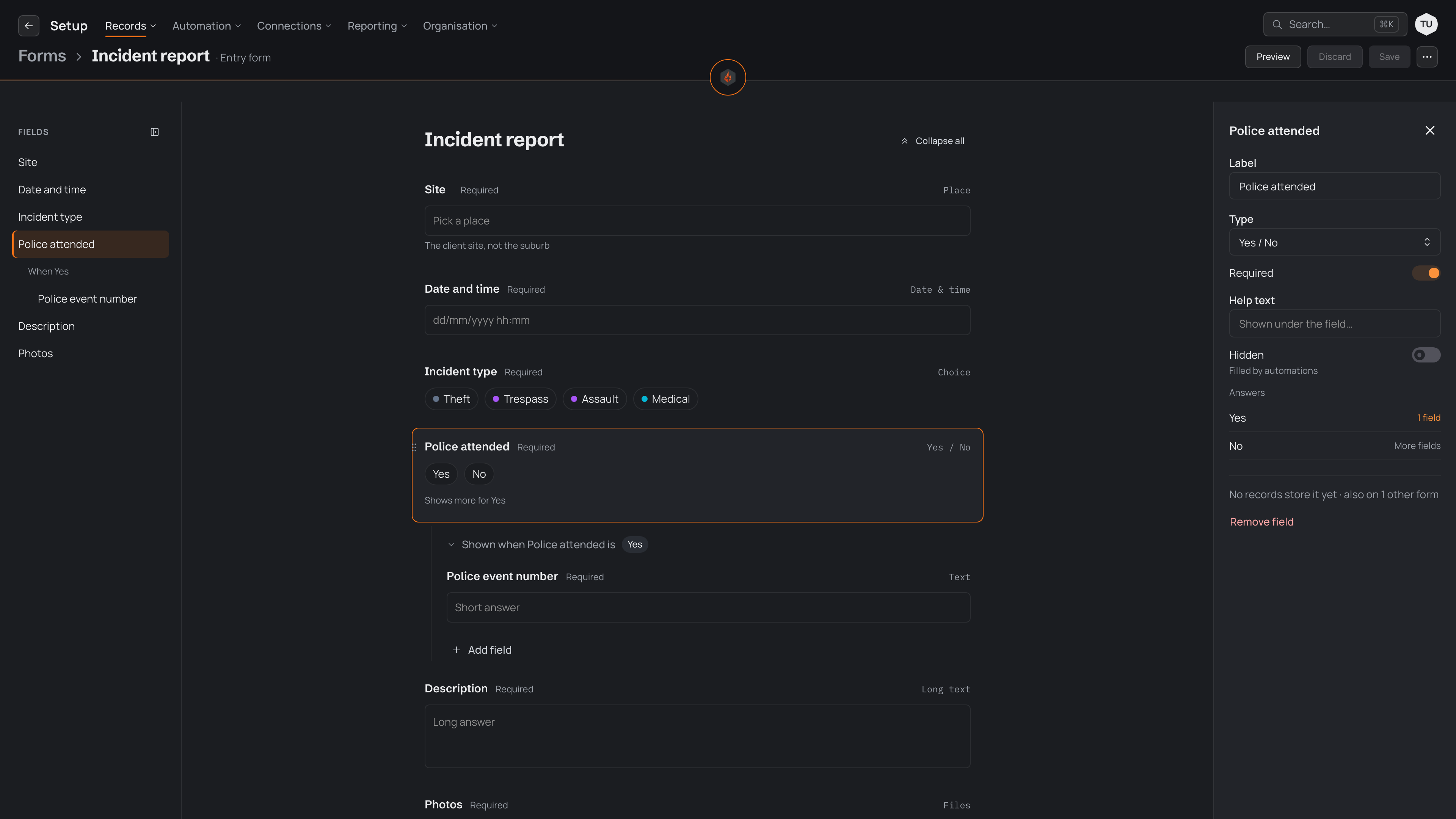
- The form fills the middle of the page. Each field shows its label, whether it is required, its type, and a quiet version of the box or options a person fills in.
- Fields, on the left, lists every field and section heading in order, with follow-up questions indented under the field that reveals them. Select a name to jump to that field. Hide the list when you want more room.
- Field settings, on the right, opens when you select a field: its label, type, help text and the rest. Press Escape, or select an empty part of the page, to close it.
If you would rather describe the form you need, the assistant can draft it in the builder for you to review — see building forms with the assistant.
Adding fields
Each field is one question on the form.
To add a field:
- Select Add field at the end of the form, or hover between two fields and select the + that appears on the line between them.
- Choose what kind of answer the field takes, such as Text, Date, Choice, Yes / No or Person. Type to search the list — typing "lic", for example, also suggests labels such as "Licence number". See field types for help choosing.
- Type the field's label straight into the form. This is the question your team reads, so word it the way they would say it.
- For a Choice field, type its options into the form: press Enter after one to start the next, and Backspace on an empty option to remove it. You can also reuse one shared list across several fields so they stay in step — switch on Shared list in the field's settings.
A new field is required, which means it must be answered before an entry can be logged. Select Required beside its label to turn that off. A field you leave without a label is not saved.
Help text
Help text is a line under a field that tells people what to put in it, such as "The client site, not the suburb". Select the field and type it into Help text in its settings. It shows under the field wherever the form is filled in.
Sections
A section is a heading over a run of fields, such as "Incident", "People involved" and "Follow-up". It helps people keep their place in a long form, and on a phone the heading stays at the top of the screen while they work through its fields.
To add one, hover between two fields, select the + and choose Section, then type the heading. You can add a one-line description under it. A section heads every field after it, up to the next section. A heading with no field under it is not saved until you add one.
Ordering fields
Fields appear on the form in the order you see them. To move one, drag it by the handle at its left, or drag its name in the Fields list. From the keyboard, select the field and press Alt with the up or down arrow. A field moves past a section heading into the next section; the heading stays where you put it.
A field keeps its follow-up questions with it when you move it, and each group of follow-ups is ordered on its own.
Follow-up questions
A Choice or Yes / No field can reveal extra questions when someone gives a particular answer. Select the field, then select More fields beside the answer in its settings. The follow-ups sit under the field, headed by the rule in words — "Shown when Incident type is Assault" — and the field itself says which answers show more.
Select a group's heading to fold it to its count. Collapse all and Expand all fold or open every group at once. Each group has its own Add field, so you can add a follow-up straight into the place it belongs. For how to plan and build these groups, see conditional questions.
Forms that share their fields
Several forms can collect the same kind of record, each asking its own selection of the questions: a full incident report for supervisors and a short one for guards on a phone, for example. When a form shares its fields with others, the header says so after the form's name — "layout shared with 2 forms" — and you can select that to see which forms they are.
On a form like this:
- Remove from form, in a field's settings, takes the field off this form only. The other forms keep asking it, and answers already logged keep their values.
- Remove from all forms removes the field everywhere, after the usual check on how many records hold an answer for it.
- A field you add here becomes available to the other forms too, without appearing on them. When you add a field, the list starts with From the layout: the fields the other forms ask that this one does not. Choose one to ask it here as well.
- If you change the type of a field that other forms also ask, Pyron asks you to confirm when you save, because the change reaches those forms' records too.
Undo
Press ⌘Z (Ctrl+Z on Windows) to undo your last change, and ⇧⌘Z to redo it. Undo covers everything you have changed since you opened the form, so you can back out of one change without discarding the rest.
Changing fields that are already in use
You can reword a field's label at any time; entries already logged keep their answers and show them under the new wording. If a field needs to ask something different, add a new field rather than rewording an old one, so past answers are not read as answers to a new question.
Removing a field takes more care. Select the field, then Remove field at the foot of its settings: it leaves the form straight away, and ⌘Z brings it back. When you save, Pyron counts the records that hold an answer for it and, if there are any, says how many and asks you to confirm. Answers already logged for a removed field stay on those records, but no form shows them. If no record holds an answer, the save asks nothing.
Removing an option from a Choice field asks first too, with how many records hold that answer.
Publishing a form
There is no separate publish step: saving a form is what puts it in front of your team. Your changes stay in the builder until you select Save (or press ⌘S), which becomes available once you have changed something. While there are unsaved changes, the header says so.
- Select Save to publish your changes.
- Select Discard to return the form to how it was when you last saved it.
- If you try to leave the page with unsaved changes, your browser asks you to confirm first, so a stray click does not lose your work.
Once you save, the form applies everywhere it is used. The next person to log an entry sees the saved version, whether they create an entry from the directory, fill in a form widget on a page, or open a form link. Entries logged before the change keep the answers they were given.
If someone else saves the same form while you are editing it, your save is refused and your edits stay in the builder. Select Reload to take their version, or Save mine when you are sure yours should replace it.
Saving needs the right permission. If your role does not let you change forms, Save stays unavailable — see roles and permissions.