
A report template becomes a document in two steps. You preview it to check the printed pages against live data, then an automation makes the report, keeps it and, if you want, emails it to the people who need it.
Preview
The preview is where you check a template before anyone receives it. Open the template from Report templates in Setup: the editor shows the report as it prints, made from your live data with the inputs shown above it, such as the site to cover and the day to report on.
A preview is a dry run. It keeps no report and emails no one, so you can update it as often as you like. It is made only when you select Update preview, and the inputs you update it with are saved on the template, so the next person who opens it starts from the same values. For the editor itself, see Previewing the report.
What you see in the preview is what a reader gets: the same pages, the same page breaks, the same header on each page and the same footer. A preview and a real report differ in two ways that matter:
- The preview reads data with your own access. A report an automation makes reads data as the account the automation runs as, so the two show different entries when that account can see more or less of the directory than you. See Who a report is made as.
- Your preview inputs belong to the preview. A real report takes its inputs from the automation that makes it. See Report inputs.
Making a report
A report is made by an automation: when something happens, such as a shift being submitted, or at a set time. The automation passes the template its inputs, Pyron makes the report as a PDF, and the report is kept, named and dated, on the Reports page in Setup, newest first.
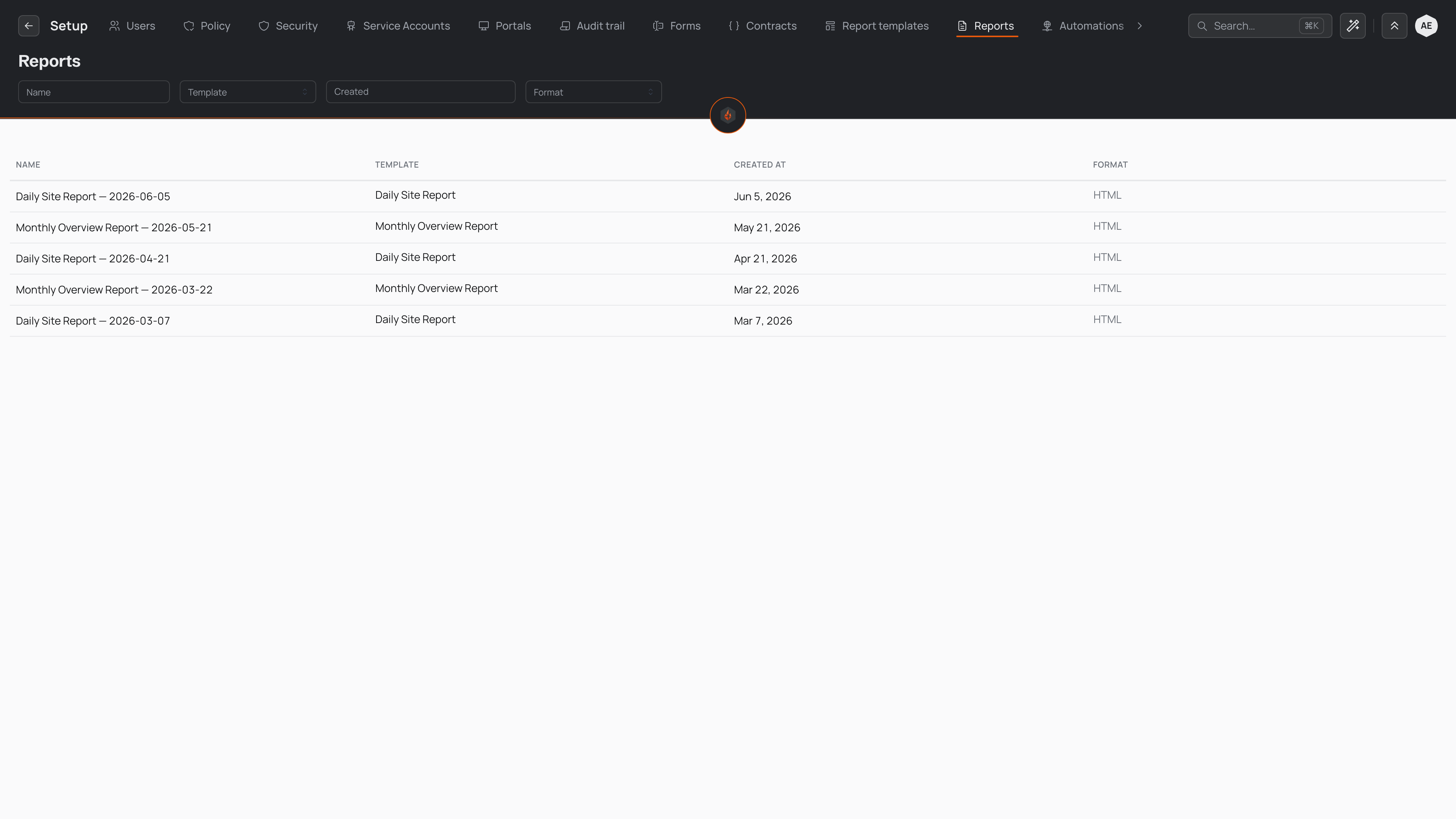
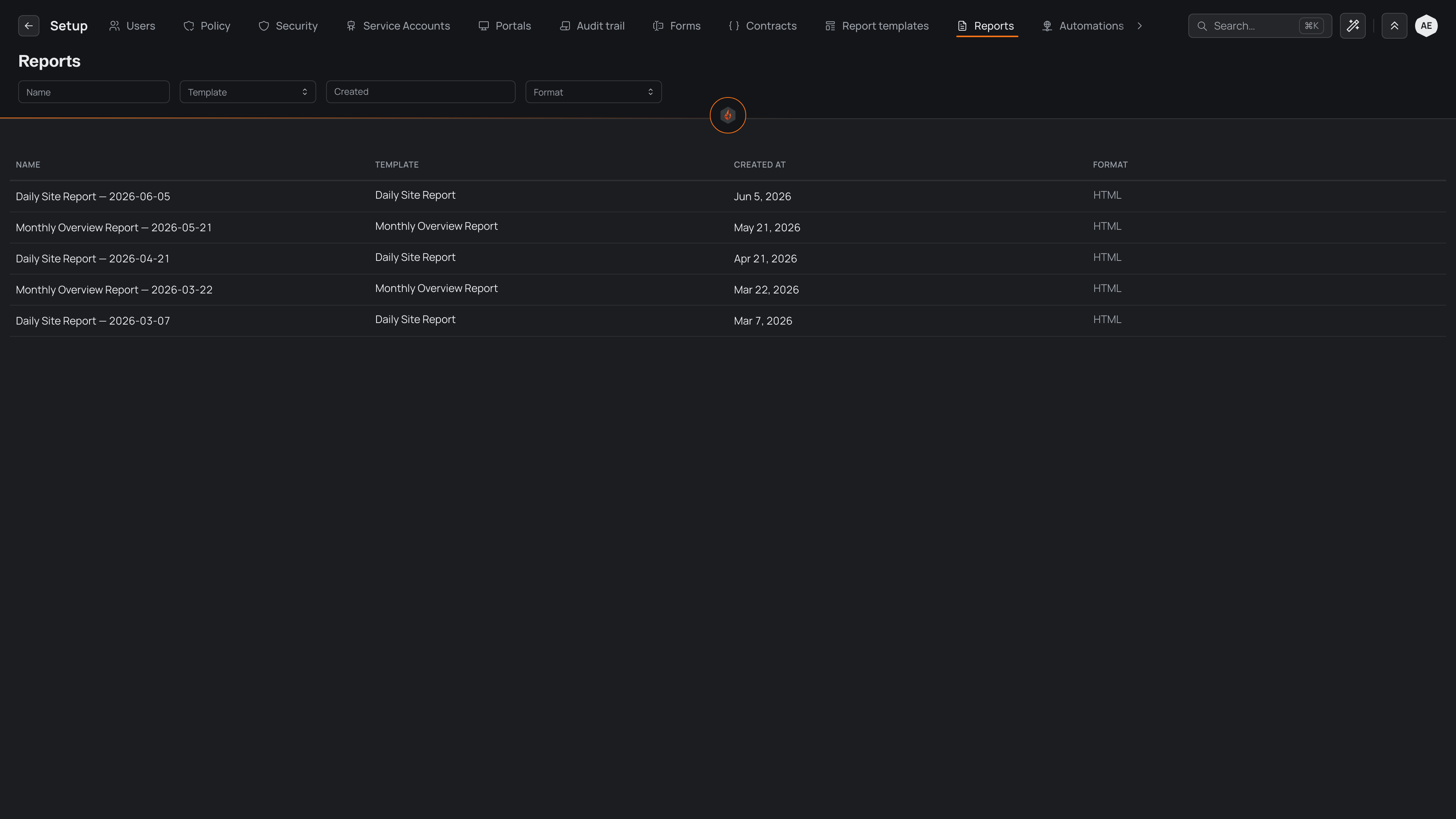
To set one up, describe it to the assistant on an automation, for example "when a site diary is submitted, make the daily site summary for that site and that day". Say which template to use and where its inputs come from. The automation can also name the report, such as "Daily site summary for Northgate, 3 March"; left without a name, a report takes its template's name.
When the automation runs, the report sits at the top of the Reports list. Select its row to open the finished document, as described in Browsing generated reports. If a run cannot make the report, for example because an input it needs is missing, no report is kept and the automation's run says why.
Who a report is made as
Every report is made as someone, and it shows exactly what that someone can see:
- A preview is made as you.
- A report an automation makes is made as the service account the automation runs as. No signed-in person is behind a scheduled or automatic run, so make sure that account's roles reach every part of the directory the report covers.
Each kept report records who it was made as, the inputs it was made with and the version of the template it came from. Change the template later and the reports already made stay exactly as they were.
For sending reports on a timetable, choosing recipients, and pausing or resuming a schedule, see Report schedules.