
Every report Pyron makes is kept, whether an automation made it when something happened or on a schedule. The reports list is where you find a past report, read it again and save a copy.
The reports list
Open Setup and select Reports. The page lists every generated report with the most recent at the top, and more load as you scroll down.
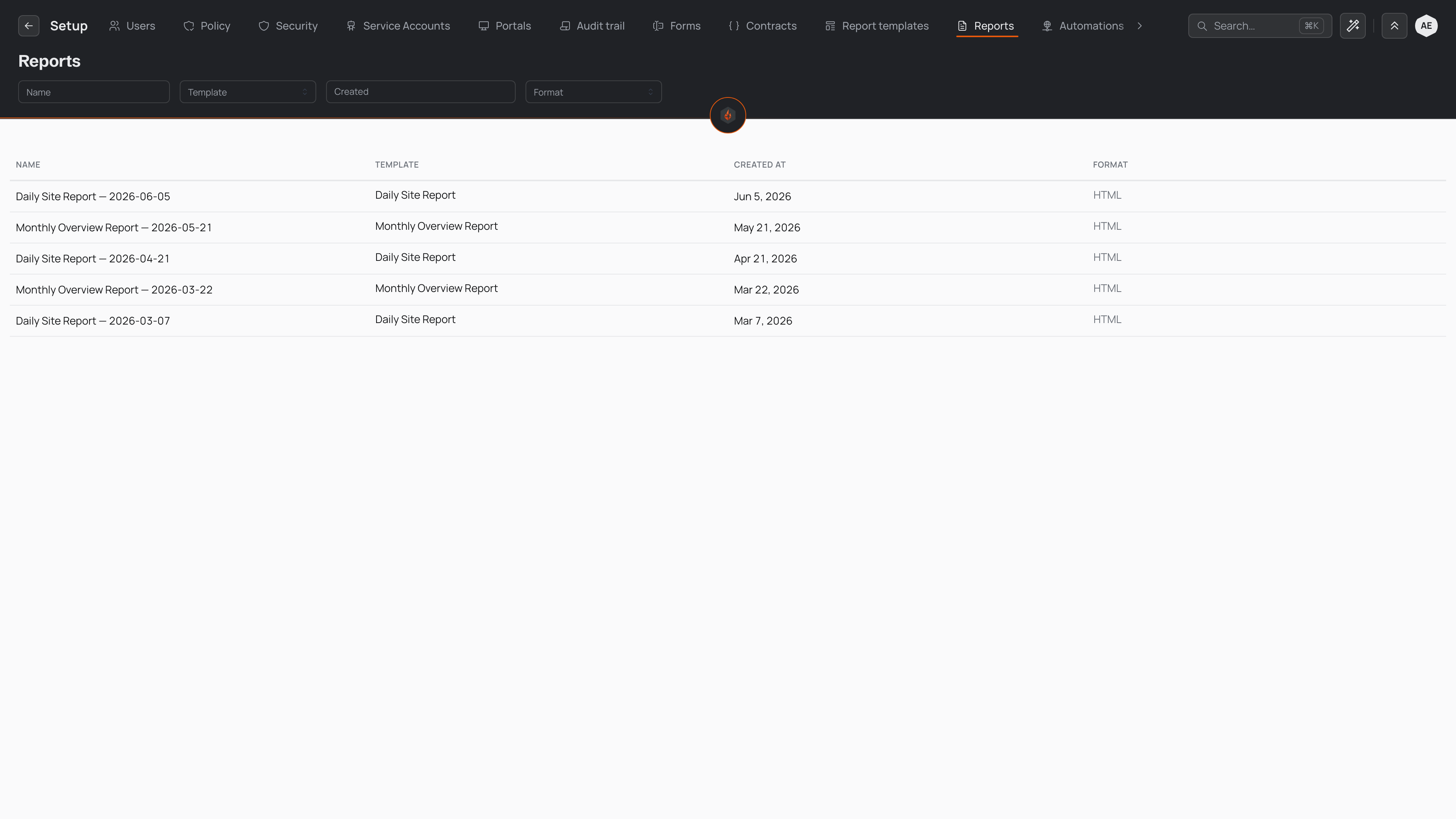
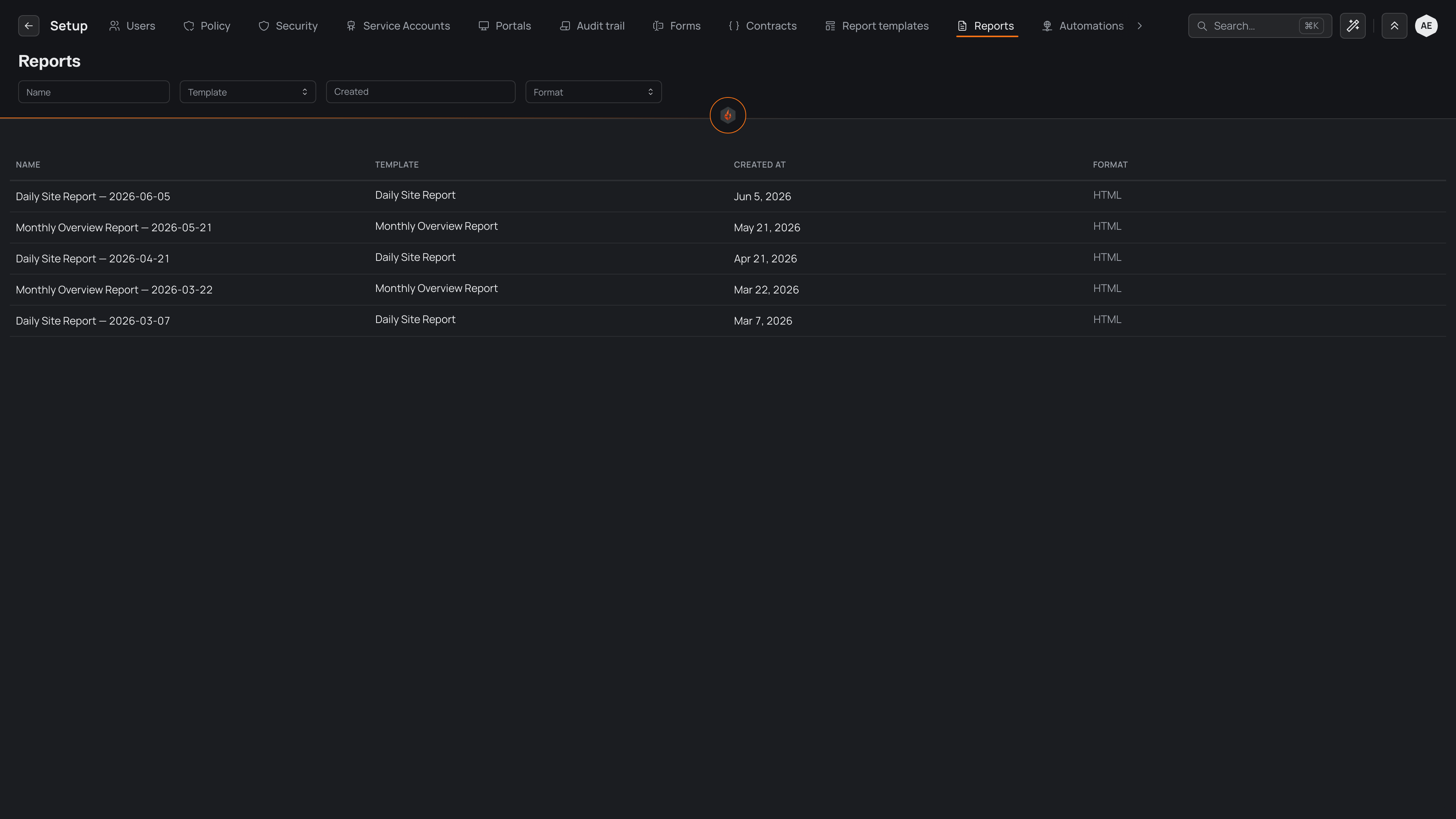
Each row shows four things:
A report captures your data as it stood when it was made, so it never changes afterwards. For how a fresh one gets made, see Previewing and generating and Report schedules.
Narrowing the list
The search box and the filters above the table work together, so each one you set narrows the list further:
- Search reports finds reports whose name, or whose template's name, contains the text you type. Capital letters do not matter.
- Template shows only the reports one template produced.
- Created opens a date picker. Pick a start and an end date to see reports generated on those days and every day between.
- Format shows only PDF reports or only HTML reports.
Clear a filter to widen the list again.
Opening a report
Select a row to open that report. It opens in a window over the list, titled with the report's name, and shows the finished document exactly as it was generated.
What you see depends on the report's format:
- An HTML report appears as a web page inside the window. Scroll within it to read the whole document.
- A PDF report opens in your browser's own PDF viewer. Use that viewer's controls to download the file, print it or zoom in.
Close the window to return to the list, with your filters still in place.