
A conditional question stays out of sight until an earlier answer calls for it. You attach follow-up questions to the options of a choice field, or to the Yes or No of a Yes / No field, so the person filling in the form sees only the questions that fit what they are logging.
How conditions work
Every condition starts from a field with fixed answers: a Choice field such as Type, which offers a list of options, or a Yes / No field such as Police attended. You pick one of its answers and attach follow-up questions to it. The answer and its follow-ups together make a branch.
As someone fills in the form, Pyron watches the answer to that field. When the answer matches one that has a branch, that branch's follow-ups appear directly under the field. Give a different answer and those questions disappear, and the branch for the new answer (if it has one) takes their place.
A few things follow from this:
- Required follow-ups apply only while they show. A follow-up can be required, but a hidden question never stops anyone from saving the entry.
- Hidden answers are not kept. If someone answers a follow-up and then changes the earlier answer, the hidden follow-up's answer is left out when the entry is saved.
- Follow-ups can branch too. A follow-up that is itself a choice field can carry branches of its own, so one answer can lead to a second question and that answer to a third.
- Tables follow the same rule. In a table of entries, a follow-up's column appears once you filter the triggering field to the option that reveals it. See filtering entries.
To see how a branch looks to the person answering it, see creating an entry.
Building a branch
Branches are built in the form builder, on the same screen you use to lay out the rest of the form. If you have not opened a form there before, start with building input forms.
- Open Forms in Setup and choose the form you want to change.
- Select the field that should trigger the follow-ups, such as Type. Its settings open on the right.
- Check that the field has a label and, for a Choice, the options you need. Follow-ups can be added only to a field that already has a label.
- In the field's settings, find the answer that should reveal the follow-up and select More fields beside it. A blank question is added under the field with its label ready to type.
- Type the follow-up's label and, in its settings, choose its type, as you would for any other field. The field types page covers each type.
- To add more questions to the same branch, choose Add field inside it.
- Choose Save to keep your changes, or Discard to drop them.
Each branch sits under its triggering field, headed by its rule in words — "Shown when Type is Issue" — and the field itself says which answers show more. Select a heading to fold the branch to the number of questions inside it, or choose Collapse all and Expand all to fold or open every branch at once. A long form opens with its branches folded.
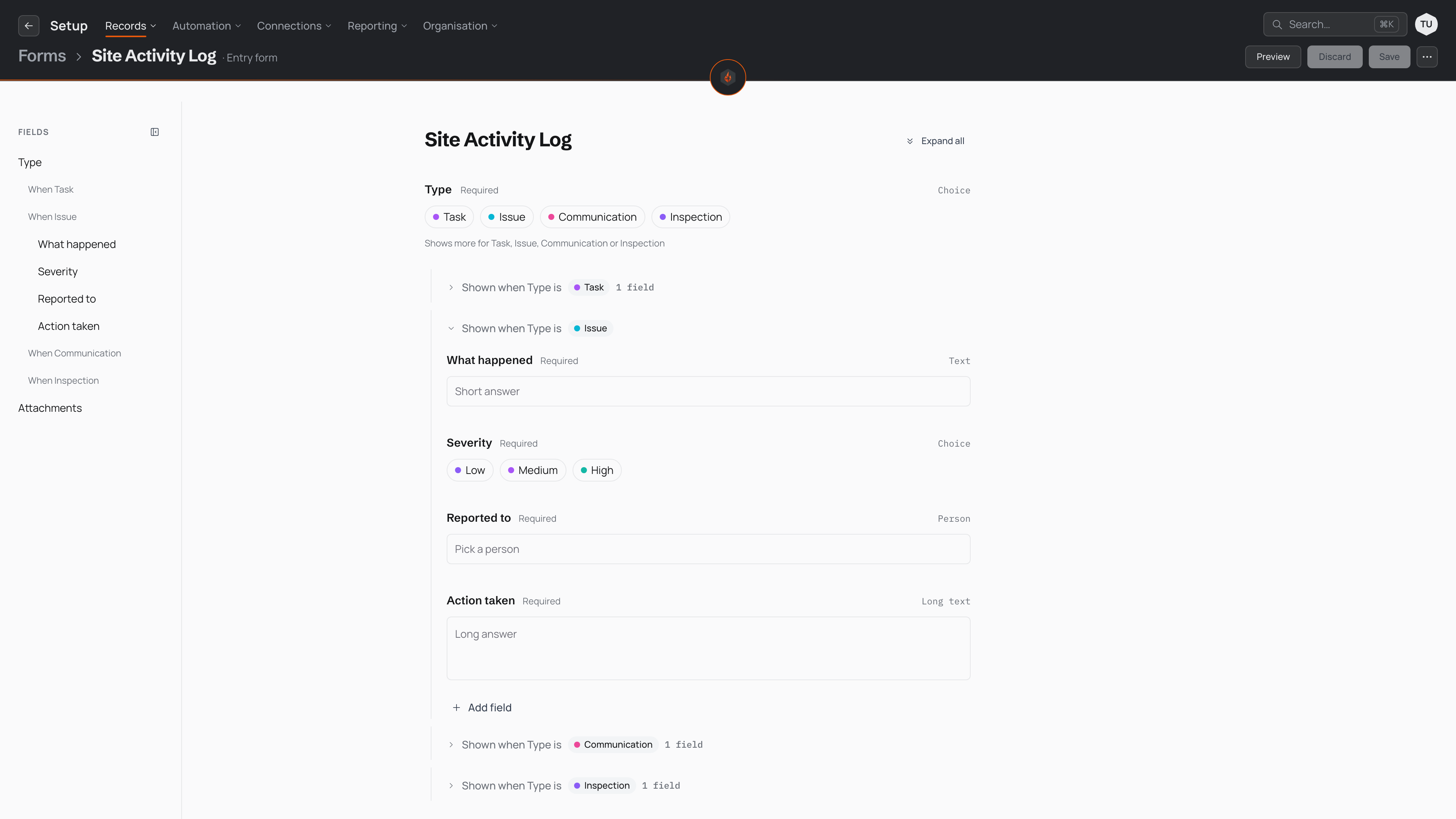
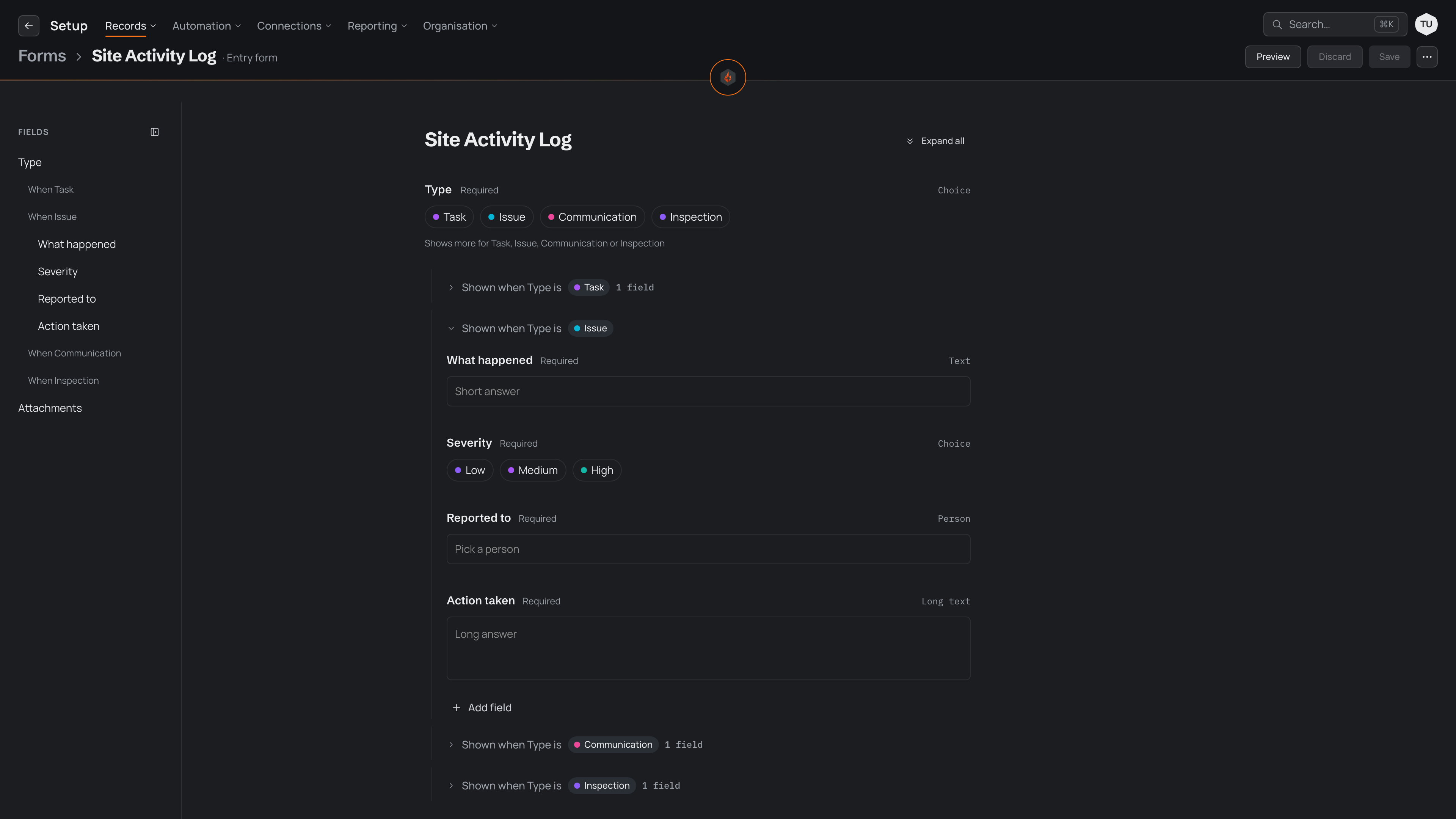
In the example above, choosing Issue as the Type reveals four follow-up questions, while each of the other three options reveals one. Attachments sits outside every branch, so it shows whatever the answer to Type is.
A few details are worth knowing as you work:
- You can drag questions to reorder them within a branch. A question belongs to one branch, so dragging never moves it into another.
- One branch can show for several options: open the branch's menu (⋯ beside its heading) and tick the other options under Shown for.
- Delete group in the same menu removes the branch and its questions. The option itself stays in the field's list.
Before you save, select Preview in the header and fill in the form as your team would. Pick each answer in turn and check that the right follow-ups appear and the others stay hidden.
Keeping branches shallow
Every level of branching is one more answer someone has to give before a question appears. A form with one or two levels stays easy to fill in, easy to read in the builder, and easy to check in Preview. Past that, people lose track of why a question appeared, and you lose track of which path leads where.
A few habits keep branches manageable:
- Ask the deciding question early. Put the choice field that splits the form near the top, so the rest of the form follows from it.
- Label options for the person answering. A branch is headed by its option, so a clear option label also makes the form readable in the builder.
- Share follow-ups instead of copying them. When several options need the same questions, build them once and share them between those options. A branch's own menu (⋯ beside its heading) offers Share as group, so other branches can Use a shared group, and a change to a shared group then applies everywhere it is used. A shared group cannot itself include another shared group.
- Split unrelated paths into separate forms. If two options lead to forms with almost nothing in common, two forms are usually clearer than one deep branch.
- Require only what the branch needs. A required follow-up blocks saving until it is answered, so reserve it for the questions that make the entry useful.
Deep branches also affect reporting. Because a follow-up's column appears in a table only once its triggering answer is filtered, a question buried three levels down is harder to find when someone reviews the entries later.