
An automation is built on a canvas as a flow graph: steps that each do one job, joined by connections that carry values from one step to the next. You lay out the steps, wire them together, try the flow with a dry run, and switch it on when it is ready.
The editor
Automations live in Setup. Open Setup, choose Automations, and open an automation from the list to bring up its editor. Back to Automations returns you to the list.
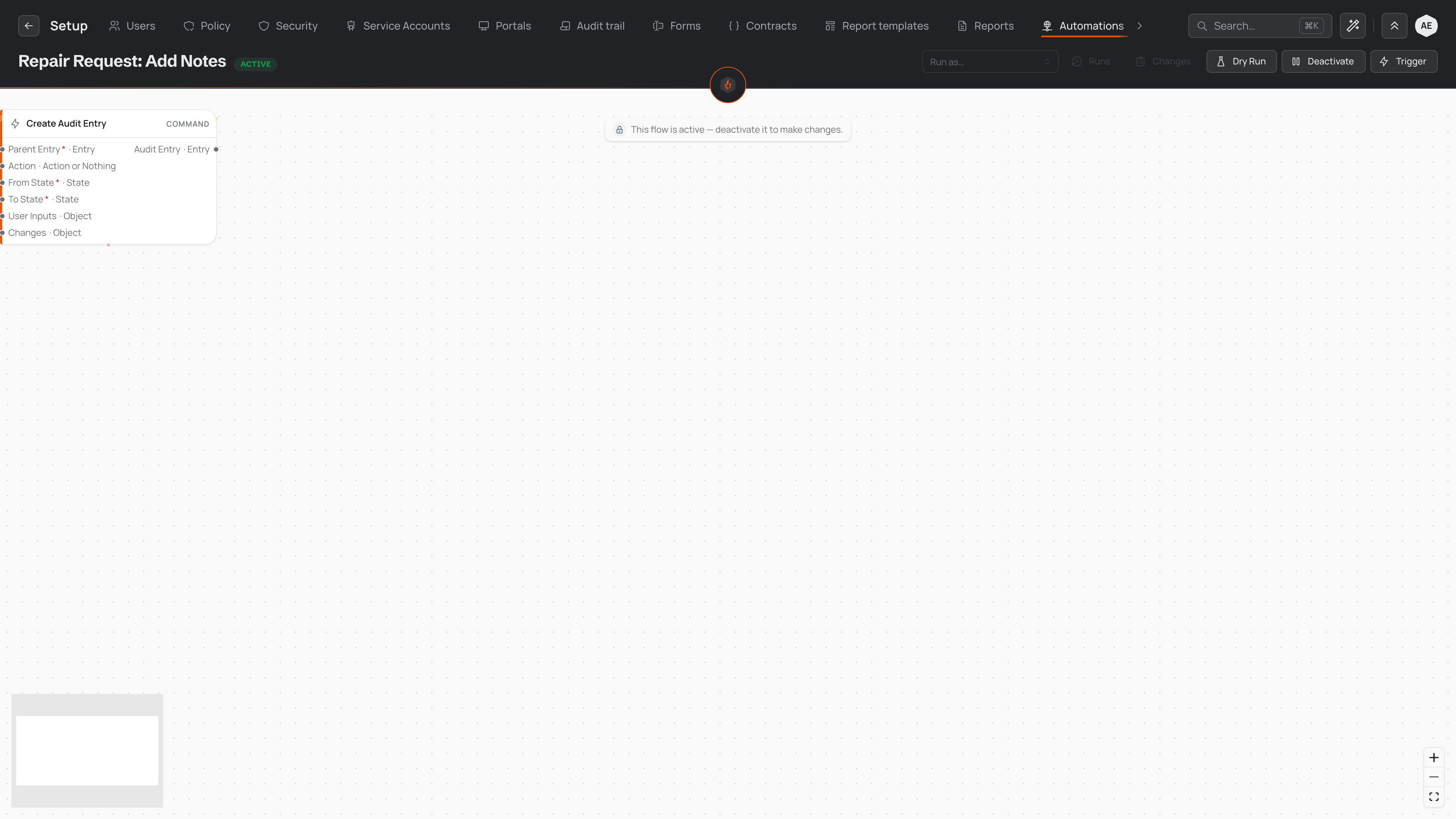
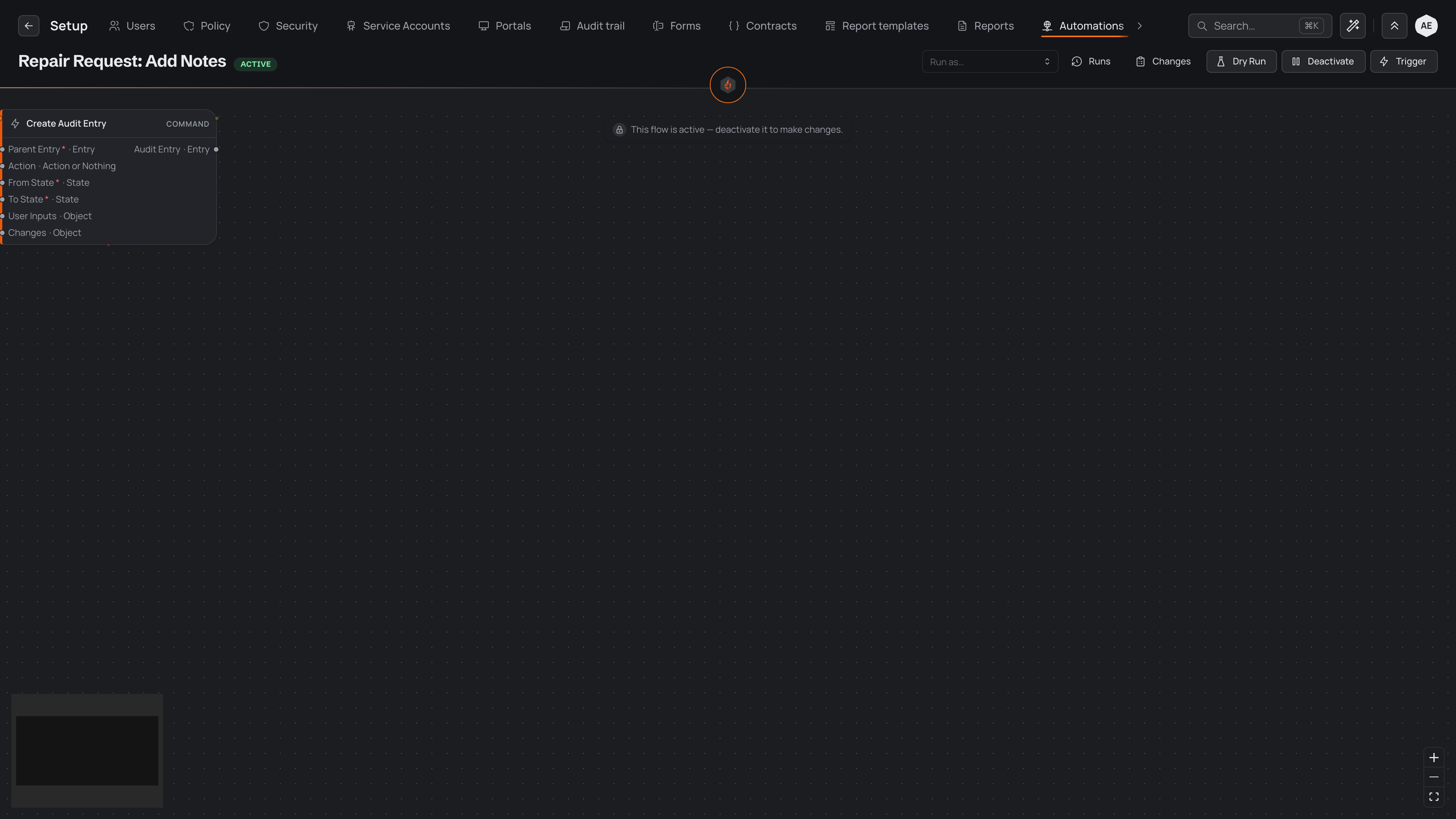
The header shows the automation's name and its status. A draft is still being built, an automation marked ACTIVE is switched on and running, and a paused one keeps all its steps but does not fire. Under the name, Editor and Run history switch between the canvas and the automation's run history. Beside the status sit the controls for the automation as a whole:
- Run as… picks the service account the automation acts as on every run. That account's roles set how far its steps can reach, whoever set the run off.
- Changes shows a timeline of the edits made to the automation, including edits made through the assistant.
- Dry run, Activate (Deactivate once it is on) and Trigger try out, switch on, pause and run the automation; see Activating.
- The actions menu at the end of the header deletes the automation. Pyron asks you to confirm, naming it.
While the automation is not switched on, the header also lets you undo and redo your edits, tidy the layout automatically, and save or discard them. Save and Discard become available as soon as you change something: Discard puts the canvas back the way it was last saved, and undo brings your edits back if you change your mind. Pyron asks before you leave the editor, or switch to its run history, with changes you haven't saved.
Reading the canvas
Each box on the canvas is a step. Its name heads the box, with the kind of step beside it, such as COMMAND. A short sentence above the box says what the step does in plain words, naming the values it uses, so you can follow the flow without opening every step.
Flows read left to right. A step's inputs sit on its left edge and its outputs on its right, each with the kind of value it carries — an Entry, a State, an Object. An asterisk marks an input the step needs before it can run.
The Parameters step holds the values the automation starts with: whatever its trigger hands over. For an automation set off by a lifecycle action, that is the entry, the action that was taken, anything the person filled in, and who took the action. Other steps connect to these values like any other output.
Use Zoom In, Zoom Out and Fit View to move around a large flow, or drag the empty canvas to pan. The small map of the whole flow shows which part you are looking at.
You can also open the assistant from the header and describe the change you want in words. The assistant drafts the flow, and nothing on the canvas changes until you apply its draft and save. See The AI assistant.
Adding steps
While the automation is not switched on, a panel beside the canvas lists every step you can add, grouped by family. Search it by name, and hover over a step to read what it does. For what each family is for, see The building blocks; for every step in one place, see the Automation steps catalog.
There are four ways to add a step:
- Drag it from the panel onto the canvas, where you want it to sit.
- Click it in the panel to place it in the middle of the view. Clicking more steps fans them out so they don't stack on top of each other.
- Right-click an empty part of the canvas to add a step at that spot.
- Hover over a connection and use its insert control to put a step between two connected steps. Pyron wires the new step in for you.
On an empty canvas, start with a step that pulls in the data you need, or with the automation's starting values, then chain steps to the right of it.
Setting up a step
Click a step to select it. To open its settings, double-click it, or select it and press Enter. The settings open in a panel beside the canvas, so the flow stays in view while you work.
At the head of the settings is the step's name. Give each step a name that says what it does in your organisation's terms: the name appears on the canvas and in problem messages. Clear the name to go back to the step's default.
Below the name, each input either takes a value you type in or is connected from another step's output. A separate testing view holds sample values for a dry run, covered under Activating.
Right-click a step for its other options: set it up, rename it, duplicate it, run it on its own, or delete it.
Arranging and removing steps
Drag steps to arrange them; guides appear to help you line them up. To tidy the whole flow at once, use the automatic layout in the header. Selected steps can be copied, pasted and duplicated, along with the connections between them.
To remove a step, select it and press Delete. There is no confirmation, because undo brings it back. If exactly one step fed the step you removed, Pyron reconnects that step to whatever came after, wherever the values still fit, so the rest of the flow stays joined up.
From the keyboard, move to a step, press Enter or Space to select it, then use the arrow keys to move it. Press Delete to remove it, or Escape to cancel.
Connecting the flow
A connection carries a value from one step's output into another step's input. To make one, drag from an output to the input you want to feed. The connection draws as an arrow in the direction the value travels.
An output can feed as many inputs as you like, but each input takes one connection. An input that isn't connected takes a value you type into the step's settings instead.
Pyron checks each connection as you draw it. When it can't be made, the connection is refused and a short message says why:
- The output carries a different kind of value from the one the input expects.
- The input already has a connection, or already has a value typed in. Disconnect it or clear the value first.
- The input is a setting that has to be typed in directly rather than fed from another step.
- The connection would feed a step back into itself.
To change a connection, drag its arrowhead to a different input, or drop it on an empty part of the canvas to remove it. Hovering over a connection also shows controls to delete it or to insert a step into it. From the keyboard, select a connection with Enter or Space, then press Delete to remove it or Escape to cancel.
Fixing problems as you build
While you build, Pyron checks the whole flow the same way it does before switching it on. Any problems appear in a list above the canvas, each naming the step it belongs to; select one to jump to that step. Steps with a problem also carry a warning marker, and hovering over it explains the problem in place.
Problems don't stop you saving a draft, so you can build in several sittings. They do have to be fixed before the automation can be switched on.
Activating
An automation does nothing until it is switched on. Before you switch it on, try it with a dry run, so you can see what each step produces without anything real happening.
Trying it with a dry run
Dry run saves your changes, then runs the flow with every step that would send something or change data replaced by a stand-in. No emails go out and nothing is written. If the automation needs starting values, a form asks for them first.
When the dry run finishes, open a step's settings and switch to its testing view to see what it produced. For a step that the dry run replaces, you can enter a sample result in its testing view, so the steps after it have realistic values to work with.
Switching it on
- Fix any problems in the list above the canvas.
- If the automation starts on its own — on a schedule, on an event, or from an incoming web request — and its steps change data or read entries from your directory, choose an account in Run as…. Pyron refuses to switch such an automation on without one.
- Activate the automation from the header. Pyron saves your changes, checks the whole flow, and switches it on.
If the check finds a problem, the automation stays off and the problems are listed above the canvas, each linked to its step.
Once it is switched on, the status reads ACTIVE and the trigger starts listening. Each run uses the flow exactly as it was when you switched it on. The canvas locks, with the note "This flow is active — deactivate it to make changes.", and Run as… can't be changed either.
To run the automation straight away rather than waiting for its trigger, select Trigger. If the automation takes values a person fills in, a form asks for them first. Open Runs afterwards to see how the run went; see Run history.
Changing an automation that is switched on
- Select Deactivate. The automation pauses: it stops firing, and keeps its steps and its trigger settings.
- Make your changes and save them.
- Try the changes with a dry run.
- Activate the automation again.