
Every time an automation fires, Pyron keeps a run: when it started, how it ended, what each step produced and any errors on the way. The run history is where you confirm an automation did what you expected, and where you start when it did not.
The runs list
Each automation has its own run history. Open Setup, select Automations, open the actions menu on the automation's row and choose Run history. You can also reach it from the automation's editor while you are building it: Run history sits beside Editor under the automation's name. The page heading names the automation, and Back to Automations returns you to the full list.
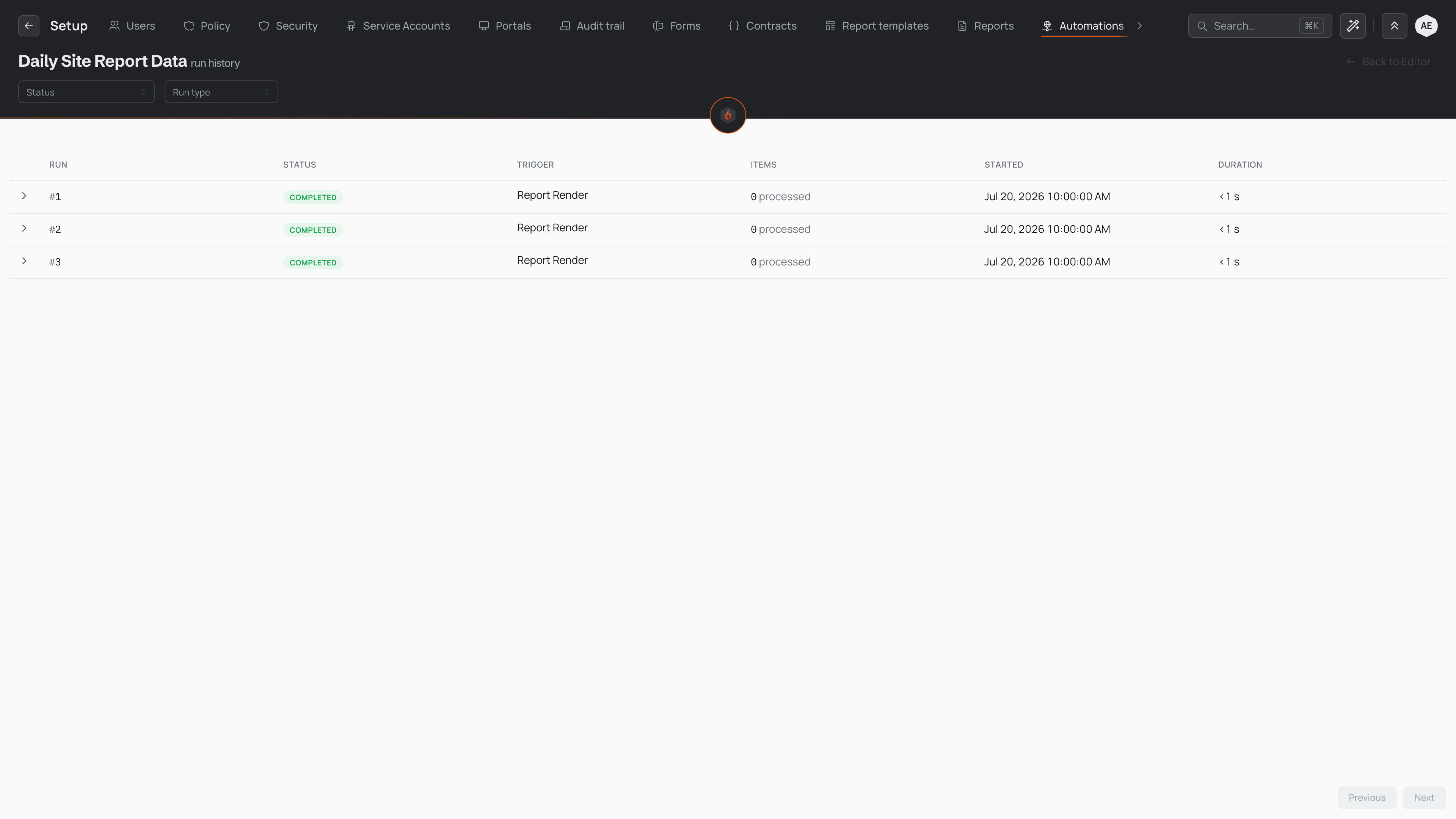
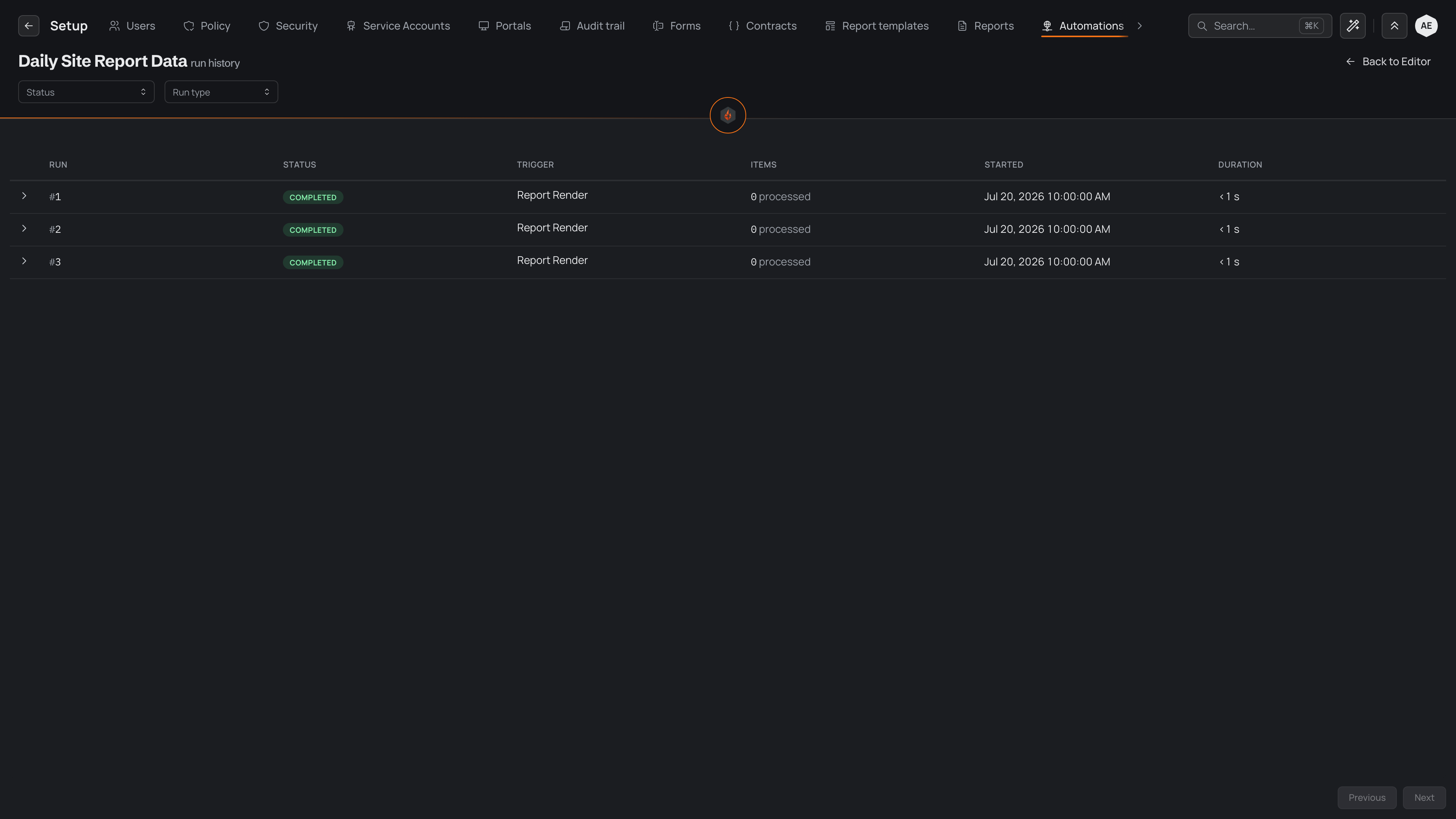
Runs are listed with the most recent at the top, one row per run:
For what can start an automation, see Triggers and schedules.
Narrowing the list
The two filters above the table work together:
- Status shows only the runs in one status, such as the ones that failed.
- Run type shows only dry runs or only real runs.
The search box finds runs by the words in their error. More runs load as you scroll down the list.
While any run in the list is still waiting to start or in progress, the list refreshes itself every few seconds, so you can watch a run finish without reloading the page.
Run details can include the contents of entries, so seeing a run history depends on your role. If you cannot open it, ask an administrator about your role's permissions.
Reading a run
Select a run's row, or the arrow at the start of it, to open that run's details below it. Select it again to close them. The details show up to three things:
- The error. If the run hit a problem, its first error message appears at the top in red.
- What each step produced. Outputs are grouped by step. Under each step, every value it passed on is listed by name, so you can follow the data from one step to the next and spot where it stopped looking right. Short values show as plain text and lists or groups of values show in a formatted block.
- The error log. Each problem the run met, marked as a warning or an error, with its message, the step it came from and the time it happened.
A run follows the automation exactly as it was when the run started. Edits you make in the editor afterwards apply to later runs, and never change a run that is in progress or one that has finished.
What each status means
Dry runs
A dry run is a test you start from the editor to try an automation without side effects. Steps that change things, such as sending an email, creating an entry or generating a report, are not carried out. Pyron fills in sample values for their outputs so the rest of the automation can still run. Steps that only read data run for real, so their outputs show what your data looks like today.
Dry runs appear in the run history alongside real ones, and their trigger shows they were dry runs. Pyron keeps only the ten most recent dry runs for each automation. Use Run type to hide them when you only want to see what really happened.
Retries and failures
A run that fails tells you two things: which step failed, and whether anything was set up to catch it. The error log answers both.
When a step tries again by itself
Some steps try again automatically when they hit a temporary problem, such as a dropped connection or another service saying it is busy. They wait a little between attempts, and if the other service says how long to wait, they wait at least that long. These attempts happen inside the same run, so they never add extra rows to the list.
A step whose effect could double up if it ran twice is not repeated. Pyron refuses to turn on an automation that asks such a step to try again, so a retry cannot, for example, create the same entry twice.
If Pyron cannot start a scheduled or event-triggered run straight away, it holds on to the run and tries to start it again shortly. A brief interruption delays the run rather than losing it.
When a step gives up
Once a step has failed and has no attempts left, what happens next depends on how the automation is built:
Inside a step that works through a list, a failing item does not stop the others. Pyron logs the item's error, counts it as failed and moves on to the next item. For the steps that catch and handle errors, see The building blocks.
If a run stops responding part way through, for example because the server running it went down, Pyron marks it as failed so it does not sit in the list as running forever.
Trying again
Pyron does not run a failed run again by itself. Once you have found and fixed the cause, a fresh run gets its own number, and the failed one stays in the list as it was.
- Expand the failed run and read the error and the error log to find the step that failed and why.
- Switch to the Editor tab and fix that step, or the data or connection it depends on.
- Run a dry run from the editor to check the fix.
- Let the automation's trigger fire again, or run it by hand, and check the new run in this list.