
A lifecycle is the path an entry follows through your process. You build it from three pieces: the states an entry can sit in, the actions people take, and the transitions that say which action moves an entry from one state to the next.
The lifecycles workspace
Lifecycles live in Setup. Open Setup and choose Lifecycles. The list shows every lifecycle your organisation has, with its states in order; select one to open it on its own page.
To start a lifecycle, select New lifecycle at the top of the page. Give it a name and, if you like, a short description of what it tracks, then create it. The new lifecycle opens, empty and ready for its first state.
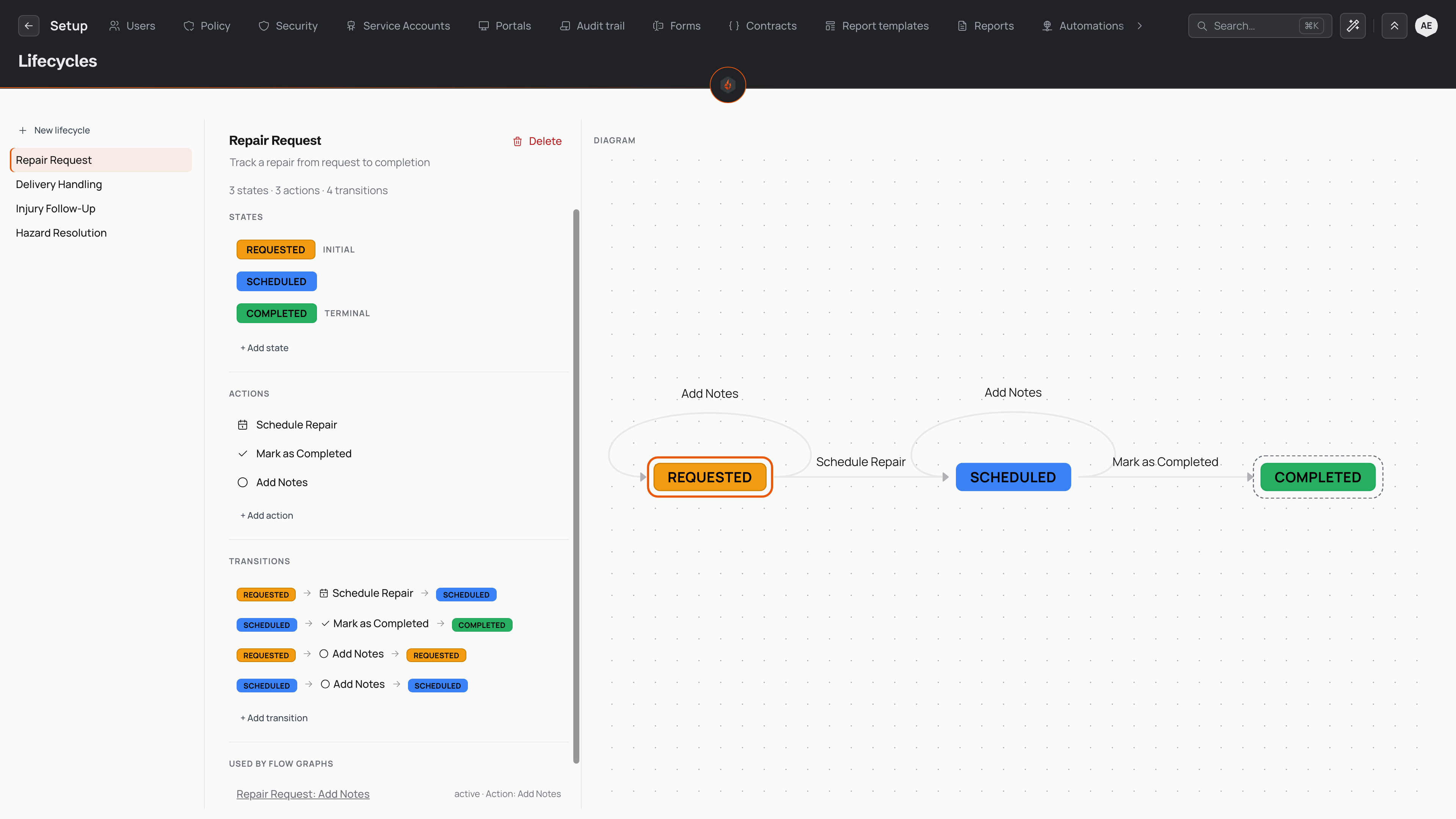
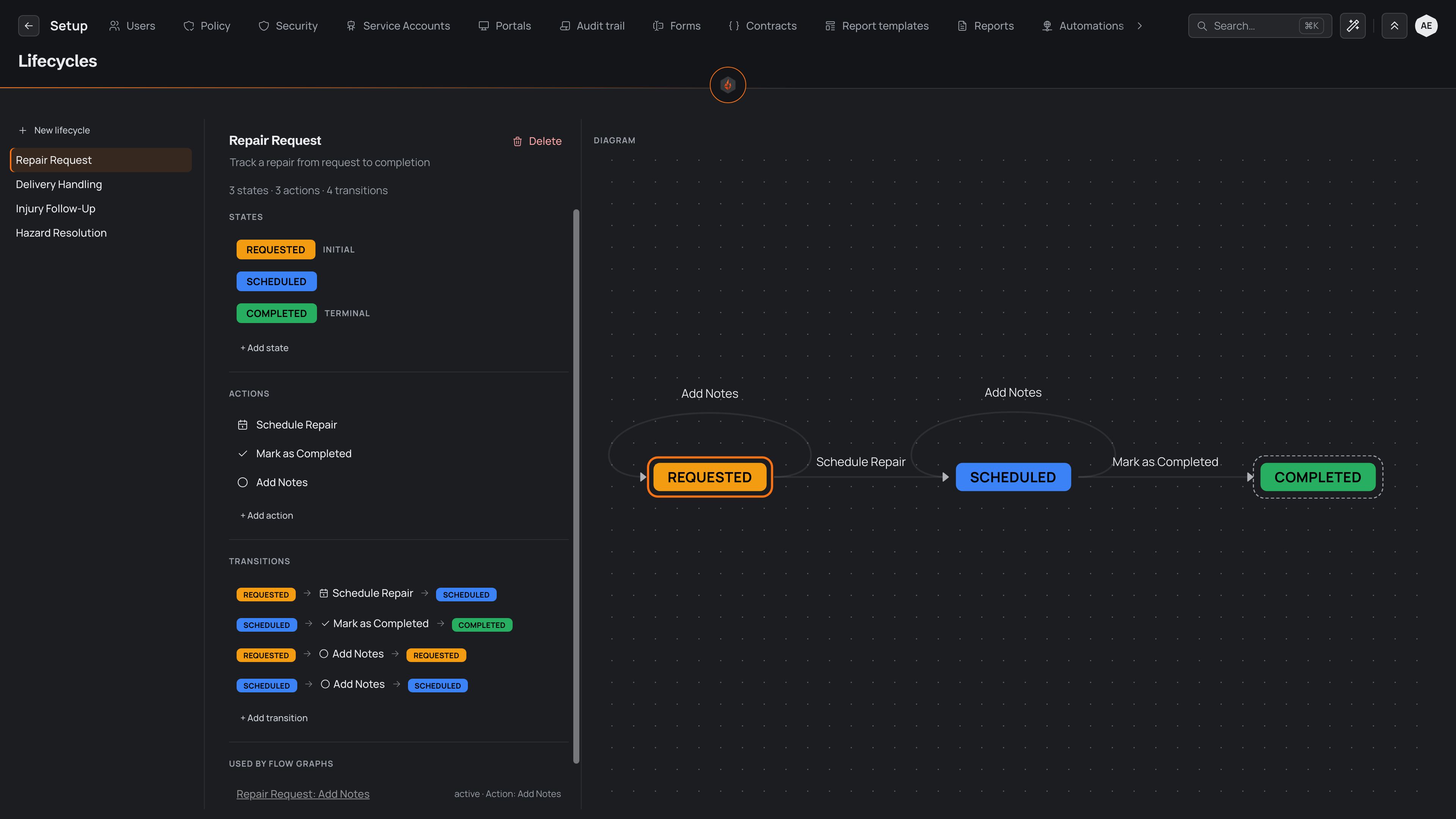
A lifecycle's page shows its name at the top, with a count of its states, actions and transitions beside it. Use Rename lifecycle to change the name, and type straight into the description under it to change what it says. Below that, the lifecycle is laid out in the order you build it: states, then actions, then transitions.
Every change saves as you make it, so there is no save step; the status at the top of the page says when your edits are saved. The diagram beside the editor redraws as you go, and gives you a quick check that the path looks the way your process runs:
- The initial state carries a ring around it.
- States where the lifecycle ends have a dashed outline.
- An action that keeps an entry in the same state, such as Add Notes, loops back over its state.
On a narrower screen, the diagram folds away above the editor; open it when you want to check your work.
States and colours
States are the places an entry can sit, such as Requested, Scheduled and Completed. Name them the way your team talks about the work, because that name appears on every entry's badge.
To add a state:
- Select Add status.
- Type the state's name. Each state in a lifecycle needs its own name.
- Choose a colour from the swatches, or enter your own.
- Add the state. It joins the end of the list.
The colour fills the state's badge wherever an entry appears, so people read status from colour before they read the words. Give each state a colour that is clearly different from its neighbours, and keep a pattern across lifecycles where you can — for example, amber for waiting, blue for under way and green for done.
Each state's ⋯ menu holds its controls:
- Move up and Move down move the state through the list. Put states in the order your process runs, because that order carries through wherever states are shown side by side, such as the columns of a board.
- Set as initial status makes this the state every entry starts in when the lifecycle is attached. The initial state is marked Starts here.
- Delete removes the state after you confirm. Any transitions into or out of it go with it.
Actions and transitions
Actions are the named steps people take, such as Schedule Repair or Mark as Completed. Transitions connect them to your states: each one says that, from a given state, an action moves the entry to another state.
Adding actions
- Select Add action.
- Pick an icon, then type the action's name.
- Add the action.
In a table of entries, an action shows as its icon, with its name and destination when someone hovers over it. Pick an icon people can recognise without reading.
On its own, an action moves the entry and records the change in the entry's history. To have an action do more — ask for a note, update a field or tell someone — connect an automation to it; see triggers and schedules.
Adding transitions
Transitions need at least two states, so add your states first.
- Select Add transition.
- Choose the state the entry moves from.
- Choose the action that moves it.
- Choose the state the entry moves to.
- Add the transition.
A few rules shape how transitions fit together:
- From any one state, an action leads to exactly one destination.
- The same action can lead out of several states. In the Repair Request example, Add Notes works from both Requested and Scheduled.
- A transition can lead back to the state it starts from. Use this for an action that records something without moving the entry on, such as adding a note.
- An action only appears beside an entry when the entry sits in a state the action leads out of. An action with no transitions never appears anywhere, so give every action at least one.
You can also leave the action empty. That creates a free move: the move from one state to the other is allowed, but there is no button for it. Use it when people move entries directly, such as dragging a card between columns on a board, and the move needs no action of its own. The diagram draws a free move as a dashed line.
To remove a transition, open its ⋯ menu and select Delete. Deleting an action also removes every transition that uses it.
Two endings are fine
A state with no transitions leading out of it is an ending. Its Finished switch is on and can't be turned off: there is no way out, so it's finished. Once an entry reaches an ending, there is nothing left to do, and a place's In progress no longer counts it.
Many processes finish in more than one way. A repair is completed or cancelled; a delivery is accepted or returned. Give each outcome its own ending rather than one shared closing state, so the badge tells people how the work finished, not only that it did.
To add a second ending to the Repair Request example:
- Add a Cancelled state with its own colour.
- Add a Cancel action.
- Add a transition from Requested, through Cancel, to Cancelled, and another from Scheduled, through Cancel, to Cancelled.
Completed and Cancelled are both finished, and an entry can finish in either.
A finished state you can reopen
A state you add a way out of, such as a Reopen action, is no longer an ending, and so is a state whose only way out is a free move. If entries there are still done — a Closed incident that can be reopened — turn on its Finished switch. A place's In progress then leaves those entries out, while the Reopen action still works. Leave the switch off for a state that waits on someone, such as Follow-up needed, even when its only way out goes back.
Check the Finished switches once your transitions are in place. A state that is finished but should lead somewhere is missing a transition out of it. A lifecycle with no ending at all is fine too, when entries keep moving between states for as long as they exist.
When the lifecycle is ready, set up the rule that gives it to new entries — see attaching lifecycles automatically. For how your team works through it day to day, see working a lifecycle.